'%20d='M35.1527%2028.5549L35.1527%2069L17.6979%2069L17.6979%2028.5549L-0.162012%2028.5549L-0.162012%2014.6489L52.9354%2014.6489L52.9354%2028.5549L35.1527%2028.5549ZM108.55%2031.313Q108.55%2036.2891%20105.85%2040.3201Q103.169%2044.3511%2098.0385%2046.2412L110.132%2069L90.5358%2069L80.8923%2049.1729L74.4118%2049.1729L74.4118%2069L56.957%2069L56.957%2014.6489L90.2272%2014.6489Q96.0712%2014.6489%20100.218%2016.9055Q104.365%2019.1428%20106.448%2022.981Q108.55%2026.8191%20108.55%2031.313ZM90.7673%2032.0266Q90.7673%2029.8857%2089.34%2028.4778Q87.9321%2027.0505%2085.8684%2027.0505L74.4118%2027.0505L74.4118%2037.0798L85.8684%2037.0798Q87.9321%2037.0798%2089.34%2035.6333Q90.7673%2034.1675%2090.7673%2032.0266ZM150.883%2069L148.607%2061.343L129.551%2061.343L127.276%2069L109.416%2069L129.243%2014.6489L149.552%2014.6489L169.379%2069L150.883%2069ZM133.197%2049.1729L144.962%2049.1729L139.272%2029.8086L138.964%2029.8086L133.197%2049.1729ZM210.844%2069L188.028%2042.6152L188.028%2069L171.981%2069L171.981%2014.6489L187.237%2014.6489L210.054%2041.4194L210.054%2014.6489L226.101%2014.6489L226.101%2069L210.844%2069ZM256.674%2013.7039Q267.108%2013.7039%20273.82%2017.9277Q280.532%2022.1516%20280.686%2030.4451L280.686%2031.3901L264.331%2031.3901L264.331%2031.0815Q264.331%2028.7092%20262.595%2027.1277Q260.859%2025.5461%20257.31%2025.5461Q253.819%2025.5461%20251.968%2026.5876Q250.116%2027.6099%20250.116%2029.1143Q250.116%2031.2358%20252.643%2032.2773Q255.169%2033.2996%20260.782%2034.3989Q267.34%2035.749%20271.564%2037.2148Q275.787%2038.6614%20278.951%2041.9788Q282.114%2045.2961%20282.191%2050.9858Q282.191%2060.6294%20275.672%2065.2969Q269.153%2069.9451%20258.255%2069.9451Q245.526%2069.9451%20238.448%2065.6826Q231.388%2061.4202%20231.388%2050.6001L247.898%2050.6001Q247.898%2054.7083%20250.02%2056.0969Q252.161%2057.4663%20256.674%2057.4663Q259.991%2057.4663%20262.151%2056.7527Q264.331%2056.0391%20264.331%2053.8403Q264.331%2051.8538%20261.92%2050.8701Q259.509%2049.8865%20254.07%2048.7678Q247.435%2047.3599%20243.076%2045.8169Q238.737%2044.2739%20235.497%2040.7251Q232.256%2037.157%20232.256%2031.0815Q232.256%2022.1516%20239.161%2017.9277Q246.085%2013.7039%20256.674%2013.7039ZM312.848%2013.7039Q324.922%2013.7039%20331.942%2019.7407Q338.982%2025.7776%20338.982%2037.0027L322.318%2037.0027Q322.318%2032.2581%20319.83%2029.5Q317.342%2026.7419%20312.751%2026.7419Q307.467%2026.7419%20304.979%2030.0593Q302.491%2033.3767%20302.491%2039.2979L302.491%2044.3511Q302.491%2050.1951%20304.979%2053.551Q307.467%2056.907%20312.597%2056.907Q317.65%2056.907%20320.254%2054.3032Q322.877%2051.6995%20322.877%2046.9548L338.982%2046.9548Q338.982%2058.1028%20332.154%2064.0239Q325.327%2069.9451%20312.848%2069.9451Q298.942%2069.9451%20291.786%2062.8474Q284.631%2055.7305%20284.631%2041.8245Q284.631%2027.9185%20291.786%2020.8208Q298.942%2013.7039%20312.848%2013.7039ZM396.031%2031.313Q396.031%2036.2891%20393.331%2040.3201Q390.65%2044.3511%20385.519%2046.2412L397.612%2069L378.017%2069L368.373%2049.1729L361.893%2049.1729L361.893%2069L344.438%2069L344.438%2014.6489L377.708%2014.6489Q383.552%2014.6489%20387.699%2016.9055Q391.846%2019.1428%20393.929%2022.981Q396.031%2026.8191%20396.031%2031.313ZM378.248%2032.0266Q378.248%2029.8857%20376.821%2028.4778Q375.413%2027.0505%20373.349%2027.0505L361.893%2027.0505L361.893%2037.0798L373.349%2037.0798Q375.413%2037.0798%20376.821%2035.6333Q378.248%2034.1675%20378.248%2032.0266ZM402.741%2069L402.741%2014.6489L420.195%2014.6489L420.195%2069L402.741%2069ZM459.224%2014.6489Q464.277%2014.6489%20468.231%2016.9827Q472.185%2019.3164%20474.383%2023.386Q476.602%2027.4556%20476.602%2032.5088L476.602%2033.531Q476.602%2038.5842%20474.383%2042.6924Q472.185%2046.8005%20468.231%2049.1343Q464.277%2051.468%20459.224%2051.468L446.186%2051.468L446.186%2069L428.731%2069L428.731%2014.6489L459.224%2014.6489ZM446.186%2038.7385L453.38%2038.7385Q456.138%2038.7385%20457.527%2037.3306Q458.915%2035.9033%20458.915%2033.4539L458.915%2032.8174Q458.915%2030.2908%20457.527%2028.9214Q456.138%2027.5327%20453.38%2027.5327L446.186%2027.5327L446.186%2038.7385ZM513.103%2028.5549L513.103%2069L495.648%2069L495.648%2028.5549L477.788%2028.5549L477.788%2014.6489L530.885%2014.6489L530.885%2028.5549L513.103%2028.5549Z'/%3e%3c/svg%3e)

There are a hundred reasons to want a YouTube video as text. You need to quote it accurately, pull notes from a lecture, search for a specific point without scrubbing the timeline, translate it, feed it to an AI, or repurpose it into something else. Watching and pausing and rewinding is slow. Text is fast.
The good news: getting a clean transcript from a YouTube video takes seconds, and for most videos it's completely free. This guide covers every method, from YouTube's own hidden transcript panel to one-click tools, so you can pick the one that fits.
Why Turn a YouTube Video Into Text?
Before the how, a quick word on the why, because the use case usually decides the best method:
- Research and notes. Skim a 40-minute talk in two minutes and copy only the parts you need.
- Quoting accurately. Get the exact wording instead of paraphrasing from memory.
- Accessibility. A transcript helps anyone who can't or doesn't want to listen.
- Search. Find where a topic comes up using Ctrl+F instead of dragging the scrubber.
- Repurposing. A transcript is the raw material for summaries, blog posts, and social content.
- Feeding AI. Language models work on text, so a transcript is the bridge between a video and ChatGPT or Claude.
Method 1: YouTube's Built-In Transcript
YouTube has a transcript panel built right into the desktop site. Most people never notice it.
- Open the video on desktop
- Click the three-dot menu below the video (next to Save), or expand the description
- Click "Show transcript"
- A panel opens on the right with the timestamped text
- You can toggle timestamps off, then select and copy the text
Pros: Free, no tools, no signup.
Cons: Only works when the video has captions, the copy includes awkward line breaks, auto-captions have no punctuation, and you can't export to SRT or other formats. It's fine for a quick grab, frustrating for anything serious.
Method 2: Paste the URL Into a Transcript Tool
This is the method most people land on once the built-in panel annoys them enough. Instead of wrestling with YouTube's UI, you paste the video link into a dedicated tool and get clean, formatted text back.
- Copy the YouTube URL (from the address bar or the Share button)
- Paste it into a transcript tool like Transcript Guru
- The transcript appears in a few seconds, with timestamps you can keep or strip
- Copy it, or download it in the format you need
The advantage over YouTube's panel is formatting and export. You get readable paragraphs instead of one timestamp per line, and you can download the result as TXT, SRT, VTT, and more. On Transcript Guru, pulling the caption transcript and downloading it is free and unlimited, even without an account, so this works as a no-cost daily driver.
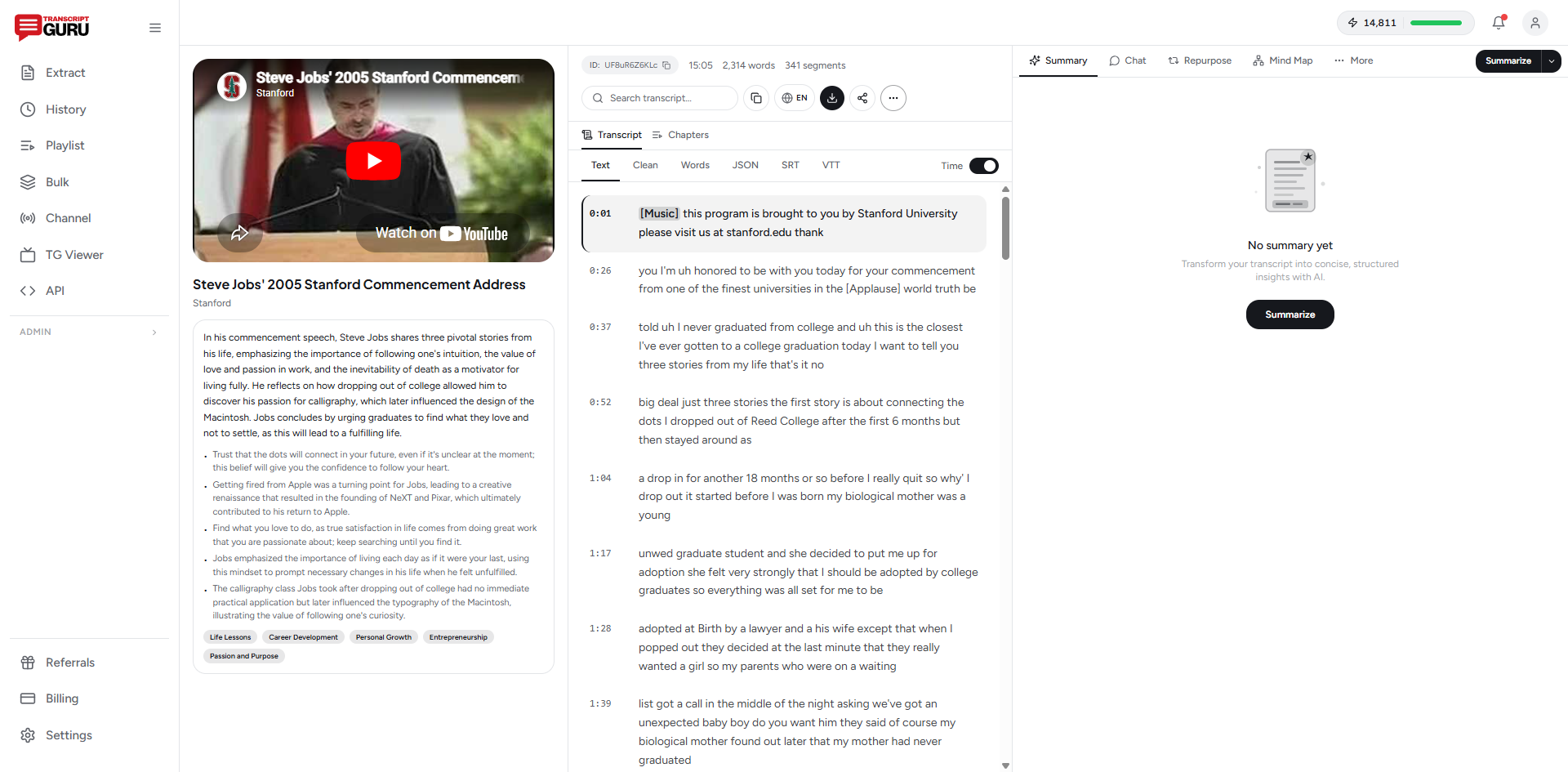
Paste a YouTube link, get the full text in seconds
Get Started FreeMethod 3: AI Transcription for Videos Without Captions
Some videos have no captions at all, or only auto-captions in a language you don't want. In that case there's nothing to pull, so the audio has to be transcribed from scratch with AI speech recognition.
OpenAI Whisper (open-source) is the gold standard for free, accurate transcription, but it runs from the command line and needs a bit of technical setup. If you're comfortable with Python, it's excellent.
Hosted tools save you the setup. Transcript Guru transcribes videos without captions, and your own uploaded audio or video files, using AI speech recognition on its paid plans. You still just paste a URL or upload a file; the speech model handles the rest.
One note on expectations: AI transcription of a one-hour video isn't instant the way pulling existing captions is, because the audio has to be processed. It's still far faster than typing it yourself.
Method 4: Transcribe on Mobile
You don't need a desktop. To get a transcript on your phone:
- Open the video in a mobile browser and request the desktop site, then use the transcript panel, or
- Copy the share link and paste it into a web-based transcript tool, which works fine in a mobile browser
The paste-the-URL approach is the smoother of the two on a small screen.
Cleaning Up the Transcript
Raw auto-captions need a little polish before they're useful. A few quick passes:
- Add punctuation. Auto-captions often run on with no periods or commas. This is the single biggest readability fix.
- Fix proper nouns. Names, brands, and technical terms are where speech recognition slips most.
- Strip timestamps if you want flowing prose, or keep them if you need to cite moments.
- Break into paragraphs. A wall of text is hard to scan; group by topic.
A good tool does most of this for you. Transcript Guru returns punctuated, paragraphed text and lets you toggle timestamps, so the cleanup is usually just a quick read-through.
Choosing an Export Format
Once you have the text, the right format depends on the job:
- TXT or clean text - for notes, quoting, and pasting into other apps
- SRT or VTT - subtitle files with timing, for uploading captions back to a video (see our guide on adding subtitles to YouTube)
- PDF or DOCX - for sharing a clean, formatted document
- JSON - for developers who want the structured segments
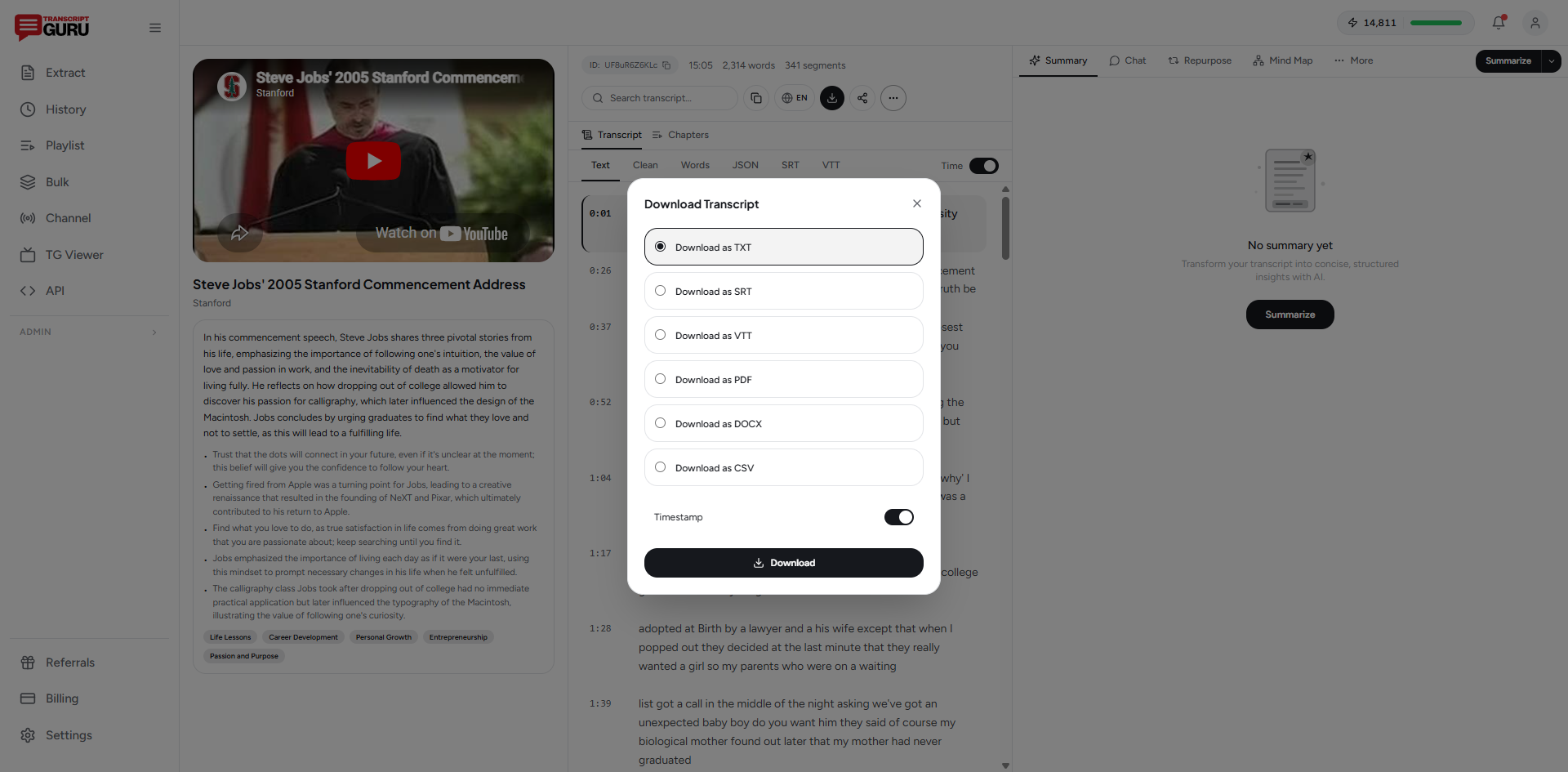
On Transcript Guru, all of these download formats are free on every plan.
What to Do With the Text Next
Getting the transcript is step one. The real value is what you do with it:
- Summarize it. Turn a long video into a few key points. See how to summarize a YouTube video with AI.
- Translate it. Convert the text or subtitles into another language. See how to translate YouTube subtitles.
- Study from it. Build notes, flashcards, and study guides. See using YouTube transcripts for studying.
- Repurpose it. Spin it into threads, posts, and articles. See how to repurpose YouTube videos.
The Fastest Path, Start to Finish
If you just want the short version: copy the video URL, paste it into Transcript Guru, and you'll have clean, copyable text in a few seconds. Download it in whatever format you need, then summarize, translate, or repurpose from there. No software to install, free to start, and unlimited caption extraction on every plan.
Keep reading
- How to Summarize a YouTube Video With AI
- How to Translate YouTube Subtitles Into Any Language
- How to Add Subtitles to YouTube Videos
- How to Repurpose YouTube Videos Into Social Media Content
Frequently Asked Questions
How do I transcribe a YouTube video for free?
The fastest free way is to paste the video URL into a transcript tool and copy the result. YouTube also has a built-in 'Show transcript' panel under the video. On Transcript Guru, caption extraction and TXT, SRT, and VTT downloads are free and unlimited, with no account required.
Can I transcribe a video that has no captions?
Yes, but it needs AI speech recognition rather than a caption pull. Most tools that support this transcribe the audio with a speech model. On Transcript Guru, AI transcription of videos without captions and of your own uploaded audio is available on the paid plans.
How accurate are YouTube transcripts?
Auto-generated captions are usually 90 to 95 percent accurate for clear speech, but they drop on heavy accents, jargon, proper nouns, and overlapping voices, and they often lack punctuation. Creator-uploaded captions and AI transcription are noticeably cleaner.
Can I get a YouTube transcript on my phone?
Yes. The browser method works on mobile: open the video page in a mobile browser, or paste the URL into a web-based transcript tool. Both work without installing an app.
Is it legal to transcribe a YouTube video?
Transcribing for personal use, study, accessibility, or quoting with attribution is generally fine. Republishing someone else's full transcript as your own content can raise copyright questions, so use good judgment and credit the source.
Ready to try it yourself?
Extract transcripts, generate summaries, and repurpose content, free to start.
Start FreeRelated Articles
How to Summarize a YouTube Video With AI (Without Watching It)
May 28, 2026
TranslationHow to Translate YouTube Subtitles Into Any Language
May 24, 2026
EducationHow to Use YouTube Transcripts for Studying (Notes, Flashcards, Study Guides)
May 20, 2026
Content RepurposingHow to Repurpose YouTube Videos Into Social Media Content (2026 Guide)
Mar 25, 2026