'%20d='M35.1527%2028.5549L35.1527%2069L17.6979%2069L17.6979%2028.5549L-0.162012%2028.5549L-0.162012%2014.6489L52.9354%2014.6489L52.9354%2028.5549L35.1527%2028.5549ZM108.55%2031.313Q108.55%2036.2891%20105.85%2040.3201Q103.169%2044.3511%2098.0385%2046.2412L110.132%2069L90.5358%2069L80.8923%2049.1729L74.4118%2049.1729L74.4118%2069L56.957%2069L56.957%2014.6489L90.2272%2014.6489Q96.0712%2014.6489%20100.218%2016.9055Q104.365%2019.1428%20106.448%2022.981Q108.55%2026.8191%20108.55%2031.313ZM90.7673%2032.0266Q90.7673%2029.8857%2089.34%2028.4778Q87.9321%2027.0505%2085.8684%2027.0505L74.4118%2027.0505L74.4118%2037.0798L85.8684%2037.0798Q87.9321%2037.0798%2089.34%2035.6333Q90.7673%2034.1675%2090.7673%2032.0266ZM150.883%2069L148.607%2061.343L129.551%2061.343L127.276%2069L109.416%2069L129.243%2014.6489L149.552%2014.6489L169.379%2069L150.883%2069ZM133.197%2049.1729L144.962%2049.1729L139.272%2029.8086L138.964%2029.8086L133.197%2049.1729ZM210.844%2069L188.028%2042.6152L188.028%2069L171.981%2069L171.981%2014.6489L187.237%2014.6489L210.054%2041.4194L210.054%2014.6489L226.101%2014.6489L226.101%2069L210.844%2069ZM256.674%2013.7039Q267.108%2013.7039%20273.82%2017.9277Q280.532%2022.1516%20280.686%2030.4451L280.686%2031.3901L264.331%2031.3901L264.331%2031.0815Q264.331%2028.7092%20262.595%2027.1277Q260.859%2025.5461%20257.31%2025.5461Q253.819%2025.5461%20251.968%2026.5876Q250.116%2027.6099%20250.116%2029.1143Q250.116%2031.2358%20252.643%2032.2773Q255.169%2033.2996%20260.782%2034.3989Q267.34%2035.749%20271.564%2037.2148Q275.787%2038.6614%20278.951%2041.9788Q282.114%2045.2961%20282.191%2050.9858Q282.191%2060.6294%20275.672%2065.2969Q269.153%2069.9451%20258.255%2069.9451Q245.526%2069.9451%20238.448%2065.6826Q231.388%2061.4202%20231.388%2050.6001L247.898%2050.6001Q247.898%2054.7083%20250.02%2056.0969Q252.161%2057.4663%20256.674%2057.4663Q259.991%2057.4663%20262.151%2056.7527Q264.331%2056.0391%20264.331%2053.8403Q264.331%2051.8538%20261.92%2050.8701Q259.509%2049.8865%20254.07%2048.7678Q247.435%2047.3599%20243.076%2045.8169Q238.737%2044.2739%20235.497%2040.7251Q232.256%2037.157%20232.256%2031.0815Q232.256%2022.1516%20239.161%2017.9277Q246.085%2013.7039%20256.674%2013.7039ZM312.848%2013.7039Q324.922%2013.7039%20331.942%2019.7407Q338.982%2025.7776%20338.982%2037.0027L322.318%2037.0027Q322.318%2032.2581%20319.83%2029.5Q317.342%2026.7419%20312.751%2026.7419Q307.467%2026.7419%20304.979%2030.0593Q302.491%2033.3767%20302.491%2039.2979L302.491%2044.3511Q302.491%2050.1951%20304.979%2053.551Q307.467%2056.907%20312.597%2056.907Q317.65%2056.907%20320.254%2054.3032Q322.877%2051.6995%20322.877%2046.9548L338.982%2046.9548Q338.982%2058.1028%20332.154%2064.0239Q325.327%2069.9451%20312.848%2069.9451Q298.942%2069.9451%20291.786%2062.8474Q284.631%2055.7305%20284.631%2041.8245Q284.631%2027.9185%20291.786%2020.8208Q298.942%2013.7039%20312.848%2013.7039ZM396.031%2031.313Q396.031%2036.2891%20393.331%2040.3201Q390.65%2044.3511%20385.519%2046.2412L397.612%2069L378.017%2069L368.373%2049.1729L361.893%2049.1729L361.893%2069L344.438%2069L344.438%2014.6489L377.708%2014.6489Q383.552%2014.6489%20387.699%2016.9055Q391.846%2019.1428%20393.929%2022.981Q396.031%2026.8191%20396.031%2031.313ZM378.248%2032.0266Q378.248%2029.8857%20376.821%2028.4778Q375.413%2027.0505%20373.349%2027.0505L361.893%2027.0505L361.893%2037.0798L373.349%2037.0798Q375.413%2037.0798%20376.821%2035.6333Q378.248%2034.1675%20378.248%2032.0266ZM402.741%2069L402.741%2014.6489L420.195%2014.6489L420.195%2069L402.741%2069ZM459.224%2014.6489Q464.277%2014.6489%20468.231%2016.9827Q472.185%2019.3164%20474.383%2023.386Q476.602%2027.4556%20476.602%2032.5088L476.602%2033.531Q476.602%2038.5842%20474.383%2042.6924Q472.185%2046.8005%20468.231%2049.1343Q464.277%2051.468%20459.224%2051.468L446.186%2051.468L446.186%2069L428.731%2069L428.731%2014.6489L459.224%2014.6489ZM446.186%2038.7385L453.38%2038.7385Q456.138%2038.7385%20457.527%2037.3306Q458.915%2035.9033%20458.915%2033.4539L458.915%2032.8174Q458.915%2030.2908%20457.527%2028.9214Q456.138%2027.5327%20453.38%2027.5327L446.186%2027.5327L446.186%2038.7385ZM513.103%2028.5549L513.103%2069L495.648%2069L495.648%2028.5549L477.788%2028.5549L477.788%2014.6489L530.885%2014.6489L530.885%2028.5549L513.103%2028.5549Z'/%3e%3c/svg%3e)

Here's something most YouTubers underestimate: a large share of mobile and social video is watched with the sound off. If your video doesn't have subtitles, those viewers are gone. They'll scroll right past.
But subtitles aren't just about catching muted viewers. They improve comprehension for non-native speakers, make your content accessible to deaf and hard-of-hearing viewers, and, this is the part that should get your attention, they directly help your YouTube SEO.
YouTube's algorithm can read your subtitles. When you add proper captions, YouTube better understands what your video is about. This helps it show up in search results and recommended feeds. It's one of the most underused SEO tactics on the platform.
This guide covers every method for adding subtitles, from free manual options to automated tools that generate SRT files in seconds.
Method 1: YouTube's Auto-Generated Captions
YouTube automatically generates captions for most videos using speech recognition. You don't have to do anything, they just appear.
The good: It's free, automatic, and works in dozens of languages.
The bad: Accuracy is hit-or-miss. It struggles with accents, technical jargon, proper nouns, and fast speech. There's no punctuation in many cases. "Let's eat grandma" versus "Let's eat, grandma", that comma matters.
The verdict: Auto-captions are a starting point, not a finished product. If you care about quality (and you should), you need to edit them or replace them entirely.
How to edit YouTube's auto-captions
- Go to YouTube Studio
- Click "Subtitles" in the left sidebar (or open a video, then "Subtitles")
- Select the video you want to edit
- Click the auto-generated language track
- Choose "Duplicate and edit"
- Fix errors, add punctuation, correct timing
- Save and publish
This takes 15-30 minutes for a 10-minute video, depending on how many errors there are. It's free but tedious.
Method 2: Type Subtitles Manually in YouTube Studio
You can also type subtitles from scratch in YouTube Studio. This gives you full control over accuracy and timing.
- Go to YouTube Studio, then Subtitles, then select your video
- Click "Add language" and select your language
- Click "Add" next to Subtitles
- Choose "Type manually"
- Type the text and adjust timing for each segment
YouTube also has a "Auto-sync" option where you paste the full transcript text and YouTube attempts to match the timing automatically. It works reasonably well for clear speech.
Time required: 30-60 minutes for a 10-minute video. Accurate but slow. Only worth it for high-value content where every word matters.
Method 3: Upload an SRT or VTT File
This is the method most professionals use. You create a subtitle file (SRT or VTT format) and upload it to YouTube.
What's an SRT file?
SRT (SubRip Subtitle) is the most common subtitle format. It's a plain text file that looks like this:
1
00:00:00,000 --> 00:00:03,500
Hey everyone, welcome back to the channel.

2
00:00:03,500 --> 00:00:07,200
Today we're going to talk about
something that changed my workflow.

3
00:00:07,200 --> 00:00:11,800
If you've ever spent hours editing
subtitles manually, this is for you.
Each entry has a sequence number, a timestamp range, and the text. VTT files are similar but with slightly different formatting.
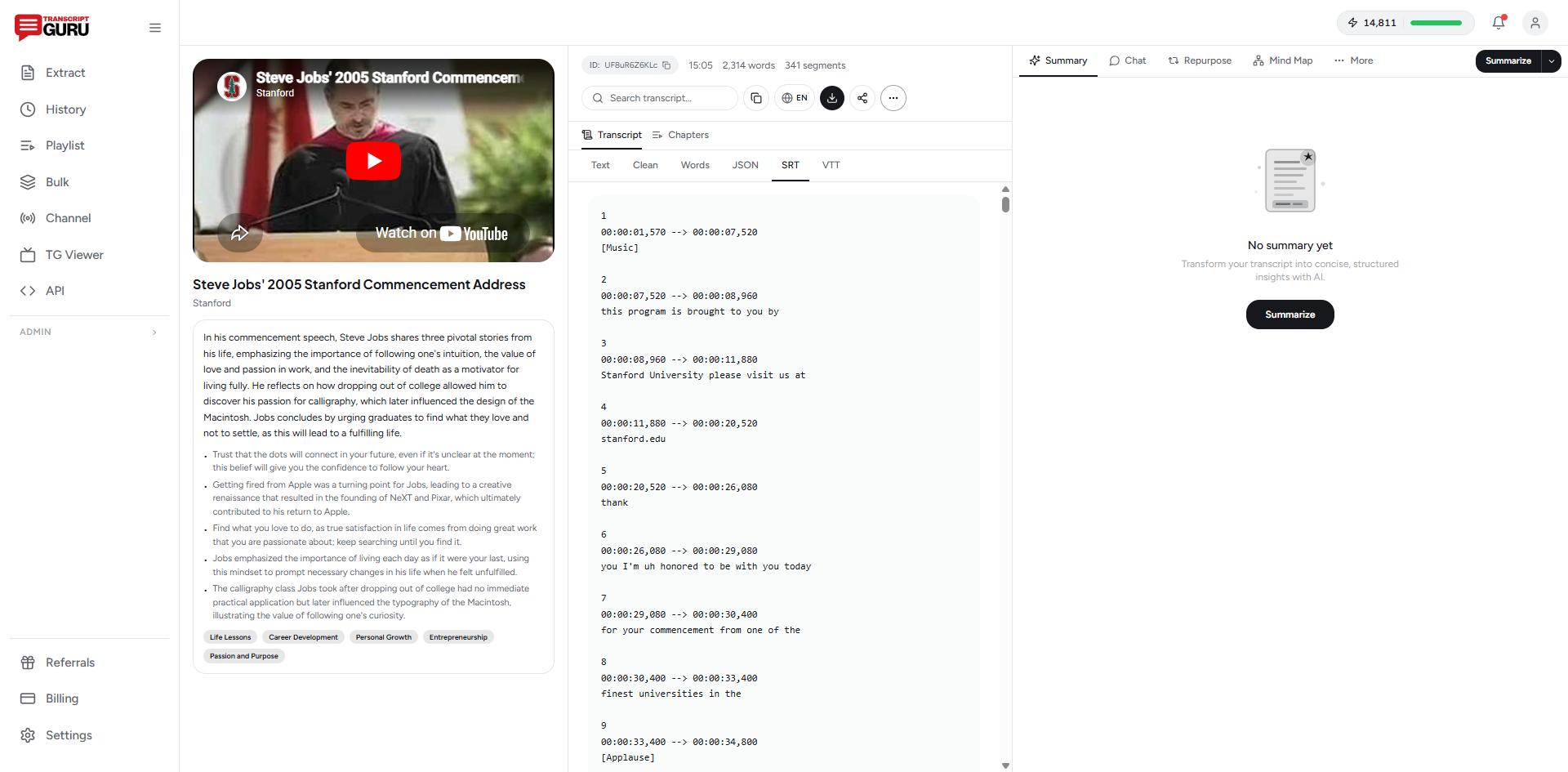
How to upload SRT files to YouTube
- Go to YouTube Studio, then Subtitles, then select your video
- Click "Add language" and select your language
- Click "Add" next to Subtitles
- Choose "Upload file"
- Select "With timing" and upload your .srt or .vtt file
- Review the result and save
The question is: where do you get the SRT file? That's where tools come in.
Tools for Generating SRT Files
Several tools can generate SRT files automatically from your video:
Kapwing - Free subtitle generator with a visual editor. Upload your video, it generates captions, you can edit them in-browser and export as SRT. The free tier puts a watermark on video exports, but SRT downloads are clean.
Descript - Upload your video, get a transcript with timestamps. Export as SRT. The editing interface is excellent, you edit the text like a document and timing adjusts automatically. Paid subscription.
Transcript Guru - Paste a YouTube URL and download the transcript as an SRT or VTT file. Captions are pulled directly from the video's caption data (or generated for videos without captions), so timing is accurate. You can also export clean text for other uses. Caption extraction and SRT, VTT, and TXT downloads are free and unlimited.
Whisper (open-source) - OpenAI's speech recognition model. Free and highly accurate, but requires Python and command-line usage. Not beginner-friendly but popular among developers.
VEED.io - Browser-based video editor with auto-subtitle generation. Upload video, generate captions, edit visually, export as SRT. Free tier is limited but functional.
Happy Scribe - Dedicated transcription service with SRT export. Good accuracy, supports many languages. Per-minute pricing.
Download clean SRT and VTT subtitle files free
Get Started FreeWhy Subtitles Matter for YouTube SEO
YouTube's recommendation algorithm uses multiple signals to understand your video's content. Your title, description, and tags are the obvious ones. But subtitles provide something the others can't: a word-for-word account of everything said in the video.
When you upload accurate subtitles, you're essentially giving YouTube a complete text transcript to index. This means:
- More keyword coverage. Your subtitles naturally contain dozens of relevant terms and phrases that might not be in your title or description.
- Better topic understanding. YouTube can match your video to a wider range of search queries.
- Improved "suggested video" placement. When YouTube better understands your content, it's better at suggesting it alongside related videos.
There's also an indirect SEO benefit: subtitles increase watch time. Viewers who read along with captions tend to watch longer. And watch time is one of the most important ranking factors on YouTube.
Subtitles for Accessibility
This deserves its own section because it's important beyond SEO.
The World Health Organization estimates that more than 1.5 billion people live with some degree of hearing loss, including over 430 million with disabling hearing loss. When your video doesn't have subtitles, you're excluding a significant audience.
Beyond hearing loss, subtitles help:
- Non-native speakers who understand written English better than spoken
- People watching in noisy environments (public transit, offices, gyms)
- People watching in quiet environments where they can't turn on sound (library, late at night)
- Anyone with auditory processing differences
Many countries also have legal requirements for video accessibility. If your content is educational or represents an organization, proper captions aren't just nice to have, they may be required.
Multi-Language Subtitles
Want to reach a global audience? Add subtitles in multiple languages. YouTube lets you upload separate subtitle tracks for each language, and viewers can select their preferred language in the player.
The process is the same: create an SRT file for each language and upload it. If your video already has captions in several languages (common for popular videos), you can download each track and re-upload it on your own channel.
For translation, you have a few options:
- YouTube's auto-translate - Free but low quality. Better than nothing.
- DeepL or Google Translate - Translate your SRT file text. Decent for common language pairs.
- AI subtitle translation - Tools like Transcript Guru translate a transcript into 75+ languages and export it as SRT or text, keeping the timing intact. We walk through this in how to translate YouTube subtitles into any language.
Common Subtitle Mistakes
A few things that hurt more than they help:
Relying on auto-captions without reviewing. Bad captions are worse than no captions. They confuse viewers and make your content look unprofessional. Always review.
Bad timing. If subtitles appear too early or too late, they're distracting. Most tools handle timing well, but spot-check a few sections.
Walls of text. Keep each subtitle segment to 1-2 lines. Nobody can read a paragraph that flashes on screen for 2 seconds.
Missing line breaks in dialogue. When two people are talking, each speaker should get their own subtitle segment. Don't combine speakers in one caption.
Quick-Start Checklist
Here's the fastest path to properly subtitled videos:
- Check if your video already has auto-generated captions (most do)
- If quality is acceptable, duplicate and edit them in YouTube Studio
- If you want cleaner results, generate an SRT file using Kapwing, Transcript Guru, or Descript
- Upload the SRT to YouTube Studio
- Review timing and accuracy
- Publish and repeat for your other videos
The whole process takes 5-15 minutes per video with automated tools. That's a small time investment for better accessibility, higher watch time, and improved search rankings.
Need SRT files fast? Transcript Guru's subtitle downloader extracts captions from any YouTube video and exports them as SRT, VTT, or plain text, free.
Keep reading
- How to Translate YouTube Subtitles Into Any Language
- How to Transcribe a YouTube Video to Text
- How to Summarize a YouTube Video With AI
Frequently Asked Questions
Is it free to add subtitles to a YouTube video?
Yes. YouTube Studio lets you edit auto-captions, type subtitles, or upload an SRT/VTT file at no cost. Generating that SRT file is also free with several tools; on Transcript Guru, caption extraction and SRT, VTT, and TXT downloads are free and unlimited on every plan, even without an account.
What is the difference between captions and subtitles?
In practice the terms are used interchangeably on YouTube. Strictly, captions assume the viewer cannot hear and may note sound effects, while subtitles assume the viewer can hear but may not understand the language. YouTube's subtitle system handles both.
Should I use YouTube's auto-captions or upload my own?
Auto-captions are a fine starting point but miss words, proper nouns, and punctuation. For anything you care about, either duplicate and edit the auto-captions or upload a clean SRT file. Accurate captions look more professional and help search.
Do subtitles really help YouTube SEO?
Yes, indirectly and directly. Accurate captions give YouTube a full text record of the video to understand and match to searches, and they raise watch time because viewers read along and stay longer. Watch time is one of YouTube's strongest ranking signals.
Ready to try it yourself?
Extract transcripts, generate summaries, and repurpose content, free to start.
Start FreeRelated Articles
How to Transcribe a YouTube Video to Text (Free, No Software)
Jun 1, 2026
Summaries & AIHow to Summarize a YouTube Video With AI (Without Watching It)
May 28, 2026
TranslationHow to Translate YouTube Subtitles Into Any Language
May 24, 2026
EducationHow to Use YouTube Transcripts for Studying (Notes, Flashcards, Study Guides)
May 20, 2026