'%20d='M35.1527%2028.5549L35.1527%2069L17.6979%2069L17.6979%2028.5549L-0.162012%2028.5549L-0.162012%2014.6489L52.9354%2014.6489L52.9354%2028.5549L35.1527%2028.5549ZM108.55%2031.313Q108.55%2036.2891%20105.85%2040.3201Q103.169%2044.3511%2098.0385%2046.2412L110.132%2069L90.5358%2069L80.8923%2049.1729L74.4118%2049.1729L74.4118%2069L56.957%2069L56.957%2014.6489L90.2272%2014.6489Q96.0712%2014.6489%20100.218%2016.9055Q104.365%2019.1428%20106.448%2022.981Q108.55%2026.8191%20108.55%2031.313ZM90.7673%2032.0266Q90.7673%2029.8857%2089.34%2028.4778Q87.9321%2027.0505%2085.8684%2027.0505L74.4118%2027.0505L74.4118%2037.0798L85.8684%2037.0798Q87.9321%2037.0798%2089.34%2035.6333Q90.7673%2034.1675%2090.7673%2032.0266ZM150.883%2069L148.607%2061.343L129.551%2061.343L127.276%2069L109.416%2069L129.243%2014.6489L149.552%2014.6489L169.379%2069L150.883%2069ZM133.197%2049.1729L144.962%2049.1729L139.272%2029.8086L138.964%2029.8086L133.197%2049.1729ZM210.844%2069L188.028%2042.6152L188.028%2069L171.981%2069L171.981%2014.6489L187.237%2014.6489L210.054%2041.4194L210.054%2014.6489L226.101%2014.6489L226.101%2069L210.844%2069ZM256.674%2013.7039Q267.108%2013.7039%20273.82%2017.9277Q280.532%2022.1516%20280.686%2030.4451L280.686%2031.3901L264.331%2031.3901L264.331%2031.0815Q264.331%2028.7092%20262.595%2027.1277Q260.859%2025.5461%20257.31%2025.5461Q253.819%2025.5461%20251.968%2026.5876Q250.116%2027.6099%20250.116%2029.1143Q250.116%2031.2358%20252.643%2032.2773Q255.169%2033.2996%20260.782%2034.3989Q267.34%2035.749%20271.564%2037.2148Q275.787%2038.6614%20278.951%2041.9788Q282.114%2045.2961%20282.191%2050.9858Q282.191%2060.6294%20275.672%2065.2969Q269.153%2069.9451%20258.255%2069.9451Q245.526%2069.9451%20238.448%2065.6826Q231.388%2061.4202%20231.388%2050.6001L247.898%2050.6001Q247.898%2054.7083%20250.02%2056.0969Q252.161%2057.4663%20256.674%2057.4663Q259.991%2057.4663%20262.151%2056.7527Q264.331%2056.0391%20264.331%2053.8403Q264.331%2051.8538%20261.92%2050.8701Q259.509%2049.8865%20254.07%2048.7678Q247.435%2047.3599%20243.076%2045.8169Q238.737%2044.2739%20235.497%2040.7251Q232.256%2037.157%20232.256%2031.0815Q232.256%2022.1516%20239.161%2017.9277Q246.085%2013.7039%20256.674%2013.7039ZM312.848%2013.7039Q324.922%2013.7039%20331.942%2019.7407Q338.982%2025.7776%20338.982%2037.0027L322.318%2037.0027Q322.318%2032.2581%20319.83%2029.5Q317.342%2026.7419%20312.751%2026.7419Q307.467%2026.7419%20304.979%2030.0593Q302.491%2033.3767%20302.491%2039.2979L302.491%2044.3511Q302.491%2050.1951%20304.979%2053.551Q307.467%2056.907%20312.597%2056.907Q317.65%2056.907%20320.254%2054.3032Q322.877%2051.6995%20322.877%2046.9548L338.982%2046.9548Q338.982%2058.1028%20332.154%2064.0239Q325.327%2069.9451%20312.848%2069.9451Q298.942%2069.9451%20291.786%2062.8474Q284.631%2055.7305%20284.631%2041.8245Q284.631%2027.9185%20291.786%2020.8208Q298.942%2013.7039%20312.848%2013.7039ZM396.031%2031.313Q396.031%2036.2891%20393.331%2040.3201Q390.65%2044.3511%20385.519%2046.2412L397.612%2069L378.017%2069L368.373%2049.1729L361.893%2049.1729L361.893%2069L344.438%2069L344.438%2014.6489L377.708%2014.6489Q383.552%2014.6489%20387.699%2016.9055Q391.846%2019.1428%20393.929%2022.981Q396.031%2026.8191%20396.031%2031.313ZM378.248%2032.0266Q378.248%2029.8857%20376.821%2028.4778Q375.413%2027.0505%20373.349%2027.0505L361.893%2027.0505L361.893%2037.0798L373.349%2037.0798Q375.413%2037.0798%20376.821%2035.6333Q378.248%2034.1675%20378.248%2032.0266ZM402.741%2069L402.741%2014.6489L420.195%2014.6489L420.195%2069L402.741%2069ZM459.224%2014.6489Q464.277%2014.6489%20468.231%2016.9827Q472.185%2019.3164%20474.383%2023.386Q476.602%2027.4556%20476.602%2032.5088L476.602%2033.531Q476.602%2038.5842%20474.383%2042.6924Q472.185%2046.8005%20468.231%2049.1343Q464.277%2051.468%20459.224%2051.468L446.186%2051.468L446.186%2069L428.731%2069L428.731%2014.6489L459.224%2014.6489ZM446.186%2038.7385L453.38%2038.7385Q456.138%2038.7385%20457.527%2037.3306Q458.915%2035.9033%20458.915%2033.4539L458.915%2032.8174Q458.915%2030.2908%20457.527%2028.9214Q456.138%2027.5327%20453.38%2027.5327L446.186%2027.5327L446.186%2038.7385ZM513.103%2028.5549L513.103%2069L495.648%2069L495.648%2028.5549L477.788%2028.5549L477.788%2014.6489L530.885%2014.6489L530.885%2028.5549L513.103%2028.5549Z'/%3e%3c/svg%3e)

Translating subtitles unlocks two very different wins. If you're a creator, translated captions put your videos in front of audiences who'd otherwise scroll past. If you're a viewer, they let you understand a tutorial, lecture, or interview recorded in a language you don't speak. Same tool, two audiences.
This guide covers every way to do it, from YouTube's free built-in option to AI translation that keeps your timing intact across 75+ languages, so you can pick the right trade-off between speed, cost, and quality.
First, Get the Original Subtitles
Every translation method starts from the source text. You need the original-language subtitles or transcript before you can translate anything.
If the video already has captions, you can pull them directly. If it doesn't, you'll need a transcript generated from the audio first. Either way, the starting point is the same: get clean text in the original language. Our guide on transcribing a YouTube video to text covers this in detail, and the subtitle downloader exports the original captions as SRT, VTT, or text for free.
Method 1: YouTube's Built-In Auto-Translate
YouTube can translate captions on the fly inside the player.
- Open a video that has captions
- Turn on captions with the CC button
- Open the player settings (gear icon), then Subtitles/CC, then Auto-translate
- Pick your language
Pros: Free, instant, no tools.
Cons: Machine-translation quality, often clunky, and it only works for viewing. You can't easily export the translated track or publish it as a clean caption file. Good for understanding a video, not for shipping professional subtitles.
Method 2: Translate a Downloaded SRT File
For more control, translate the subtitle file itself.
- Download the original captions as an SRT file
- Run the text through a translator like DeepL or Google Translate (DeepL tends to read more naturally for European languages)
- Carefully keep the sequence numbers and timestamps intact, translating only the text lines
- Save the translated SRT and upload it to YouTube as a new language track
The catch: keeping the timing aligned by hand is fiddly. If you paste an entire SRT into a translator, it may mangle the timestamp lines, and you'll spend time repairing the file. It works, but it's the kind of task that's easy to get slightly wrong.
Method 3: AI Subtitle Translation (Timing Preserved)
The cleanest route is a tool built for this: translate the transcript into your target language while keeping every line matched to its original timestamp, then export.
- Paste the YouTube URL into Transcript Guru
- Open Translate and choose from 75+ languages
- The transcript is translated with the timing preserved, so it stays in sync
- Export as SRT or VTT to upload to YouTube, or as text for reading and notes
Because the timing carries over automatically, you skip the most error-prone part of Method 2. Note that on Transcript Guru, pulling and downloading the original captions is free, while AI translation is part of the paid plans (Basic and up).
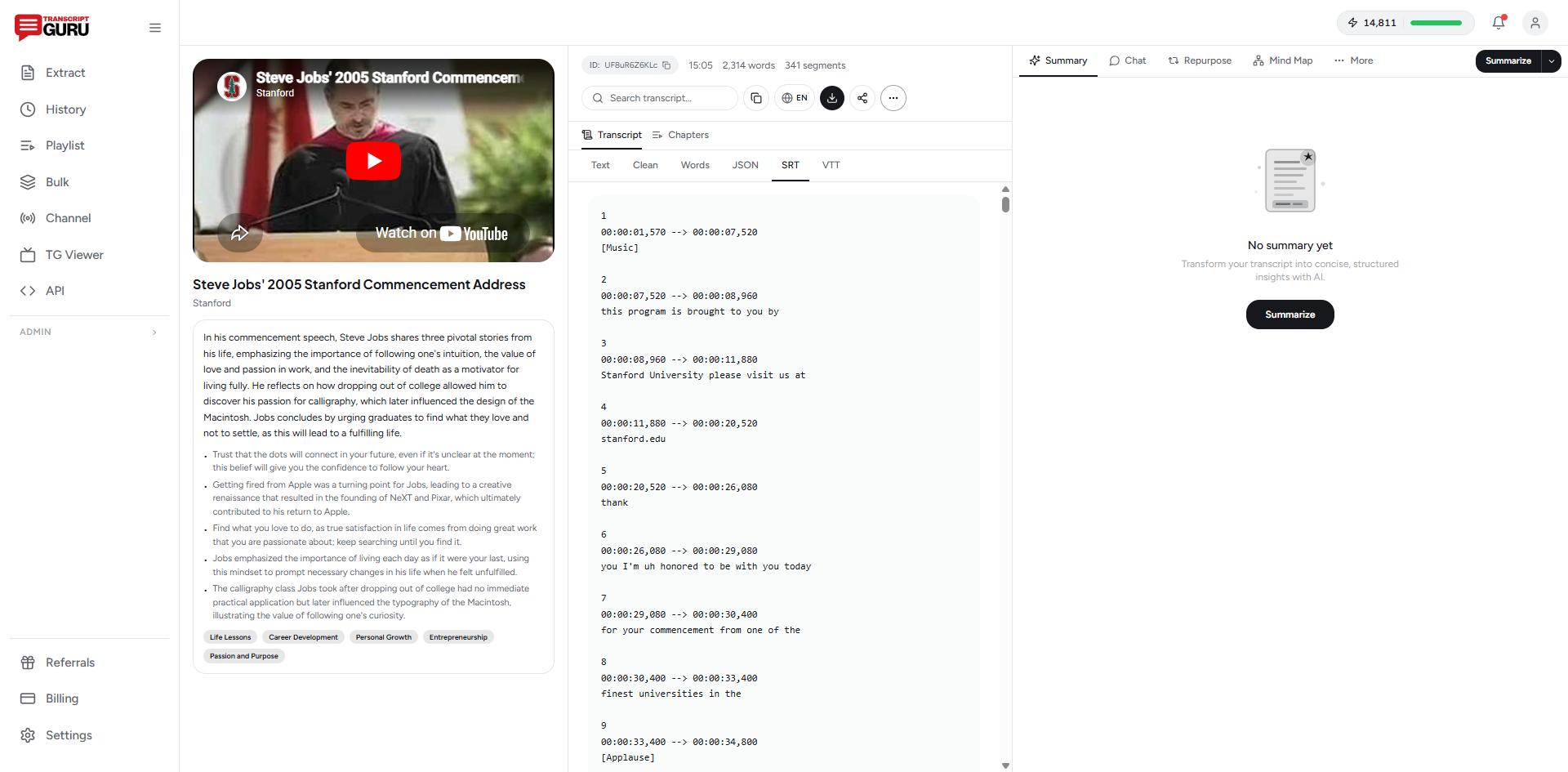
Translate subtitles into 75+ languages, timing intact
Get Started FreeGetting Better Translation Quality
Whatever method you use, a few habits raise the quality:
- Mind idioms and slang. Literal machine translation stumbles on figures of speech. Read the output and rewrite anything that sounds off.
- Protect names and terms. Brand names, people, and technical jargon shouldn't be translated. Check that they survived intact.
- Keep lines short. Some languages run longer than English. Trim translated lines so they still fit on screen for the same duration.
- Have a native speaker review anything public-facing. Even great AI translation benefits from a human pass for tone.
Uploading Translated Subtitles to YouTube
Once you have a translated SRT, adding it to your video is quick:
- Go to YouTube Studio, then Subtitles, then select your video
- Click "Add language" and choose the translated language
- Add subtitles, choose "Upload file" with timing, and select your translated SRT
- Review and publish
Viewers can then pick that language from the player's caption menu. For the full subtitle workflow, including formats and accessibility, see how to add subtitles to YouTube videos.
Common Use Cases
- Creators going global. Add captions in three or four languages and open your channel to entirely new audiences.
- Learners. Translate a foreign-language tutorial into your language to follow along.
- Language study. View original and translated subtitles side by side to learn vocabulary in context.
- Research and work. Understand a talk or interview recorded in another language well enough to quote or summarize it.
The Short Version
To translate YouTube subtitles: get the original captions, translate the text into your target language, keep the timing aligned, and export as SRT or text. For a quick view, YouTube's auto-translate is fine. For clean, publishable subtitles in 75+ languages with the timing handled for you, an AI subtitle tool is the least painful path.
Try it with Transcript Guru: free, unlimited caption extraction to start, with AI translation into 75+ languages on the paid plans.
Keep reading
- How to Add Subtitles to YouTube Videos
- How to Transcribe a YouTube Video to Text
- How to Summarize a YouTube Video With AI
Frequently Asked Questions
Can I translate YouTube subtitles into any language?
Effectively yes. Between AI translation, DeepL, and Google Translate you can cover the major world languages, and AI subtitle tools commonly support 75 or more. Quality is best for widely used language pairs and a little rougher for rare ones.
How do I translate a YouTube video to English?
Pull the video's transcript or captions, then translate that text into English. A tool that translates the transcript and keeps the timing lets you read along or export English subtitles you can load over the video.
Is YouTube's auto-translate good enough?
It's free and instant, which makes it fine for getting the gist. For anything public-facing it tends to read awkwardly and miss idioms and names. For published captions, AI translation or a human review gives a noticeably better result.
Will the translated subtitles stay in sync?
They will if you translate line by line and preserve the original timestamps. Translating an SRT while keeping its timing, or using a tool that does this for you, keeps everything synced. Pasting raw text into a translator and back can break the timing.
Do I need a paid plan to translate subtitles?
On Transcript Guru, extracting and downloading the original captions is free, while AI translation into 75+ languages is part of the paid plans (Basic and up). Free alternatives exist too, such as YouTube auto-translate or translating a downloaded SRT with DeepL.
Ready to try it yourself?
Extract transcripts, generate summaries, and repurpose content, free to start.
Start FreeRelated Articles
How to Transcribe a YouTube Video to Text (Free, No Software)
Jun 1, 2026
Summaries & AIHow to Summarize a YouTube Video With AI (Without Watching It)
May 28, 2026
EducationHow to Use YouTube Transcripts for Studying (Notes, Flashcards, Study Guides)
May 20, 2026
Content RepurposingHow to Repurpose YouTube Videos Into Social Media Content (2026 Guide)
Mar 25, 2026