'%20d='M35.1527%2028.5549L35.1527%2069L17.6979%2069L17.6979%2028.5549L-0.162012%2028.5549L-0.162012%2014.6489L52.9354%2014.6489L52.9354%2028.5549L35.1527%2028.5549ZM108.55%2031.313Q108.55%2036.2891%20105.85%2040.3201Q103.169%2044.3511%2098.0385%2046.2412L110.132%2069L90.5358%2069L80.8923%2049.1729L74.4118%2049.1729L74.4118%2069L56.957%2069L56.957%2014.6489L90.2272%2014.6489Q96.0712%2014.6489%20100.218%2016.9055Q104.365%2019.1428%20106.448%2022.981Q108.55%2026.8191%20108.55%2031.313ZM90.7673%2032.0266Q90.7673%2029.8857%2089.34%2028.4778Q87.9321%2027.0505%2085.8684%2027.0505L74.4118%2027.0505L74.4118%2037.0798L85.8684%2037.0798Q87.9321%2037.0798%2089.34%2035.6333Q90.7673%2034.1675%2090.7673%2032.0266ZM150.883%2069L148.607%2061.343L129.551%2061.343L127.276%2069L109.416%2069L129.243%2014.6489L149.552%2014.6489L169.379%2069L150.883%2069ZM133.197%2049.1729L144.962%2049.1729L139.272%2029.8086L138.964%2029.8086L133.197%2049.1729ZM210.844%2069L188.028%2042.6152L188.028%2069L171.981%2069L171.981%2014.6489L187.237%2014.6489L210.054%2041.4194L210.054%2014.6489L226.101%2014.6489L226.101%2069L210.844%2069ZM256.674%2013.7039Q267.108%2013.7039%20273.82%2017.9277Q280.532%2022.1516%20280.686%2030.4451L280.686%2031.3901L264.331%2031.3901L264.331%2031.0815Q264.331%2028.7092%20262.595%2027.1277Q260.859%2025.5461%20257.31%2025.5461Q253.819%2025.5461%20251.968%2026.5876Q250.116%2027.6099%20250.116%2029.1143Q250.116%2031.2358%20252.643%2032.2773Q255.169%2033.2996%20260.782%2034.3989Q267.34%2035.749%20271.564%2037.2148Q275.787%2038.6614%20278.951%2041.9788Q282.114%2045.2961%20282.191%2050.9858Q282.191%2060.6294%20275.672%2065.2969Q269.153%2069.9451%20258.255%2069.9451Q245.526%2069.9451%20238.448%2065.6826Q231.388%2061.4202%20231.388%2050.6001L247.898%2050.6001Q247.898%2054.7083%20250.02%2056.0969Q252.161%2057.4663%20256.674%2057.4663Q259.991%2057.4663%20262.151%2056.7527Q264.331%2056.0391%20264.331%2053.8403Q264.331%2051.8538%20261.92%2050.8701Q259.509%2049.8865%20254.07%2048.7678Q247.435%2047.3599%20243.076%2045.8169Q238.737%2044.2739%20235.497%2040.7251Q232.256%2037.157%20232.256%2031.0815Q232.256%2022.1516%20239.161%2017.9277Q246.085%2013.7039%20256.674%2013.7039ZM312.848%2013.7039Q324.922%2013.7039%20331.942%2019.7407Q338.982%2025.7776%20338.982%2037.0027L322.318%2037.0027Q322.318%2032.2581%20319.83%2029.5Q317.342%2026.7419%20312.751%2026.7419Q307.467%2026.7419%20304.979%2030.0593Q302.491%2033.3767%20302.491%2039.2979L302.491%2044.3511Q302.491%2050.1951%20304.979%2053.551Q307.467%2056.907%20312.597%2056.907Q317.65%2056.907%20320.254%2054.3032Q322.877%2051.6995%20322.877%2046.9548L338.982%2046.9548Q338.982%2058.1028%20332.154%2064.0239Q325.327%2069.9451%20312.848%2069.9451Q298.942%2069.9451%20291.786%2062.8474Q284.631%2055.7305%20284.631%2041.8245Q284.631%2027.9185%20291.786%2020.8208Q298.942%2013.7039%20312.848%2013.7039ZM396.031%2031.313Q396.031%2036.2891%20393.331%2040.3201Q390.65%2044.3511%20385.519%2046.2412L397.612%2069L378.017%2069L368.373%2049.1729L361.893%2049.1729L361.893%2069L344.438%2069L344.438%2014.6489L377.708%2014.6489Q383.552%2014.6489%20387.699%2016.9055Q391.846%2019.1428%20393.929%2022.981Q396.031%2026.8191%20396.031%2031.313ZM378.248%2032.0266Q378.248%2029.8857%20376.821%2028.4778Q375.413%2027.0505%20373.349%2027.0505L361.893%2027.0505L361.893%2037.0798L373.349%2037.0798Q375.413%2037.0798%20376.821%2035.6333Q378.248%2034.1675%20378.248%2032.0266ZM402.741%2069L402.741%2014.6489L420.195%2014.6489L420.195%2069L402.741%2069ZM459.224%2014.6489Q464.277%2014.6489%20468.231%2016.9827Q472.185%2019.3164%20474.383%2023.386Q476.602%2027.4556%20476.602%2032.5088L476.602%2033.531Q476.602%2038.5842%20474.383%2042.6924Q472.185%2046.8005%20468.231%2049.1343Q464.277%2051.468%20459.224%2051.468L446.186%2051.468L446.186%2069L428.731%2069L428.731%2014.6489L459.224%2014.6489ZM446.186%2038.7385L453.38%2038.7385Q456.138%2038.7385%20457.527%2037.3306Q458.915%2035.9033%20458.915%2033.4539L458.915%2032.8174Q458.915%2030.2908%20457.527%2028.9214Q456.138%2027.5327%20453.38%2027.5327L446.186%2027.5327L446.186%2038.7385ZM513.103%2028.5549L513.103%2069L495.648%2069L495.648%2028.5549L477.788%2028.5549L477.788%2014.6489L530.885%2014.6489L530.885%2028.5549L513.103%2028.5549Z'/%3e%3c/svg%3e)

Not every video deserves 40 minutes of your attention. Sometimes you just need the gist: the main argument, the three takeaways, whether it's worth watching in full. Scrubbing through the timeline hunting for the good part is a waste of time.
AI summaries fix this. Give a model the video's transcript and it can hand you a clean summary in seconds: key points, chapter breakdowns, even timestamps so you can jump straight to what matters. Here's how to do it well, including the part most guides skip, which is how to keep the summary accurate.
Why You Summarize the Transcript, Not the Video
Here's the key thing to understand: AI models summarize text, not footage. So every "summarize a YouTube video" workflow is really a "summarize the transcript" workflow under the hood. The video gets converted to text first, then the model condenses that text.
That's good news, because it means the quality of your summary depends on the quality of your transcript. Start with a clean, accurate transcript and the summary will be sharp. Start with garbled auto-captions and the summary inherits those errors. If you're new to pulling transcripts, see how to transcribe a YouTube video to text first.
Method 1: One-Click Summarizers
The fastest route is a tool that does both steps at once: pull the transcript and summarize it from a single URL.
- Paste the YouTube URL into a tool like Transcript Guru
- Open the summary options and pick a style (short summary, bullet points, core points, chapter summary, or a detailed write-up)
- Read the result in seconds, with timestamps where relevant
The benefit is speed and structure. Instead of crafting a prompt, you choose a summary type and get output formatted for it. Transcript extraction is free; the AI summary uses credits, and every plan includes a monthly allotment, so a handful of summaries costs nothing on the free plan.
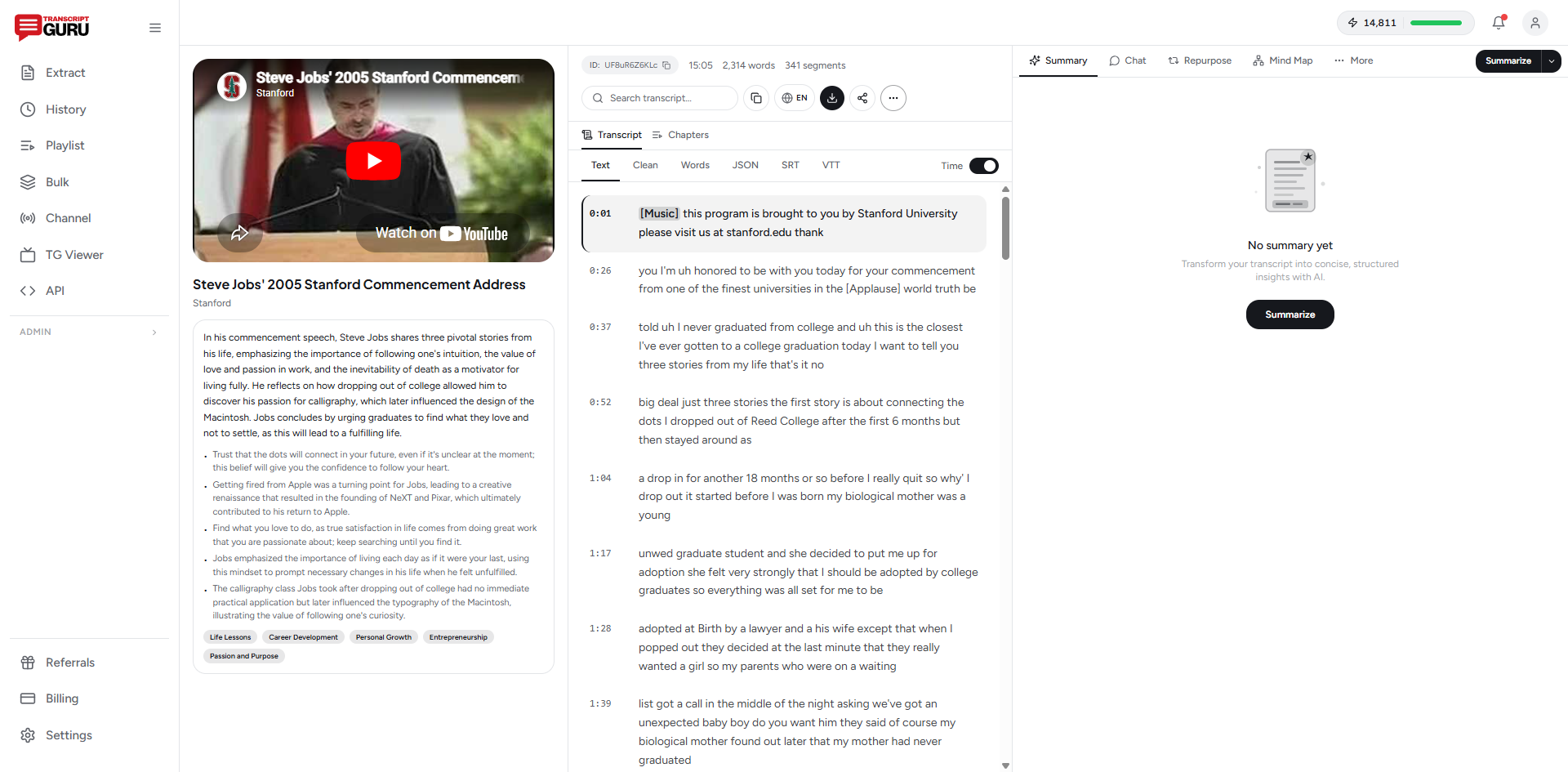
Summarize any YouTube video in seconds
Get Started FreeMethod 2: Paste the Transcript Into ChatGPT or Claude
If you'd rather use a general AI chatbot, the workflow is two steps: get the transcript, then prompt the model.
- Grab the transcript (YouTube's transcript panel or a transcript tool)
- Paste it into ChatGPT, Claude, or your model of choice
- Use a specific prompt rather than just "summarize this"
A vague prompt gives you a vague summary. Try something like:
Summarize this video transcript in three parts: (1) a two-sentence TL;DR, (2) the five most important points as bullets, and (3) any specific data, names, or recommendations mentioned. Keep it factual and don't add anything that isn't in the transcript.
That last sentence matters. Telling the model to stick to the transcript reduces the chance it invents details.
Choosing the Right Summary Type
Not all summaries serve the same purpose. Match the format to the goal:
- TL;DR / short summary - One or two sentences. For deciding whether to watch in full.
- Bullet points / key points - The main takeaways, scannable. For notes and quick review.
- Chapter summary - A breakdown by section with timestamps. For long talks, lectures, and tutorials where you'll want to jump back to specific parts.
- Detailed summary - A thorough paragraph-by-paragraph condensation. For when you need the substance without the runtime.
- Meeting minutes / action items - Decisions and next steps. For recorded calls and webinars.
A purpose-built tool exposes these as presets. With a general chatbot, you get them by adjusting the prompt.
The Step Most People Skip: Verify It
AI summaries are fast and usually accurate, but "usually" is doing real work in that sentence. Models occasionally misattribute a quote, round a number wrong, or smooth over a caveat the speaker made. If you're going to act on the summary, cite it, or pass it to someone else, verify the load-bearing parts.
This is easy when your summary tool keeps the transcript alongside the summary: click a timestamp, jump to that moment, confirm the wording. Keeping the source one click away is the difference between a summary you trust and one you hope is right.
Go Further: Chat With the Video
A summary answers "what was this about?" Sometimes you have a more specific question: "What did they say about pricing?" or "Did they mention any tools?" That's where chatting with the transcript beats a static summary.
Because the model already has the full text, you can interrogate it: ask for examples, request the counterargument, or have it pull every statistic into a list. It turns a one-way video into something you can actually question.
Real Use Cases
- Research. Triage a dozen videos on a topic by summary, then watch only the two worth your time.
- Lectures and courses. Turn a 90-minute lecture into a chapter summary you can review before an exam. (More on this in using transcripts for studying.)
- Recorded meetings and webinars. Get decisions and action items without re-watching.
- Content creation. Summarize a competitor's video, or condense your own into show notes and posts. See repurposing YouTube videos.
The Short Version
To summarize a YouTube video with AI: get a clean transcript, pick a summary format that matches your goal, generate it (one click, or a focused prompt in a chatbot), and verify anything important against the source. The whole thing takes under a minute.
Want it all in one place? Transcript Guru extracts the transcript for free and generates summaries, chapter breakdowns, and chat answers from the same screen, free to start.
Keep reading
- How to Transcribe a YouTube Video to Text
- How to Use YouTube Transcripts for Studying
- How to Translate YouTube Subtitles Into Any Language
- How to Repurpose YouTube Videos Into Social Media Content
Frequently Asked Questions
How do I summarize a YouTube video with AI for free?
Get the transcript, then summarize it. You can paste the transcript into a free AI chat tool with a 'summarize this' prompt, or use a one-click summarizer. On Transcript Guru, transcript extraction is free and summaries run on the monthly AI credits included with every plan.
Can AI summarize a video without captions?
It needs text to work from, so the audio has to be transcribed first with speech recognition, then summarized. Tools that support AI transcription handle both steps; the summary quality depends on the transcription accuracy.
Are AI video summaries accurate?
They are usually very good for structure and main points, but they can occasionally misstate a number, name, or nuance. Treat a summary as a fast first pass and verify anything important against the transcript or the video itself.
What is the best summary format for a long video?
For a quick decision, a short TL;DR or five bullet points. For studying or reviewing a talk, a chapter-by-chapter summary with timestamps so you can jump back to the source. Match the format to why you need it.
Can I ask follow-up questions about a video?
Yes. After summarizing, you can chat with the transcript: ask what the speaker said about a specific topic, request examples, or ask for a counterargument. This turns a passive video into something you can interrogate.
Ready to try it yourself?
Extract transcripts, generate summaries, and repurpose content, free to start.
Start FreeRelated Articles
How to Transcribe a YouTube Video to Text (Free, No Software)
Jun 1, 2026
TranslationHow to Translate YouTube Subtitles Into Any Language
May 24, 2026
EducationHow to Use YouTube Transcripts for Studying (Notes, Flashcards, Study Guides)
May 20, 2026
Content RepurposingHow to Repurpose YouTube Videos Into Social Media Content (2026 Guide)
Mar 25, 2026