Skip to content

    Troubleshooting

    Find the problem, understand what happened and follow the recovery steps. Your completed transcripts may still be available even when another action fails.

    72 results

    Known messages and waiting states in extension 1.2.0. Wording can vary by language or release. Use the reporting steps if the exact message is unfamiliar.

    Access

    The panel or an entry button is missing

    The page may not have initialized the extension, may be collapsed, or may not be a supported entry page.

    What to do

    1. Check that the extension is enabled and has access to YouTube.
    2. Refresh the YouTube tab once after installing or updating. Check the header arrow for a collapsed panel.
    3. Check Where buttons appear in the extension guide. Report the exact URL and navigation steps if the panel repeatedly disappears.

    Do not start a paid transcription just to test whether the panel is mounted.
    Refresh after an extension update

    An already-open tab is connected to an older extension session.

    What to do

    1. Refresh the YouTube page.
    2. Reopen the panel and use History for work that already started.
    3. For live capture, check whether the earlier session ended before starting another.

    Messages you may see

    • Extension was updated
    • Please refresh this page to reconnect the extension.
    • Extension was updated. New captures are paused until you refresh.
    • Live capture unavailable - please reload the extension.

    Sign-in did not complete

    The account connection was not completed or is no longer valid.
    What to do

    1. Complete the extension’s sign-in flow in the window it opens.
    2. Return to YouTube and retry the requested action.
    3. If it repeats, report the browser version and the point where sign-in stopped. Never send your password.

    Messages you may see

    • Login failed
    • Failed

    The daily limit was reached

    The current account or anonymous session reached a product limit.

    What to do

    1. Read the sign-in or account option shown.
    2. Sign in to the intended account and check its current limits.
    3. If the count appears wrong, report it with the time and action.

    Account allowances can change. Use the current account page rather than a number shown in a sample screenshot.

    Messages you may see

    • Daily limit reached
    • Sign up free to lift the daily limit. You also get 20 monthly credits for AI summaries, translations, and more.

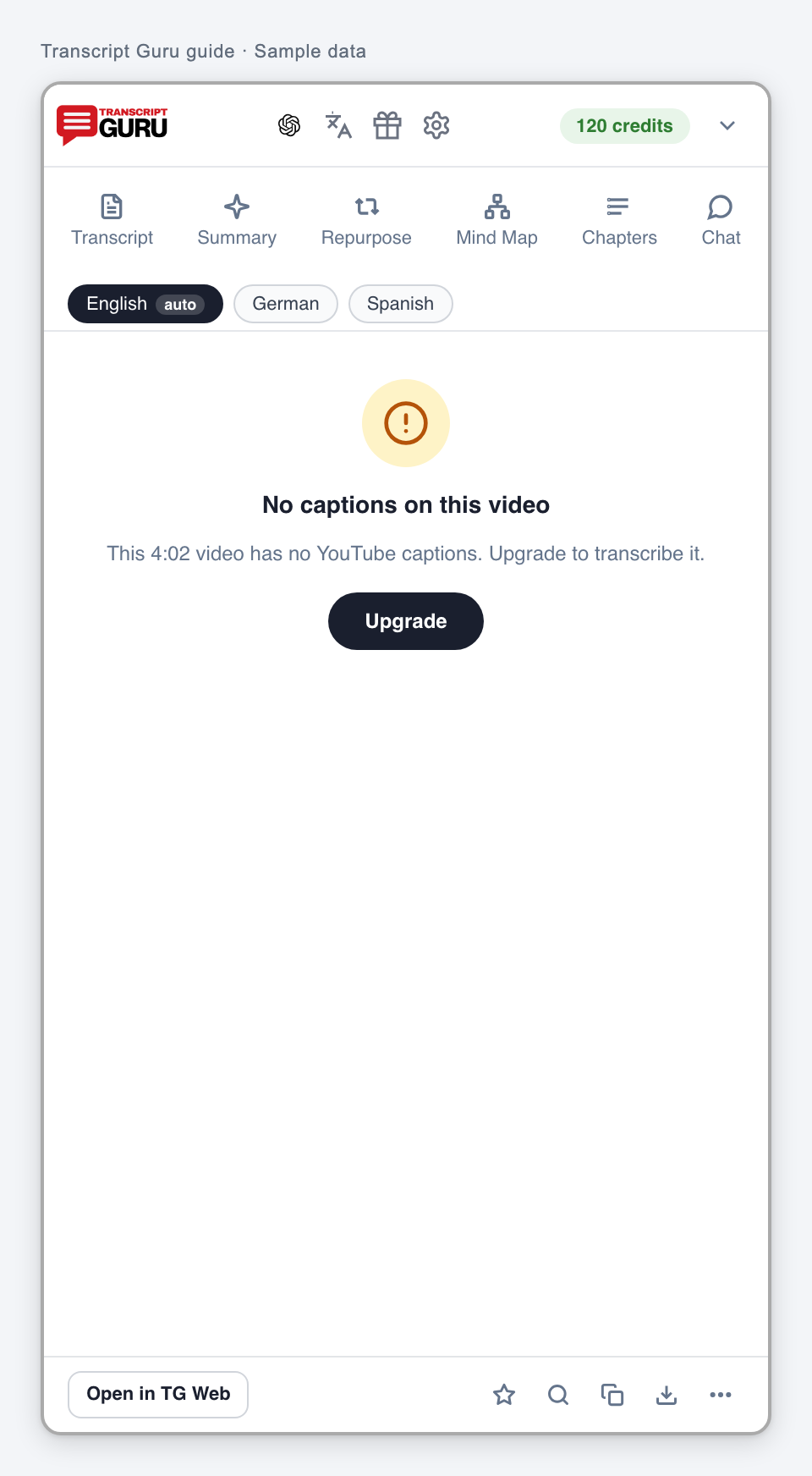
    Your plan does not include this action

    The requested AI action requires a different plan or is outside the current plan’s eligibility.

    What to do

    1. Check which account is signed in.
    2. Review the current plan options if you want the feature.
    3. Continue with existing captions or completed results where available.

    A plan restriction does not mean the recording itself failed.
    Messages you may see

    • Your plan doesn't allow this transcription.
    • AI transcription requires an eligible paid plan.
    • Live translation requires a paid plan.

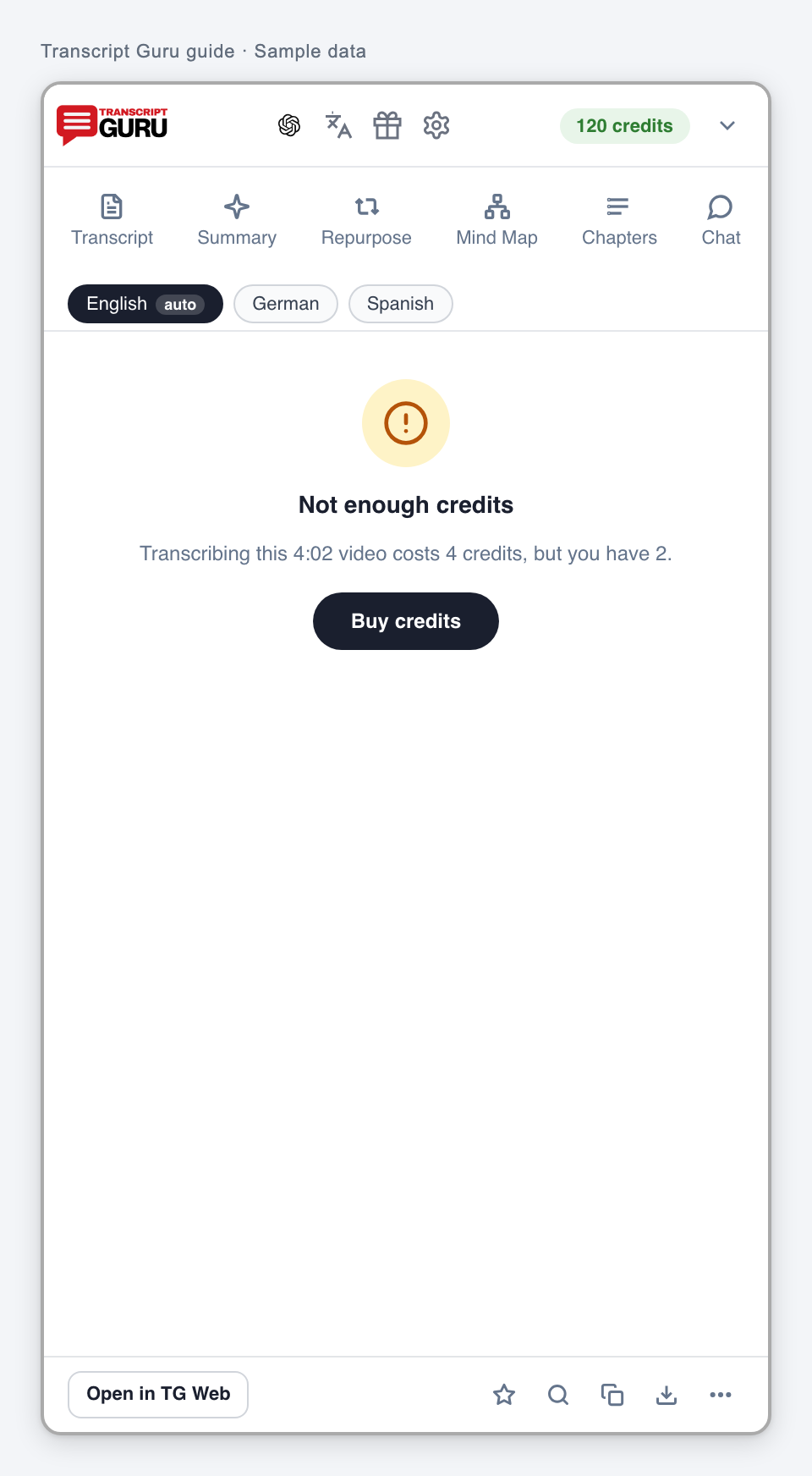
    There are not enough credits

    The requested AI work or reservation exceeds the available balance.

    What to do

    1. Read the quoted requirement and current balance.
    2. Reduce the batch selection, wait for other work to settle, or use the account’s top-up options.
    3. Retry only when you intend to start that paid action.

    Do not assume that a failed click was charged. Check the job’s actual credit state.
    Messages you may see

    • Not enough credits
    • You don't have enough credits.
    • You're out of credits. Top up or upgrade to keep chatting.
    • Need 10 credits to start live translation. Top up to enable.
    • Out of credits for live translation. Top up to continue.

    A permission choice could not be saved

    The requested preference or access change was not saved.

    What to do

    1. Retry the choice from the same settings screen.
    2. For external AI, Copy and open can be used without direct website insertion.
    3. If it repeats, refresh and reopen settings, then report the control that failed.

    Messages you may see

    • We could not save your choice. Please try again.
    • This setting could not be saved. Please try again.
    • Access was not changed. Please try again.

    Connection

    A request could not connect

    The connection was interrupted before a usable response reached the panel.

    What to do

    1. Check that YouTube and Transcript Guru open normally.
    2. Refresh once and reopen the saved job or batch.
    3. If it continues, report the exact action and time. Check History before repeating a create or transcription action.

    Messages you may see

    • Network error
    • Please refresh the page and try again.
    • Your Transcript Guru plan could not be checked. Please try again.

    The selected transcript could not be opened

    The current page could not connect its action to a saved transcript or job.

    What to do

    1. Return to Transcript and let the selected language load.
    2. Refresh once, then reopen the result from History.
    3. Report the video and job reference if it still fails.

    Messages you may see

    • Could not get job
    • Couldn't obtain a transcript job for this video.
    • Failed to load:

    Captions

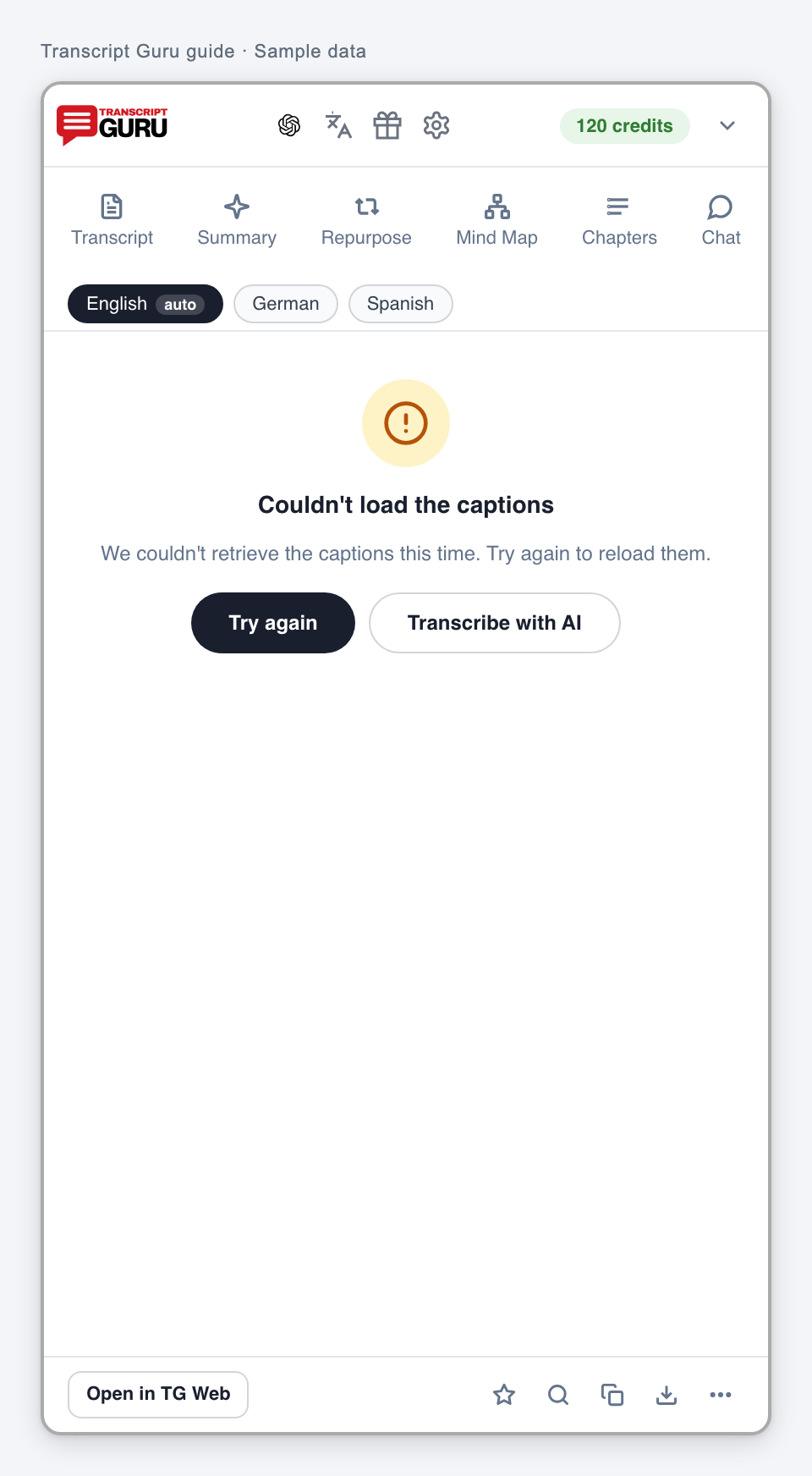
    Captions could not be loaded

    The caption request did not produce a usable result. This is different from a confirmed absence of captions.
    What to do

    1. Choose the caption retry or refresh action.
    2. Open the video and check its captions. If another track is available, try that track.
    3. If the problem repeats, report the video link and language. Choose AI only after reviewing its separate offer.

    Messages you may see

    • Failed to load transcript
    • Couldn't load the captions
    • We couldn't retrieve the captions this time. Try again to reload them.
    • Could not load the transcript. Please try again.
    • Couldn't load transcript after multiple attempts
    • Couldn't load transcript.
    • YouTube didn't return captions for this video. Please try again in a moment.
    • We couldn't fetch captions. Please try again.
    • Couldn't extract this video's transcript. Please try again.
    • Failed to extract
    • Extraction failed
    • Couldn't fetch captions

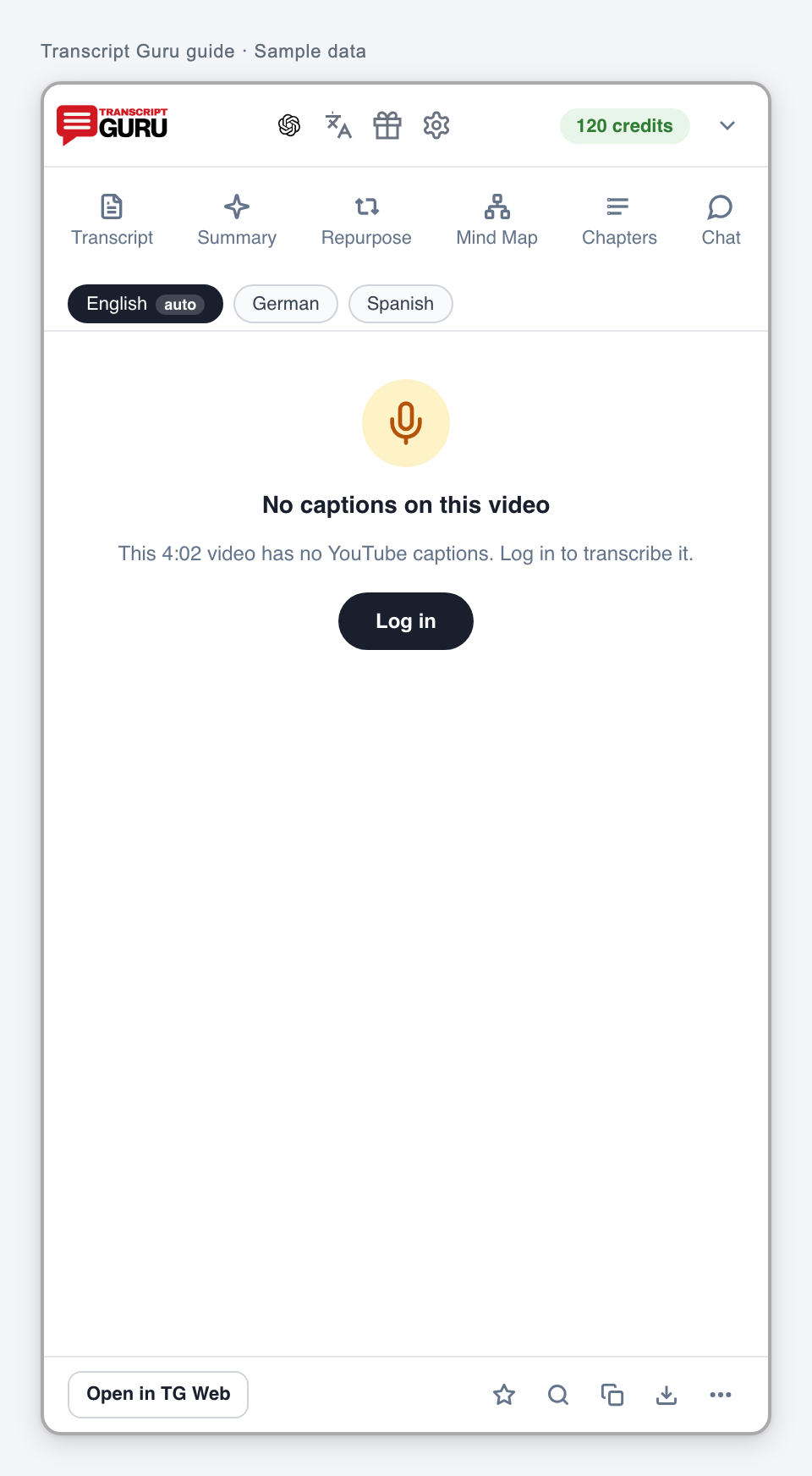
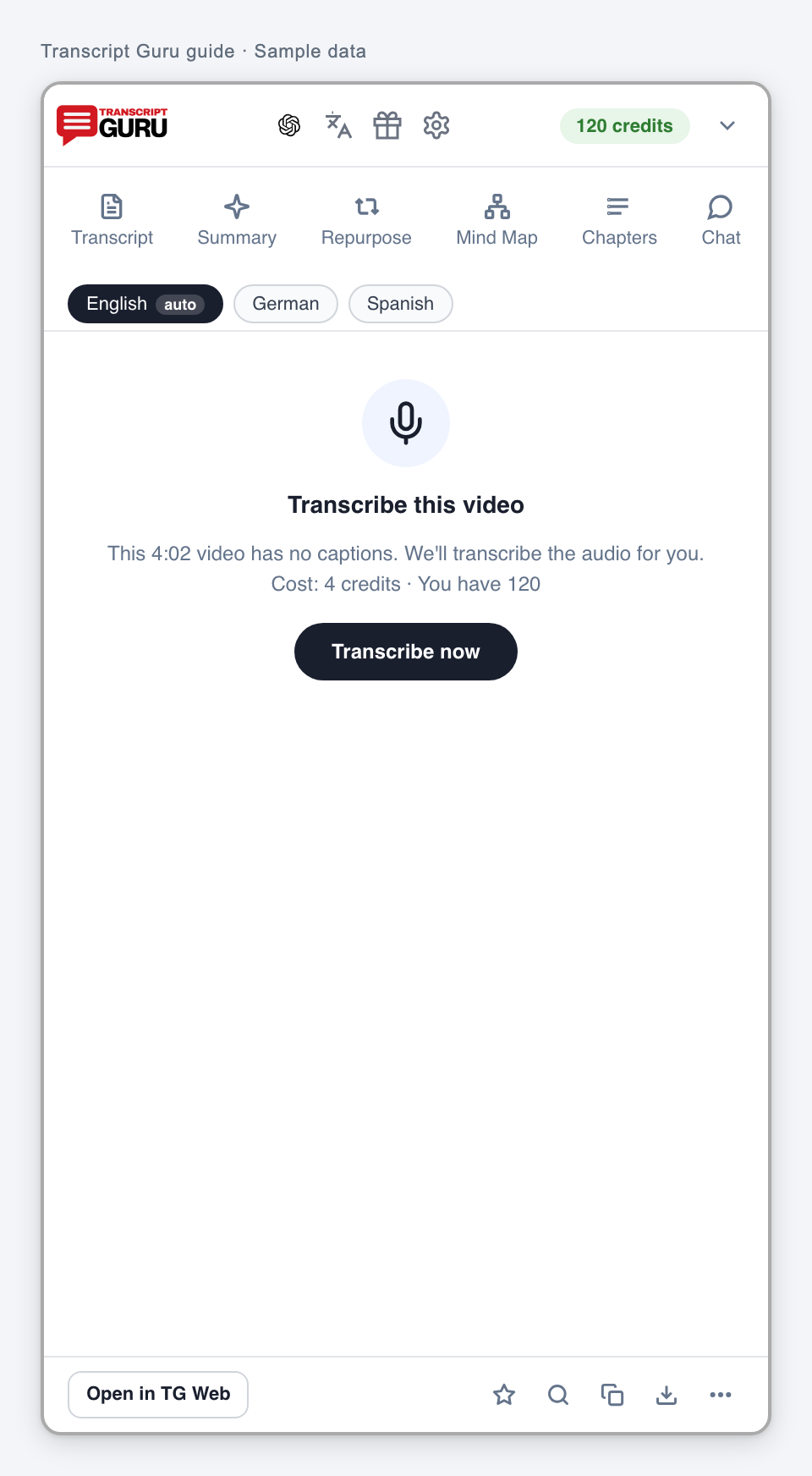
    No caption track is available

    No usable caption track is available through the offered caption flow.
    What to do

    1. Check that the intended video and language are selected.
    2. If you need a transcript, review the AI transcription offer and its cost.
    3. If the recording has no speech, AI may correctly return no usable speech.

    Messages you may see

    • No captions on this video

    The selected language has no transcript

    The requested track is unavailable or the language search has no matching entry.

    What to do

    1. Return to Transcript and choose an available track.
    2. Clear or shorten a language search if necessary.
    3. Use the translation flow if you want a language for which no caption track exists.

    Messages you may see

    • No transcript for that language.
    • No languages match "{query}"

    There is nothing to copy, download or save yet

    The requested output has not loaded for the current video.

    What to do

    1. Open a video and load Transcript first.
    2. Wait for the result or resolve its visible error.
    3. Return to the copy, download or save action.

    Messages you may see

    • Nothing to copy yet.
    • Nothing to download yet.
    • No video to save

    Search has no matches

    The search did not match the currently selected transcript or loaded batch rows.

    What to do

    1. Check spelling, use a shorter term or clear the search.
    2. Check the selected language and batch filters.
    3. For a channel, load the next page before searching videos that are not loaded yet.

    Messages you may see

    • No matches
    • No matching videos loaded.

    Caption processing or translation failed

    The caption work stopped before completing.

    What to do

    1. Read the recorded failure and credit state.
    2. Retry the failed caption action once if the video remains accessible.
    3. Report repeated failures rather than creating multiple identical jobs.

    When the message explicitly says refunded, confirm that status in the account record.

    Messages you may see

    • Caption processing failed. Your credits were refunded. Please try again.
    • Translation of the captions failed. Your credits were refunded. Please try again.
    • Captions couldn't be fetched after several attempts. Your credits were refunded. Please try again.

    Jobs

    The work was cancelled

    That attempt ended before producing a complete result.

    What to do

    1. Check History for another completed or still-running attempt.
    2. Start again only if you want a new attempt.
    3. Check actual credits used in the job or batch record.

    Messages you may see

    • The transcription was cancelled before it finished.
    • Caption fetch was cancelled before it finished.
    • Translation was cancelled before it finished.
    • Cancelled

    The recorded attempt was refunded

    The displayed attempt returned its reserved or charged credits as described.

    What to do

    1. Review the associated failure reason before trying again.
    2. Check the credit record for that attempt.
    3. If the balance does not match the recorded refund, report the job ID and time.

    This message describes the recorded attempt. It is not a promise that every possible failure has the same credit outcome.

    Messages you may see

    • This transcription was refunded. Please try again.
    • This job was refunded. Please try again.
    • This translation was refunded. Please try again.
    • Any credits that were reserved have been refunded to your account.

    The cost could not be checked

    A reliable cost was not available for the requested work.

    What to do

    1. Retry the cost check once from the same action.
    2. For a batch, return to the selection and choose Extract Selected again when ready.
    3. If the quote still fails, open the video or collection in Transcript Guru and report the error.

    Do not substitute a guessed cost or assume AI is required.

    Messages you may see

    • We couldn't check the cost. Please try again in a moment.
    • We couldn't quote a transcription cost for this video. Refresh the page and try again, or open the video on TranscriptGuru.

    Too many transcriptions are running

    The service is limiting overlapping work or repeated requests.

    What to do

    1. Check History for active jobs.
    2. Wait for an active job to finish before starting more.
    3. Avoid repeatedly clicking Extract or Transcribe.

    Messages you may see

    • Too many concurrent transcriptions. Wait a moment.
    • Please wait a moment before trying again.

    AI transcription could not start

    The requested attempt did not start successfully or the start response was interrupted.

    What to do

    1. Check History first in case a job was created.
    2. If no job exists, retry the start action once.
    3. Report a repeated failure with the video URL and time.

    Messages you may see

    • We couldn't start the transcription.
    • Something went wrong. Please try again.

    Audio could not be retrieved

    The audio needed for this transcription could not be reached.

    What to do

    1. Check whether the video plays normally in your browser and is publicly accessible.
    2. Retry later if it was a temporary availability problem.
    3. Use another accessible recording or contact support if it repeats.

    Do not try to bypass a private or restricted video. Check the refund state shown for the attempt.

    Messages you may see

    • We couldn't download the audio from YouTube. The video may be region-restricted or temporarily unavailable. Your credits were refunded.

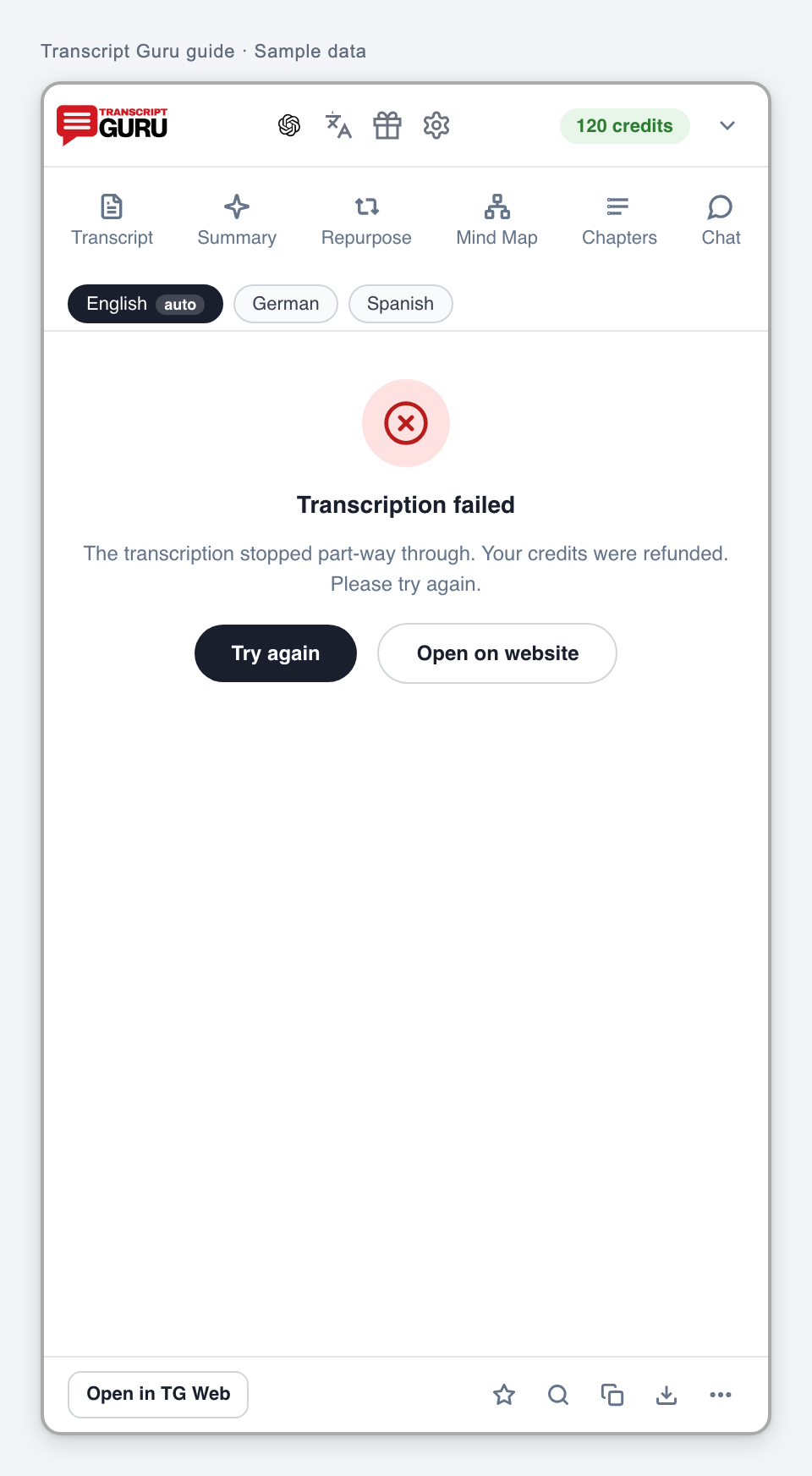
    AI transcription stopped or failed

    The AI attempt did not produce a completed transcript.
    What to do

    1. Read the failure detail and check whether credits were returned.
    2. Check the recording for usable speech and normal playback.
    3. Retry once for a temporary failure; report repeated failures with the job ID.

    Messages you may see

    • Transcription failed
    • The transcription stopped part-way through. Your credits were refunded. Please try again.
    • The transcription couldn't be completed after several attempts. Your credits were refunded. Please try again or contact support if this persists.
    • The transcription couldn't be completed. Please try again.

    The completed transcript could not load

    The result view failed to load. The job may still have a saved result.

    What to do

    1. Refresh the page.
    2. Open the completed item from History.
    3. Report it if the job is complete but the saved transcript remains inaccessible.

    Reopen the existing result before paying for another transcription.

    Messages you may see

    • Couldn't load transcript. Please refresh.

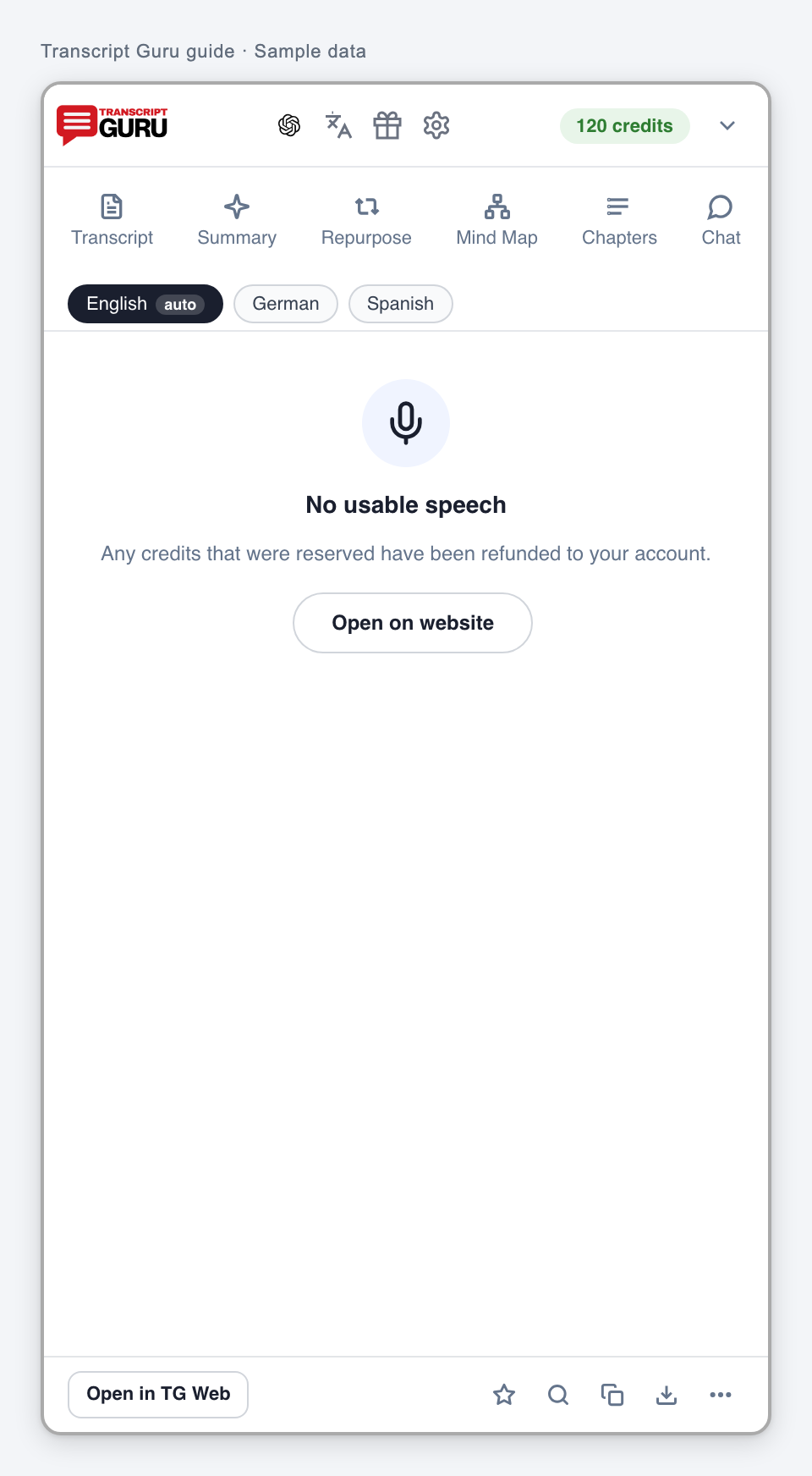
    The recording has no usable speech

    The audio did not produce usable spoken content. Music, game sounds or on-screen text alone do not supply speech to transcribe.

    What to do

    1. Listen to the recording and check whether someone actually speaks.
    2. If it is intentionally speech-free, no retry is needed.
    3. If clear speech is present, report the video and the timestamps where it can be heard.

    Read the credit outcome displayed for this job. Repeating the same speech-free recording is unlikely to create a transcript.
    Messages you may see

    • No usable speech
    • Transcript is empty - video may have no speech

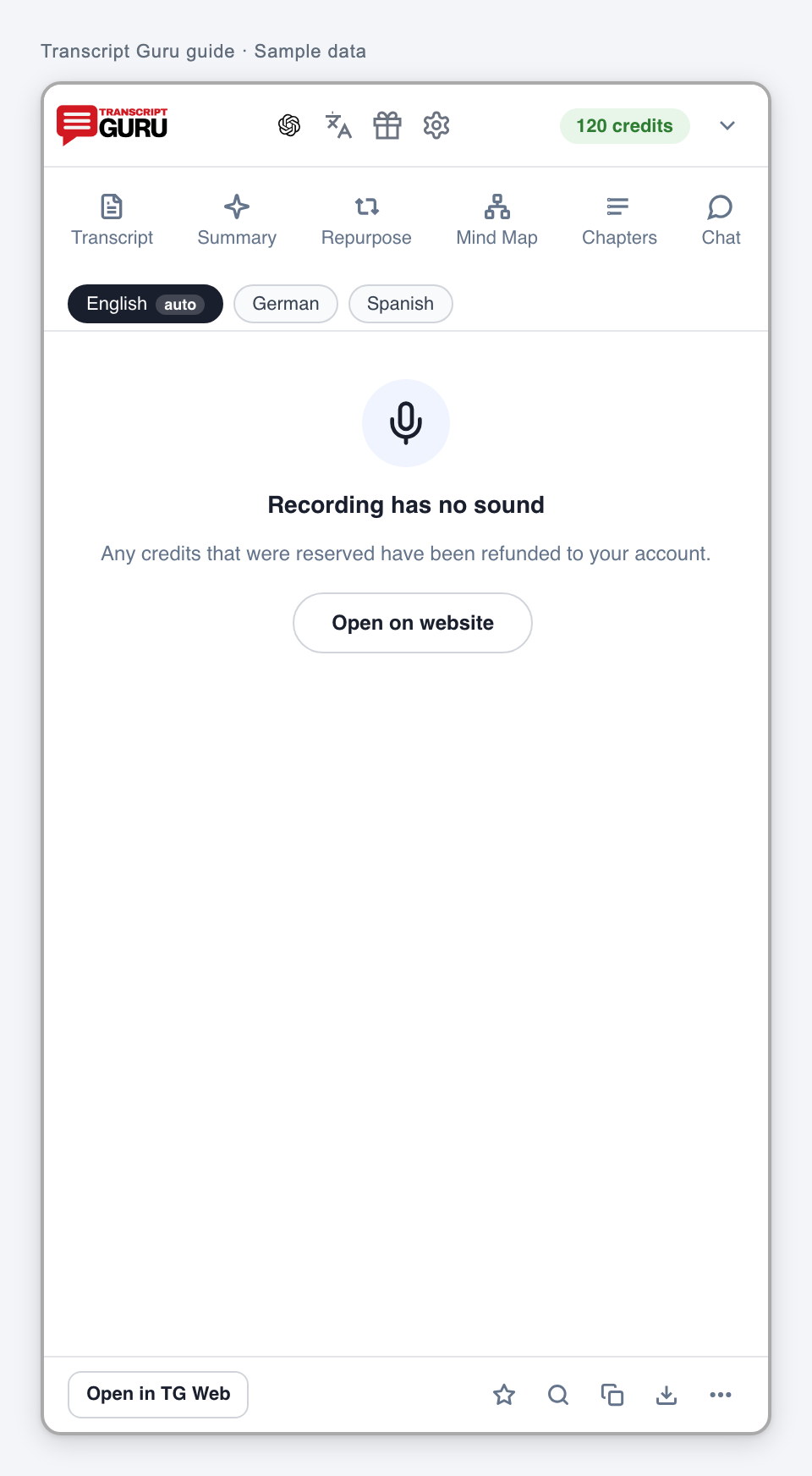
    The recording has no sound

    No usable audio was found in the recording.
    What to do

    1. Check the original recording’s audio track.
    2. For a local file, upload a version with sound through the web workspace.
    3. Report a video that clearly has sound if it was classified this way.

    Messages you may see

    • Recording has no sound

    Progress is slow or disconnected

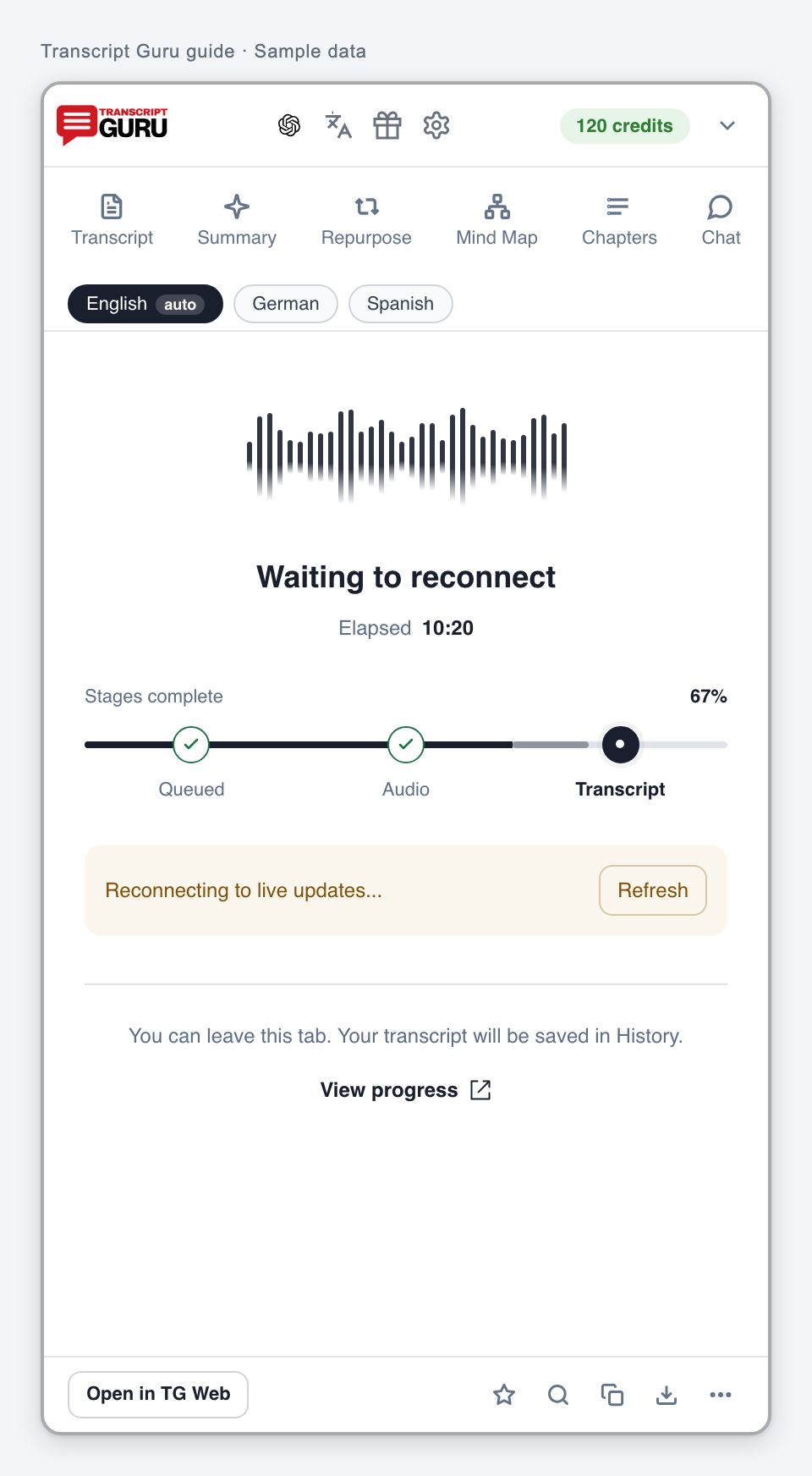
    The panel is not receiving current progress, or the attempt is taking longer than expected.

    What to do

    1. Use Refresh or View progress.
    2. Open History and check the existing job’s latest state.
    3. If the same job remains stuck, report its ID and start time rather than submitting it again.

    A connection interruption does not prove that the work stopped.
    Messages you may see

    • Processing is taking longer than expected. Check transcriptguru.io in a few minutes.
    • Reconnecting to live updates...
    • Taking longer than expected
    • Waiting to reconnect

    Quality

    A transcript needs review

    A quality check raised a concern about text that may still be usable.

    What to do

    1. Compare relevant passages with the audio.
    2. Use Looks fine only if the text is correct and that action is offered.
    3. Use the separate AI offer or report the issue if it is inaccurate.

    Needs review does not mean there are no captions.

    Messages you may see

    • Our automatic quality check flagged this transcript. If it looks right to you, confirm to clear the flag.
    • This transcript may contain errors
    • Needs review

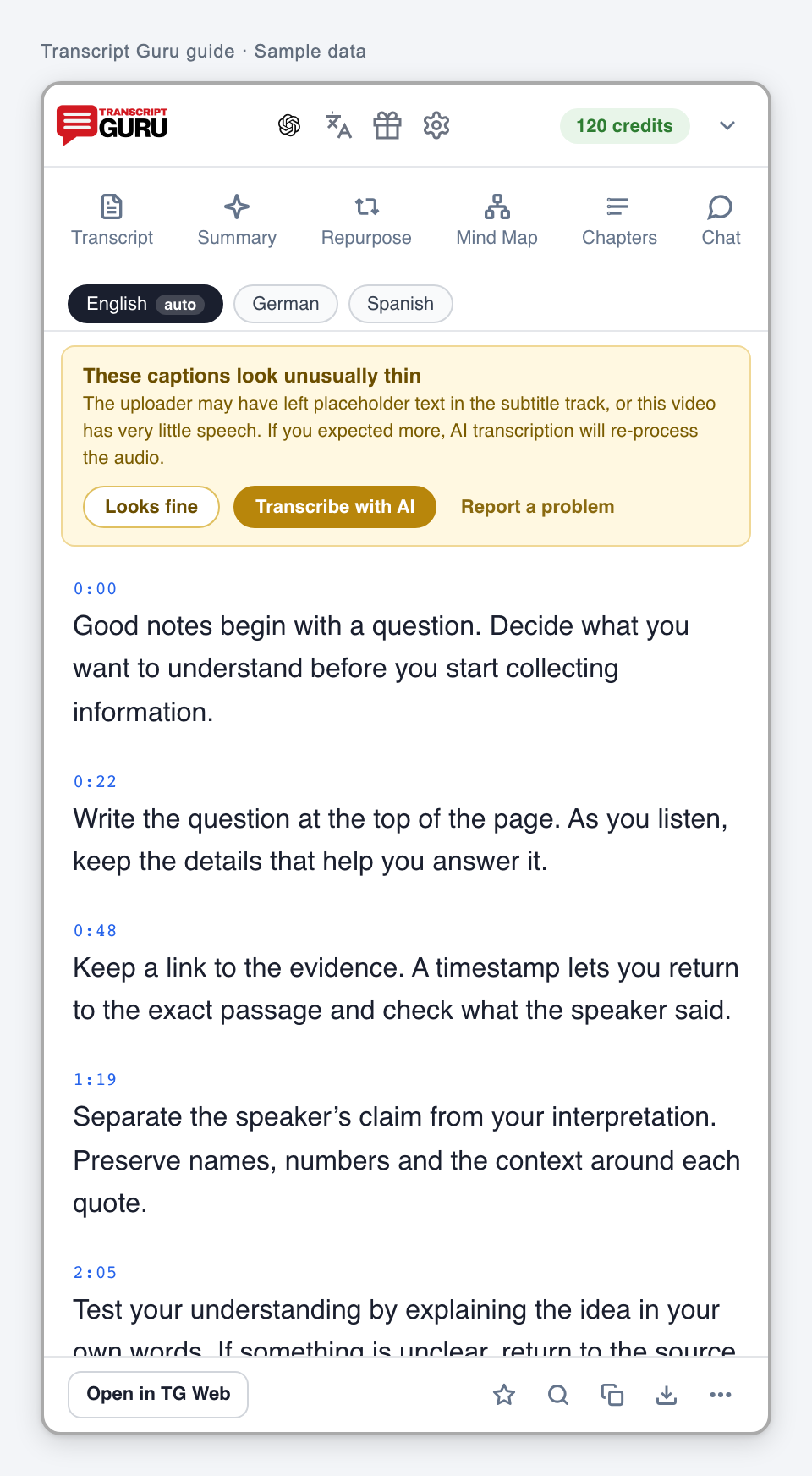
    Captions seem incomplete or unusually short

    The available text may not cover the recording, or the recording may contain little speech.
    What to do

    1. Check the beginning, middle and end against the audio.
    2. Accept the warning only if the short text accurately reflects the speech.
    3. If speech is missing, consider AI transcription after reviewing its offer.

    Messages you may see

    • These captions look incomplete
    • The caption track may not cover the whole video, or the uploader cut it short. If the missing parts matter to you, run AI transcription to re-process the audio.
    • These captions look unusually thin
    • The uploader may have left placeholder text in the subtitle track, or this video has very little speech. If you expected more, AI transcription will re-process the audio.

    Parts of the transcript repeat

    Repeated captions or background noise may have produced duplicated text.

    What to do

    1. Replay a repeated section to compare the actual speech.
    2. Keep the captions if the repetition is genuine.
    3. Report an inaccurate track or review the AI replacement option.

    Messages you may see

    • Parts of this transcript repeat themselves
    • Auto-captions sometimes loop on the same line or stutter on background noise. AI transcription can give you a cleaner version.

    The reported and detected languages differ

    The text language and its reported label do not agree. That alone does not prove that the words are incorrect.

    What to do

    1. Check which caption track you selected and read the actual words.
    2. Compare the audio, especially for short, mixed-language or closely related-language material.
    3. Accept accurate text where allowed, or report the label or content problem. Use AI only if you want a new transcription.

    AI transcription should preserve the original speech first. Translation is a separate step; do not assume that correcting a label translates the text.
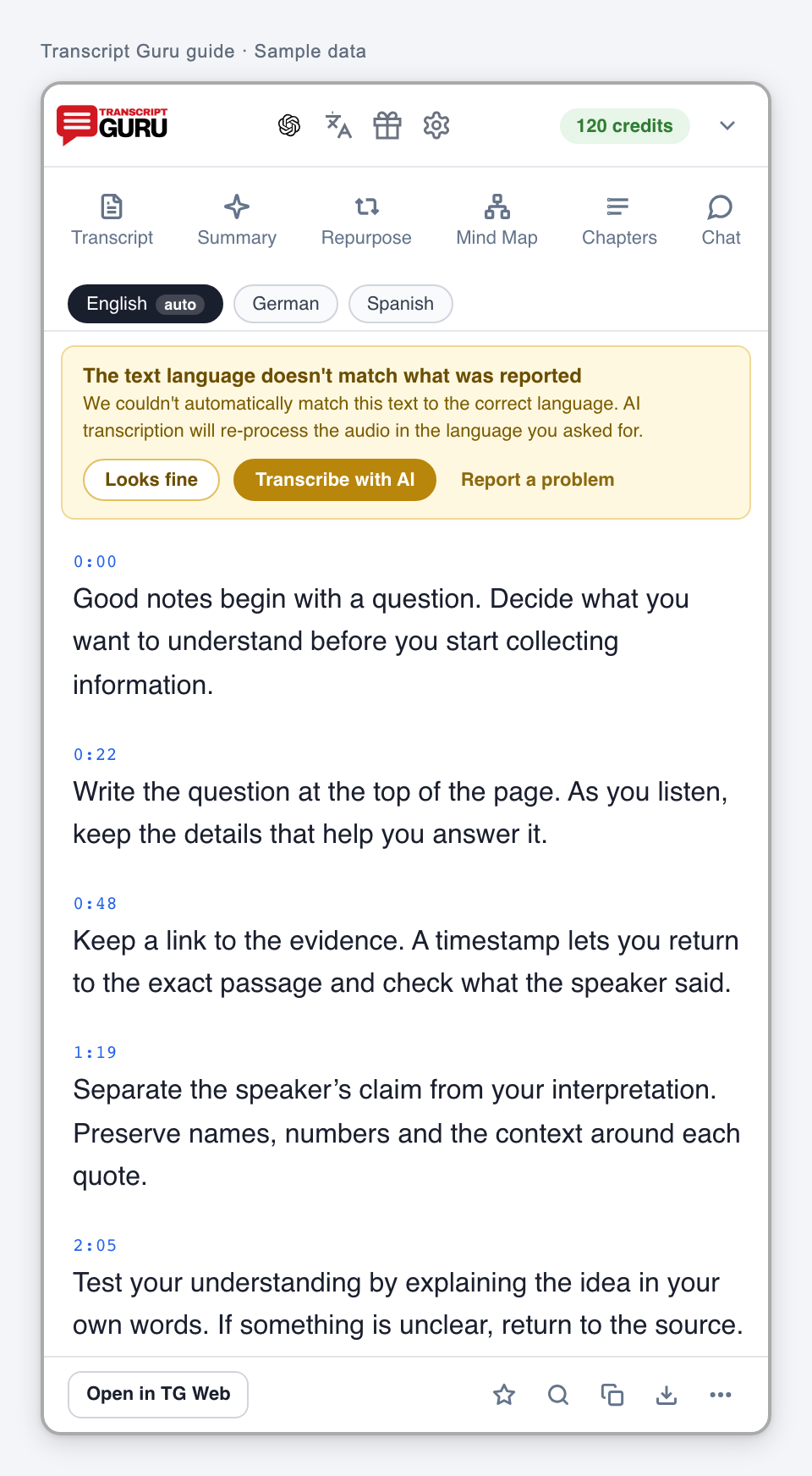
    Messages you may see

    • The text language doesn't match what was reported
    • We couldn't automatically match this text to the correct language. AI transcription will re-process the audio in the language you asked for.

    The review confirmation did not save

    The flag was not cleared.

    What to do

    1. Retry the confirmation once after checking the text.
    2. Refresh the saved result to see its current review state.
    3. If it persists, report the job and language.

    Messages you may see

    • Could not clear the flag. Please try again.

    Reported captions restrict saving or AI features

    These captions have a quality restriction. The available actions depend on the type of review.

    What to do

    1. Read the notice and keep using local read, copy or download actions where available.
    2. If confirmation is offered, verify the text before using it.
    3. If the captions were reported as inaccurate and confirmation is absent, review the AI replacement option or contact support.

    Do not repeatedly flag the same issue or treat the restriction as a reason to charge for existing captions.
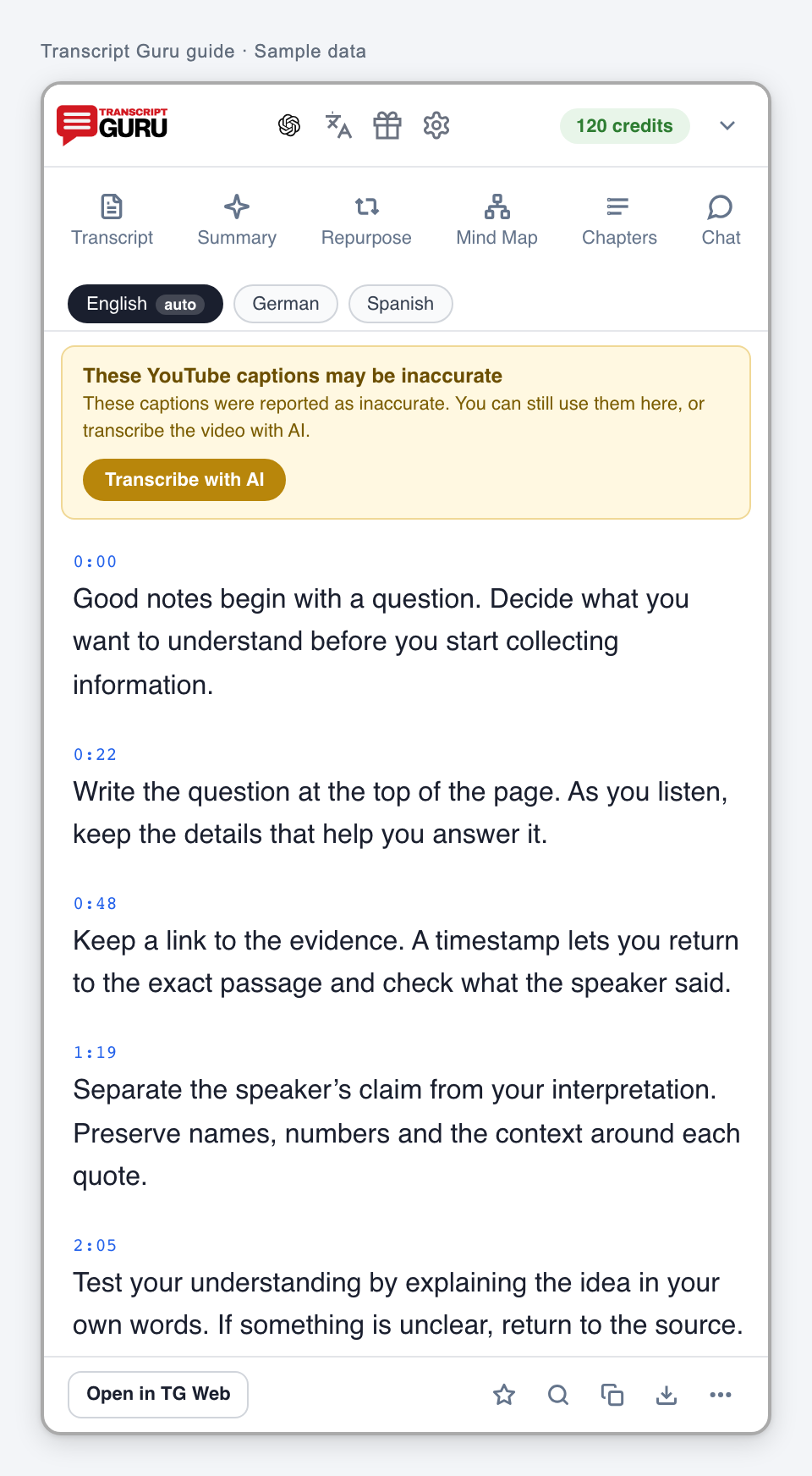
    Messages you may see

    • These YouTube captions may be inaccurate
    • These captions were reported as inaccurate. You can still use them here, or transcribe the video with AI.
    • These captions cannot be saved because they were reported as inaccurate. You can still copy or download them, or choose Transcribe with AI.
    • Transcribe the video with AI before using this feature.
    • This caption issue has already been reported.
    • Translation to {language} is blocked because these captions failed our checks. Transcribe the audio first, then translate.
    • Review these captions before translating to {language}. Confirm that they are accurate, or transcribe the audio.
    • These captions did not pass our checks. Transcribe the audio to use AI features. You can still copy or download the text.

    This panel cannot retry an uploaded file

    The extension’s AI replacement action is for YouTube videos.

    What to do

    1. Open the uploaded recording in the web workspace.
    2. Check its existing job and any offered recovery action.
    3. Re-upload the correct source file only if a new attempt is needed.

    Check the new cost before starting again.

    Messages you may see

    • AI transcription is only available for YouTube videos. Re-upload the file to retry.

    AI tools

    Translation needs confirmation

    The requested language needs a translation rather than a different existing caption track.

    What to do

    1. Review the translation offer and cost.
    2. Continue if you want that translation, or choose an available source-language track.
    3. Use Original to return to the source where offered.

    Messages you may see

    • Translation needs confirmation
    • This video has captions in another language. Review the translation quote to continue. You have not been charged.

    Translation is waiting for a source transcript

    The selected transcript is not ready for the translation action.

    What to do

    1. Open Transcript and wait for the selected language to load.
    2. Retry translation from that result.
    3. Resolve any caption or quality error first.

    Messages you may see

    • Couldn't load the transcript. Try clicking Transcript first.
    • Couldn't set up this video. Please try again.
    • Still setting up. Please wait a moment and try again.

    A translation could not finish or reopen

    The translation or its result connection failed.

    What to do

    1. Check saved results or History before starting another generation.
    2. Refresh to reload a saved translation when available.
    3. Retry once if no usable result exists and you still want the work. Report repeated failure.

    Check the specific attempt’s credit status. Opening a saved result is different from generating another.

    Messages you may see

    • Translation failed: {message}
    • We couldn't finish the translation. Please try again in a moment.
    • We couldn't reload the saved translation. Refresh the page and try again.
    • Translation failed
    • The translation stopped part-way through. Your credits were refunded. Please try again.
    • We couldn't reach the source transcript. Please try again.
    • Translation couldn't be completed after several attempts. Your credits were refunded.
    • The translation couldn't be completed. Please try again.

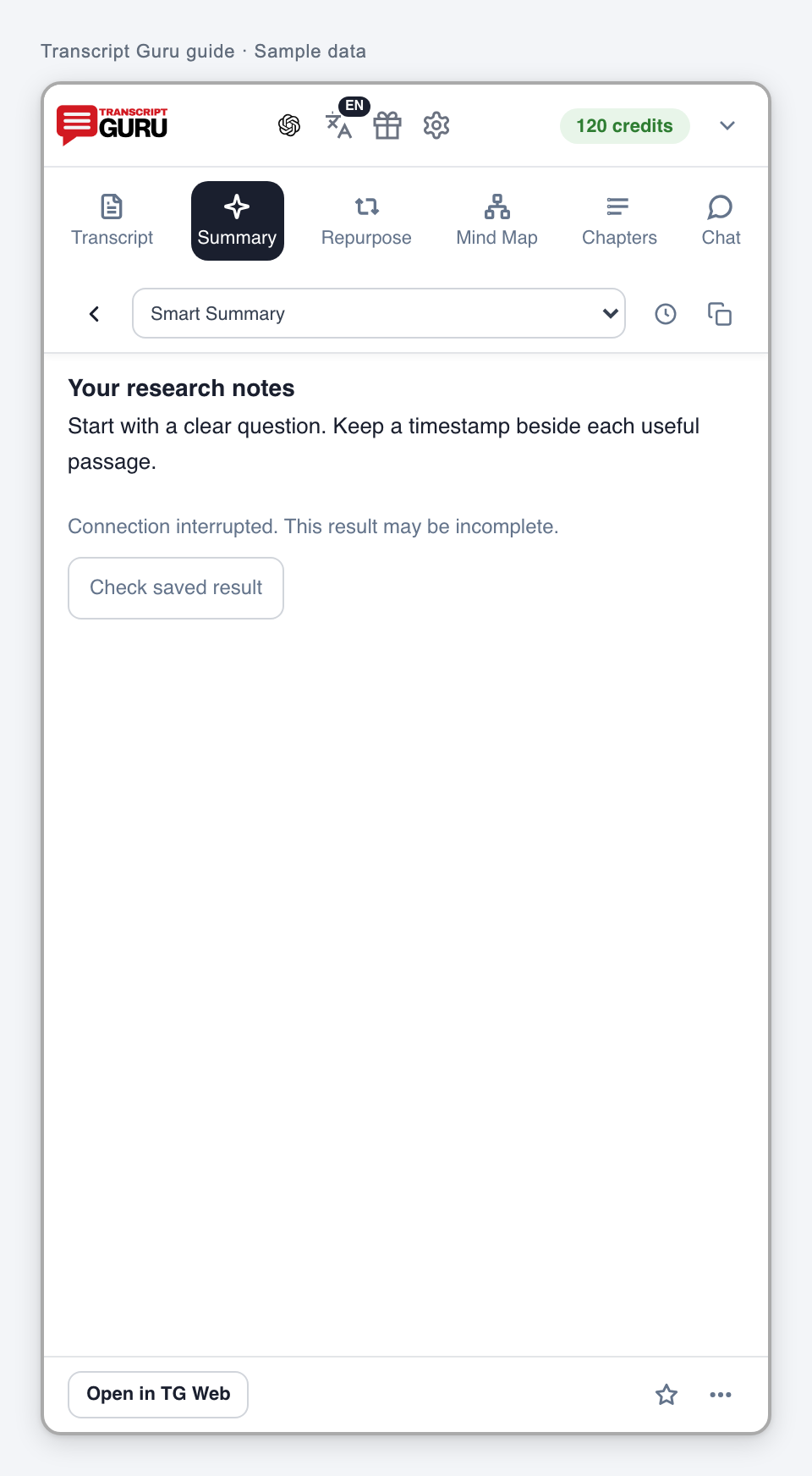
    A streamed result may be incomplete

    The connection ended while a result was being displayed.
    What to do

    1. Choose Check saved result if offered.
    2. Reopen the feature or result from History.
    3. Generate again only after checking whether the first result was saved.

    Messages you may see

    • Connection interrupted. This result may be incomplete.

    Chapters could not load or generate

    Creator chapters are missing or the requested chapter action failed.

    What to do

    1. Retry loading chapters once.
    2. Continue using transcript timestamps if creator chapters are absent.
    3. Use AI chapters only when explicitly offered, with the required credits.

    Messages you may see

    • Couldn't load chapters.
    • Couldn't load chapters
    • Couldn't generate AI chapters.
    • Couldn't generate AI chapters
    • No chapters returned.

    Settings

    Summary settings did not save or load

    Your requested settings may not have taken effect.

    What to do

    1. Close and reopen the settings panel.
    2. Check the fields and save again.
    3. Verify the selected style and output language before starting a new summary.

    Messages you may see

    • Could not save. Please try again.
    • Settings could not load. Please reopen this panel.

    The transcript could not be saved

    Saving to the account did not complete.

    What to do

    1. Check that you are signed in to the intended account.
    2. Check History before retrying, in case the save completed.
    3. If there is a quality restriction, follow that notice. Otherwise retry once and report repeated failure.

    Messages you may see

    • Failed to save
    • Couldn't save. Try again.

    A settings field is not valid

    The provider, style or custom website field needs a valid value.

    What to do

    1. Choose an available AI provider and summary style.
    2. For a custom website, enter its complete HTTPS address without a password or prompt placeholders.
    3. Save again and verify that the setting stayed selected.

    Messages you may see

    • Enter a complete HTTPS website address, without a prompt template or password.
    • Choose an AI app.
    • Choose an AI app in Summary settings.
    • Choose a summary style.

    Downloads

    Copy did not complete

    The browser did not complete the clipboard action.

    What to do

    1. Select the answer text and copy it with your normal keyboard shortcut.
    2. Paste into your destination to verify the result.
    3. If the main copy control repeatedly fails, report the browser and extension version.

    Messages you may see

    • Couldn't copy. Select the answer and copy it manually.

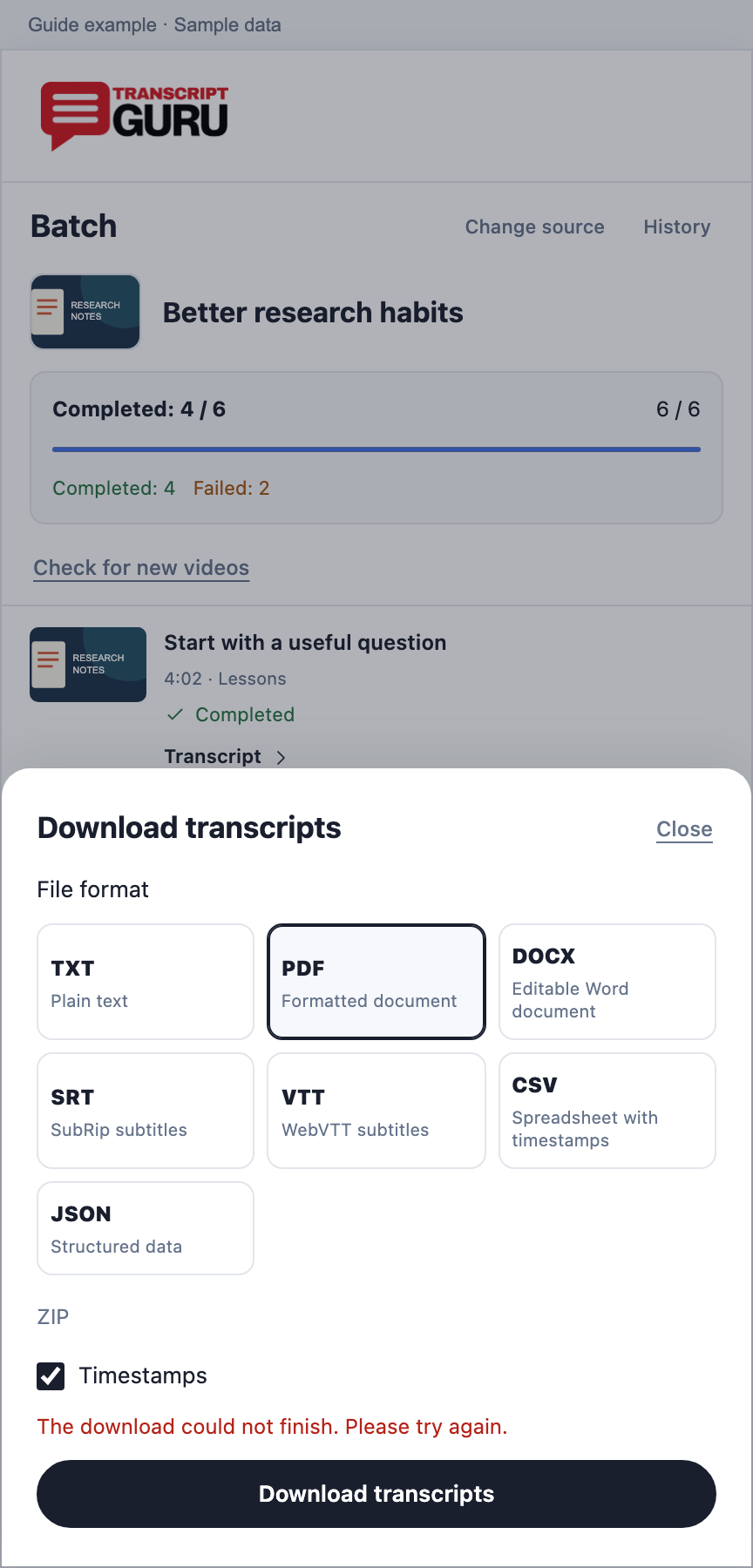
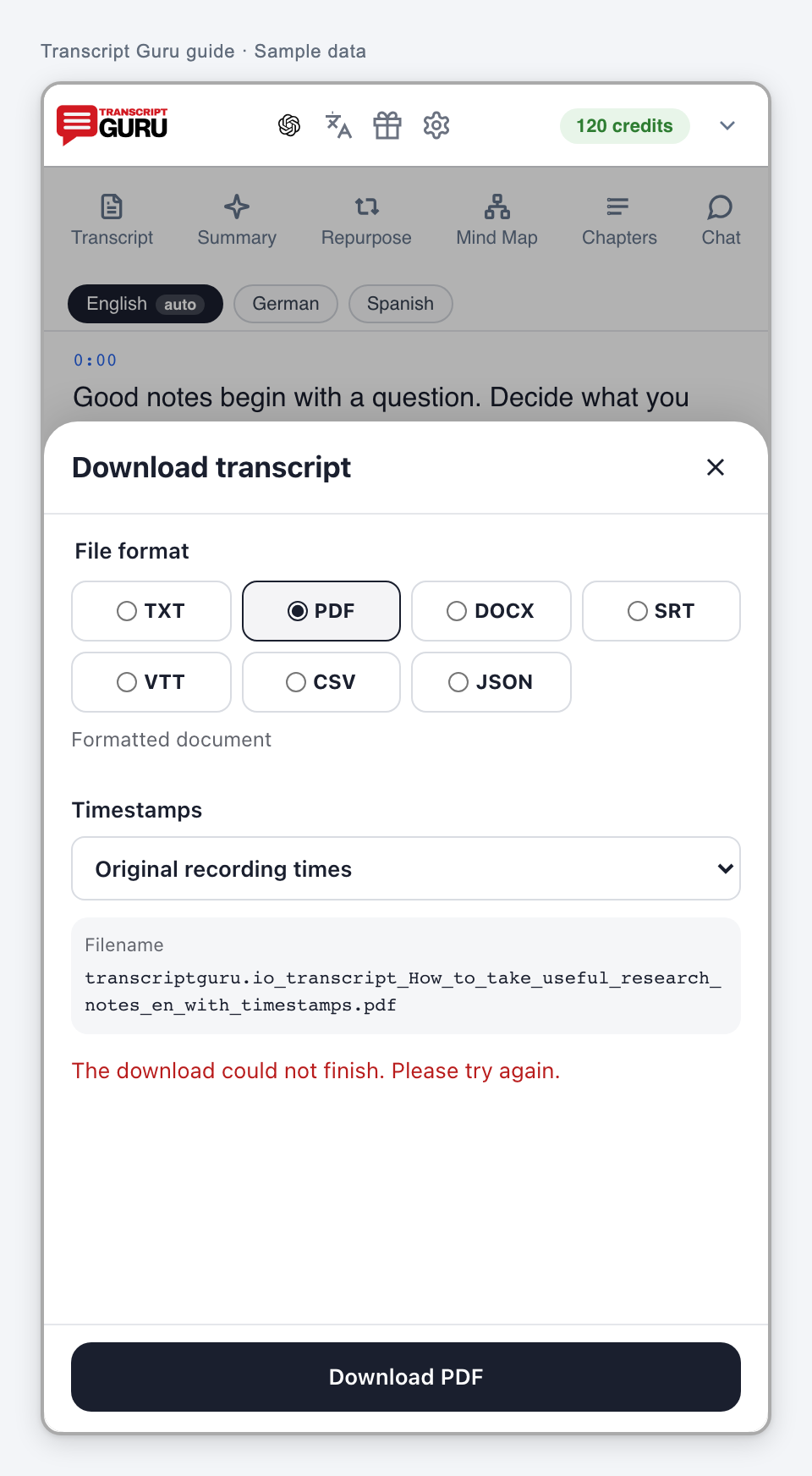
    A transcript or batch download failed

    The file could not be prepared or delivered. The underlying transcript may still be complete.

    What to do

    1. Keep the current result or batch and retry its download once.
    2. Check the browser’s downloads list and download permissions.
    3. If a large export repeatedly fails, try a lighter format such as TXT and report the batch, format and timestamp option.

    Do not create a new batch or retranscribe videos to retry an export.
    Messages you may see

    • The download could not finish. Please try again.

    Batch

    The links are not a valid batch source

    The source list mixes collection types or contains unsupported links.

    What to do

    1. Use one YouTube channel or playlist link.
    2. Alternatively use individual YouTube video links or 11-character video IDs on separate lines.
    3. Remove extra text and do not mix a channel or playlist with individual video links.

    Messages you may see

    • Use one YouTube playlist or channel link, or paste video links on separate lines.

    The selection limit was reached

    The selection has reached the limit shown for the current plan.

    What to do

    1. Deselect a video before choosing another.
    2. Use Selected only to review the selection.
    3. Process another group later if it is within your plan and budget.

    Messages you may see

    • Limit reached. Deselect a video to choose another.

    Batch extraction is temporarily unavailable

    The batch feature could not handle the request at this time.

    What to do

    1. Wait briefly and reopen Batch.
    2. Check History for an existing batch before submitting a new one.
    3. If it continues, report the collection URL and the action that failed.

    Messages you may see

    • Batch extraction is unavailable right now. Please try again later.

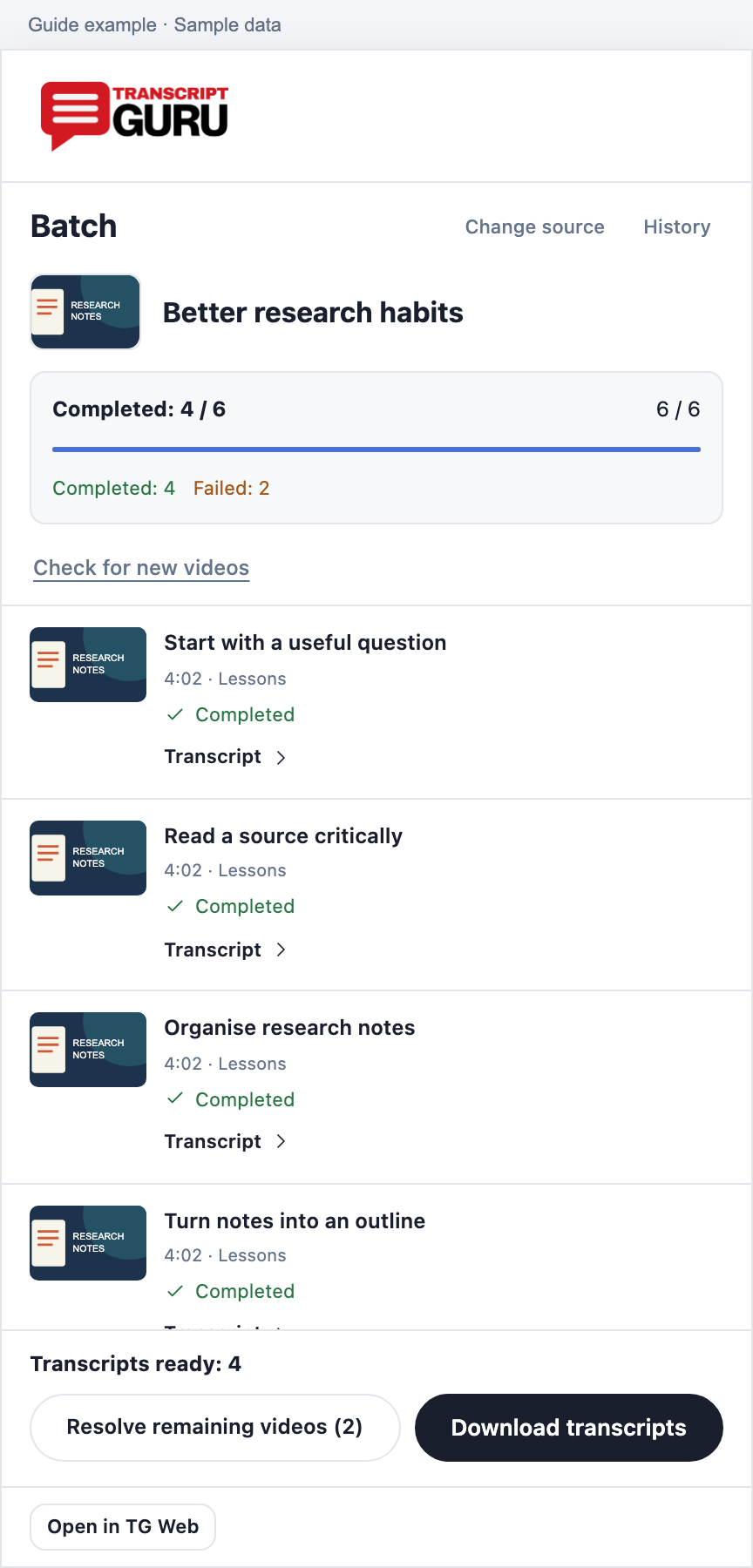
    A batch request failed

    A batch read or action failed. Completed rows can still be available.

    What to do

    1. Read whether the error appeared while loading, starting, retrying or downloading.
    2. Refresh the same batch or reopen it from History.
    3. For an export error, retry within Download transcripts. Do not restart extraction to recover a download.

    A red batch banner and completed rows can coexist. Use the saved result state and the failed action to decide what to retry.
    Messages you may see

    • Couldn't load your batch. Please try again.
    • Failed

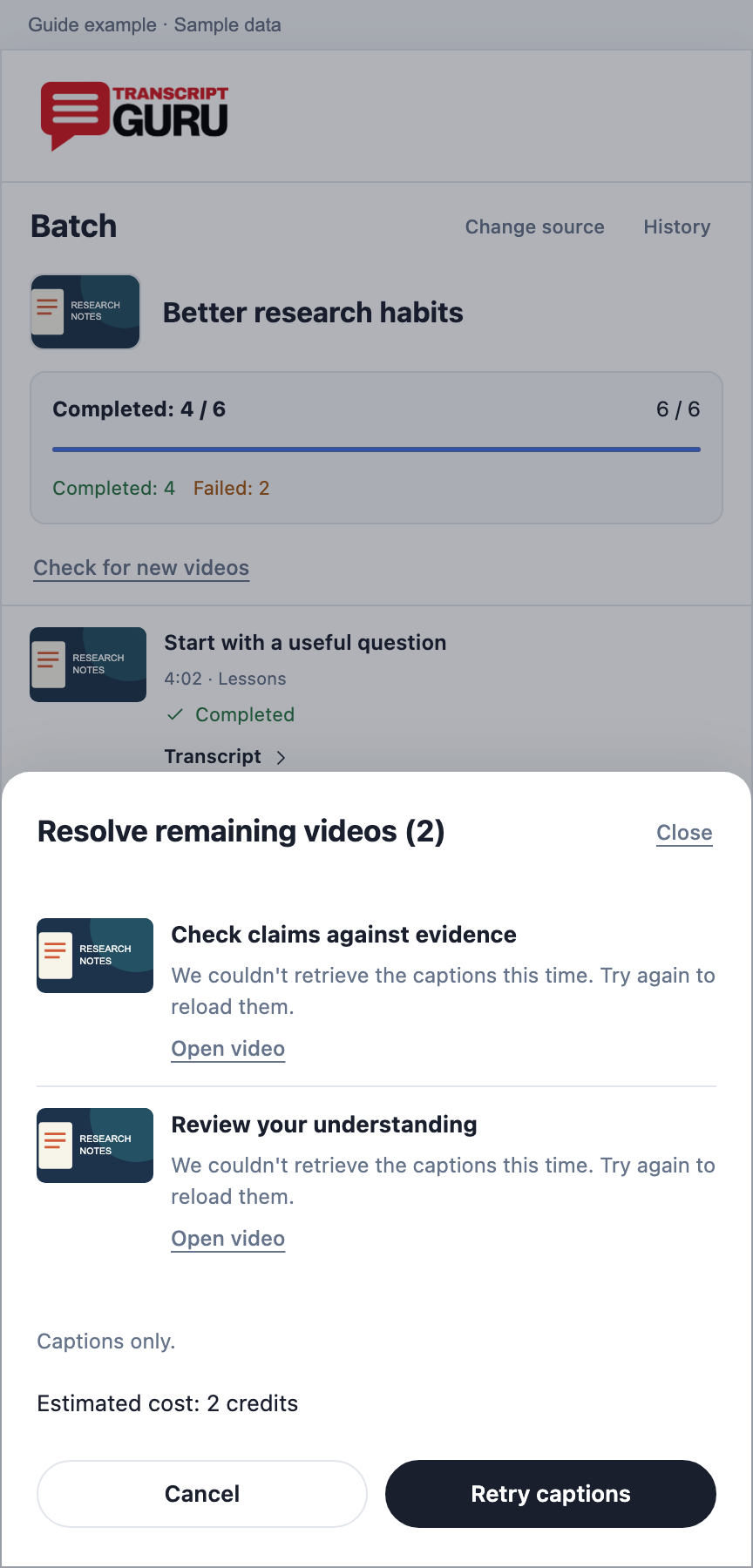
    YouTube could not provide captions this time

    The caption provider failed temporarily. This is not a verified no-caption result.
    What to do

    1. Use Review and retry captions.
    2. Open the video to check current availability.
    3. Report repeated failures rather than treating the item as an automatic AI task.

    Messages you may see

    • YouTube couldn't provide the captions right now. Try again or open the video. No credits were charged.

    A saved result was deleted

    The batch points to a transcript that is no longer saved.

    What to do

    1. Open the item and verify that you want to restore it.
    2. Run the offered extraction flow again and review the new quote.
    3. Do not assume the old completed status means a downloadable result still exists.

    Messages you may see

    • Deleted
    • The saved transcript was deleted. Extract it again to restore this result.

    The video has been removed

    The source video is no longer available from YouTube.

    What to do

    1. Remove it from a new selection or continue with the other completed results.
    2. Use another publicly accessible source if you have one.

    Repeated retries cannot restore a removed YouTube video.

    Messages you may see

    • This video has been removed from YouTube and can no longer be transcribed.

    The video is private

    The required source is not publicly accessible.

    What to do

    1. Ask the uploader for an accessible version if appropriate.
    2. Continue with other videos in the batch.

    Being able to watch a private video in your own session does not guarantee that the transcription service can access it.

    Messages you may see

    • This video is private. Ask the uploader to make it public, or try a different video.

    The video is restricted

    YouTube restrictions prevent the requested caption access.

    What to do

    1. Use an accessible alternative recording.
    2. Continue with the other videos in the batch.

    Do not bypass YouTube access restrictions.

    Messages you may see

    • We can't transcribe this video because YouTube blocks caption access on age-restricted content. Try a different video.

    Live

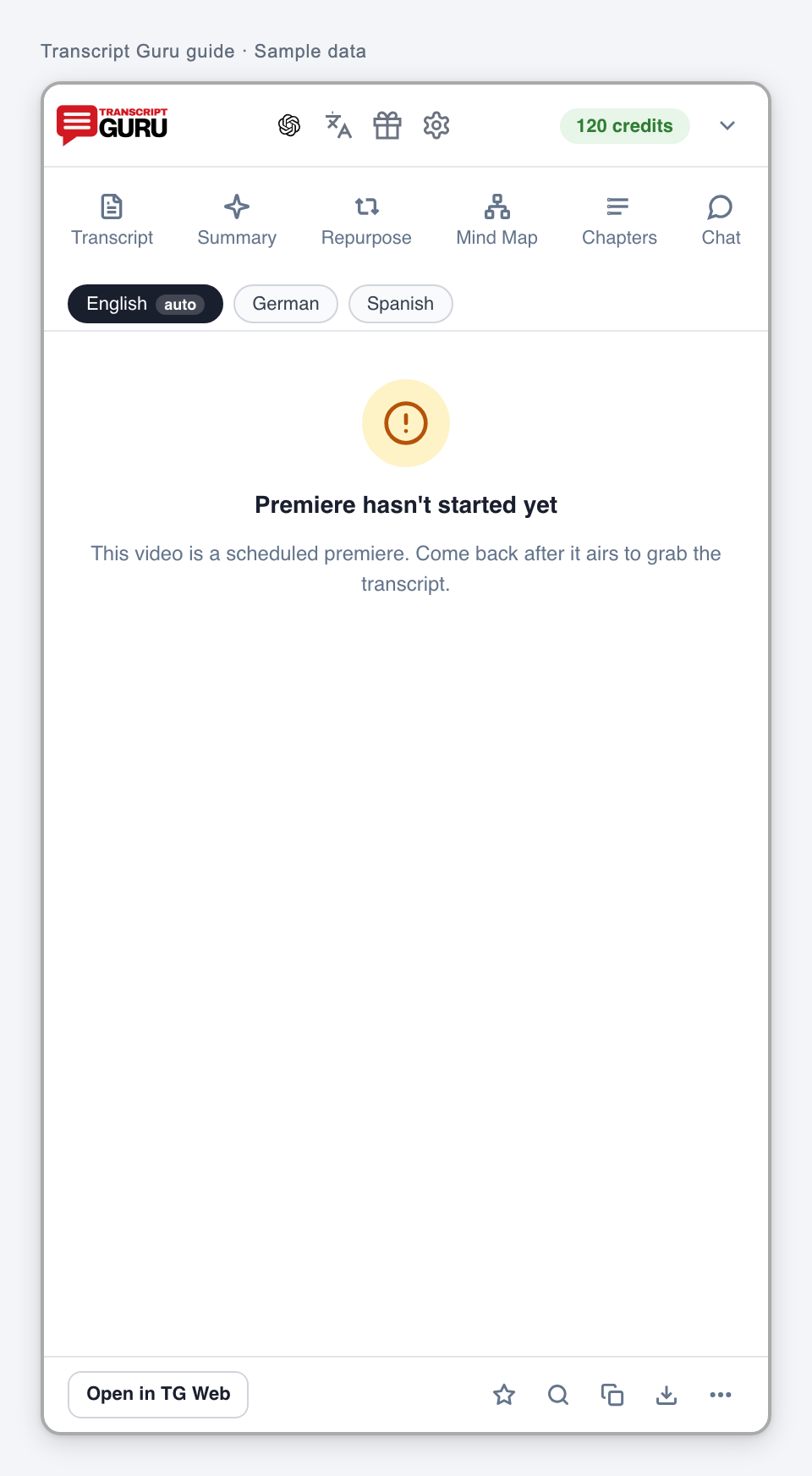
    The premiere has not started

    The scheduled recording is not available to transcribe yet.
    What to do

    1. Return after the premiere airs.
    2. Then open the recording and check its captions or AI offer.

    Messages you may see

    • Premiere hasn't started yet
    • This video is a scheduled premiere. Come back after it airs to grab the transcript.

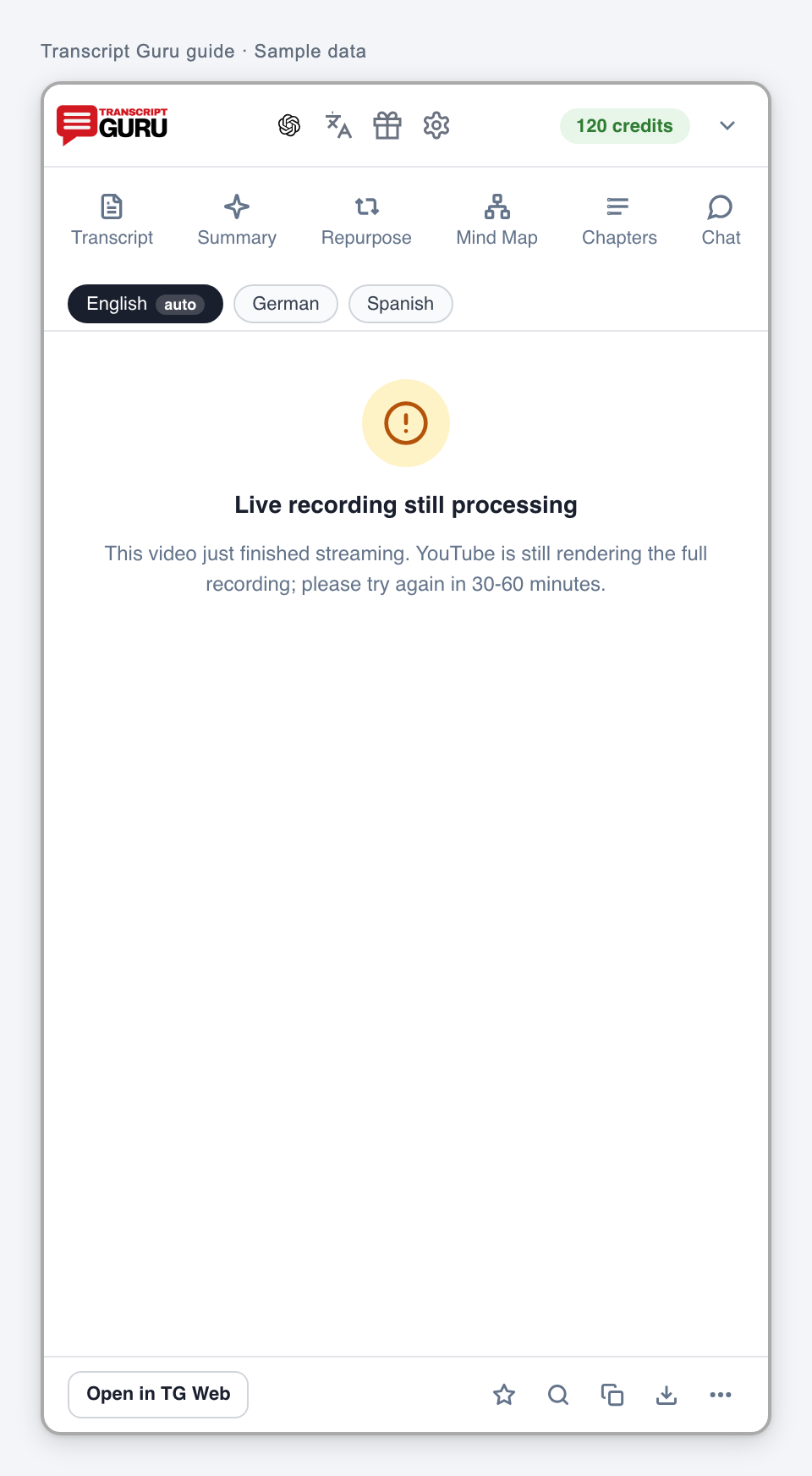
    An ended live recording is still processing

    YouTube has not finished preparing the full recording.

    What to do

    1. Return after the interval shown, usually 30 to 60 minutes.
    2. Check that the complete recording plays, then retry.

    Starting duplicate jobs does not make the recording become available sooner.
    Messages you may see

    • Live recording still processing
    • This video just finished streaming. YouTube is still rendering the full recording; please try again in 30-60 minutes.

    Live capture could not start

    The live caption or audio session did not start reliably.

    What to do

    1. Keep the intended YouTube tab focused and retry once.
    2. Check the browser permission prompt if one appears.
    3. Refresh if the extension asks you to reconnect. Check for an already-running session before starting another.

    Messages you may see

    • Couldn't start live captions. Please retry while the YouTube tab is focused.
    • Couldn't reach live captions
    • Audio couldn't start. Please retry while the YouTube tab is focused.
    • Couldn't start (HTTP {status})
    • Live session started without an id - please refresh and try again.

    The live session ended or is inactive

    The earlier capture is no longer active or encountered an error.

    What to do

    1. Check the saved portion in History.
    2. If the broadcast is still live, use the offered start action for a new session.
    3. Read the current rate before restarting paid live AI.

    Messages you may see

    • Live session is no longer active.
    • Error

    The session did not stop

    The stop request was not confirmed.

    What to do

    1. Retry Stop session and verify that the state changes to Stopped or Ended.
    2. Keep the tab available until the stop state is clear.
    3. If paid capture appears to continue, contact support with the session and time.

    Do not assume an unconfirmed Stop request ended billing.

    Messages you may see

    • Couldn't stop. Try again.
    • Couldn't stop

    Live translation could not start

    The translation session did not start successfully.

    What to do

    1. Check that the source live session is active.
    2. Check the displayed plan and credit requirement.
    3. Retry once, then report repeated failure.

    Messages you may see

    • Couldn't start live translation. Try again.

    Capture pauses during an advertisement

    The extension is avoiding the advertisement rather than treating it as the broadcast.

    What to do

    1. Wait for the broadcast to resume.
    2. If capture remains paused after the ad ends, check the session and retry its recovery action.

    This pause is an expected state, not a failed transcript.

    Messages you may see

    • Advertisement playing - capture paused...

    A timestamp is outside the live replay buffer

    YouTube no longer allows playback at that earlier moment in the live stream.

    What to do

    1. Read the captured text without seeking.
    2. Try the timestamp again on the completed recording when it becomes available.

    Messages you may see

    • That moment is outside YouTube's replay buffer.

    The browser cannot capture live audio

    The page or browser cannot provide an audio stream for this live capture.

    What to do

    1. Check that the intended video is playing with an audio track.
    2. Update the browser and extension, refresh the video, then start again from that tab if audio is present.
    3. Use available YouTube live captions instead, or wait for the finished recording. Report the browser version if clear audio still cannot be captured.

    Messages you may see

    • This browser doesn't support video.captureStream()
    • No video element on page
    • Video has no audio track

    External AI

    The AI website is not ready

    The target website needs sign-in or setup before it can receive the request.

    What to do

    1. Finish sign-in or setup in the chosen AI website.
    2. Return to the draft and use Retry after signing in.
    3. Use Copy and open if direct insertion still cannot complete.

    Messages you may see

    • Waiting for your AI app. Sign in there if needed, then use Retry after signing in.
    • The message box is not ready. Finish signing in or setting up your AI app, then retry.
    • Finish signing in to your AI app, then retry.

    Website access was not granted

    The extension cannot insert a request directly into that AI website.

    What to do

    1. Use Copy and open to paste the draft manually.
    2. If you want direct insertion later, review access in Summary settings.

    Messages you may see

    • Access was not granted. You can still use Copy and open.
    • Connect this AI app to fill the draft, or use Copy and open.
    • Connection unavailable.

    The AI app already contains a draft

    The extension left existing text unchanged to avoid overwriting it.

    What to do

    1. Keep or send your existing draft as appropriate.
    2. Open a new conversation for the Transcript Guru request.
    3. Copy the full prepared draft there and review it before sending.

    Messages you may see

    • Your AI app already has a draft. It was left unchanged. Copy this draft into a new conversation.

    The send action was not confirmed

    The complete request reached the AI app, but automatic sending was not confirmed.

    What to do

    1. Check the AI conversation to see whether it was already sent.
    2. Send manually only if it is still an unsent draft.
    3. Do not repeat the entire request if the first response is already running.

    Messages you may see

    • The complete request is in your AI app. Check whether it was sent before clicking Send there.
    • Check the message in your AI app before sending. Automatic retry is disabled to prevent duplicates.

    The complete draft could not be inserted

    The AI website did not accept the full request through direct insertion.

    What to do

    1. Choose Copy and open.
    2. Paste into a new conversation and check that the complete draft is present.
    3. Follow the AI provider’s own length or usage limits.

    Messages you may see

    • Your AI app did not accept the complete draft. Use Copy and open, then paste it into a new conversation.

    Copy or opening the AI app failed

    One part of the copy-and-open action did not finish.

    What to do

    1. If copying failed, select and copy the full draft manually.
    2. If opening failed after copying, open the chosen AI website yourself.
    3. Paste into a new conversation and review before sending.

    Messages you may see

    • Copy was not completed. The full draft is selected below. Copy it manually, then open your AI app.
    • The complete draft was copied, but the AI app could not be opened.

    The prepared draft is unavailable

    The local draft is missing or has expired.

    What to do

    1. Return to the YouTube video and load the intended transcript.
    2. Prepare a new request from the provider icon.
    3. Use it within the 30-minute draft lifetime.

    Messages you may see

    • This draft could not be opened.
    • Draft unavailable
    • This draft expired. Prepare a new summary from the video.
    • Draft unavailable.

    The video or selected transcript changed

    The extension needs a complete, current source before preparing an external request.

    What to do

    1. Open Transcript and load the language you want.
    2. For live video, capture captions before summarizing.
    3. Prepare a new request after navigation or a language change.

    Messages you may see

    • Wait for this video to load, then try again.
    • Capture captions for this live video before summarizing.
    • The selected transcript is unavailable. Open the Transcript tab and retry that language.
    • The video or transcript language changed. Try again with the current selection.
    • Open the Transcript tab and load the selected language before summarizing.
    • Could not open your AI app. Please try again.
    • Open a YouTube video to summarize.
    • This transcript could not be prepared. Reopen the video and try again.
    • The video changed while preparing this draft. Try again from the current video.
    • Open a YouTube video first.
    • Load the selected transcript before summarizing.

    The transcript is too large for one draft

    The extension cannot safely transfer the entire request in one draft.

    What to do

    1. Copy the transcript from the Transcript tab.
    2. Choose a smaller relevant excerpt or use a file workflow supported by your AI provider.
    3. Keep enough source context to avoid a misleading summary.

    Your AI provider may have its own input limits. Do not assume an incomplete transfer contains the full transcript.

    Messages you may see

    • This transcript is too large to transfer in one draft. Copy it from the Transcript tab.

    Too many AI drafts are open

    The extension limits how many prepared drafts can be kept at once.

    What to do

    1. Finish or close an earlier prepared draft.
    2. Return to the video and prepare the new request.
    3. If the limit remains, let an unused draft expire and try again.

    Messages you may see

    • Close an earlier AI draft before preparing another.

    Other messages

    Another error or an unrecognized message

    Some messages include a reason returned for that particular request. They cannot all be listed in advance.

    What to do

    1. Keep the exact message and note which action produced it.
    2. Check History before retrying anything that creates paid work.
    3. Use More, Report a problem, or Support on the web if the panel is unavailable. Include the video or batch reference, time, browser and extension version.

    Do not assume every error means no captions, no speech, a charge or a refund.

    Messages you may see

    • Couldn't complete this job
    • We couldn't complete this job. Please try again.
    • Please try again.
    • Error: