Feature guide updated on 26 October 2026. Applies to extension 1.2.1 and later. Screenshots use sample content and balances unless labelled as installed on YouTube.
Start here
Open your first transcript
Open a YouTube video with captions. The extension panel appears beside the player on a normal watch page. Shorts use the same transcript tools.
Install the official extension and open or refresh a YouTube video tab.
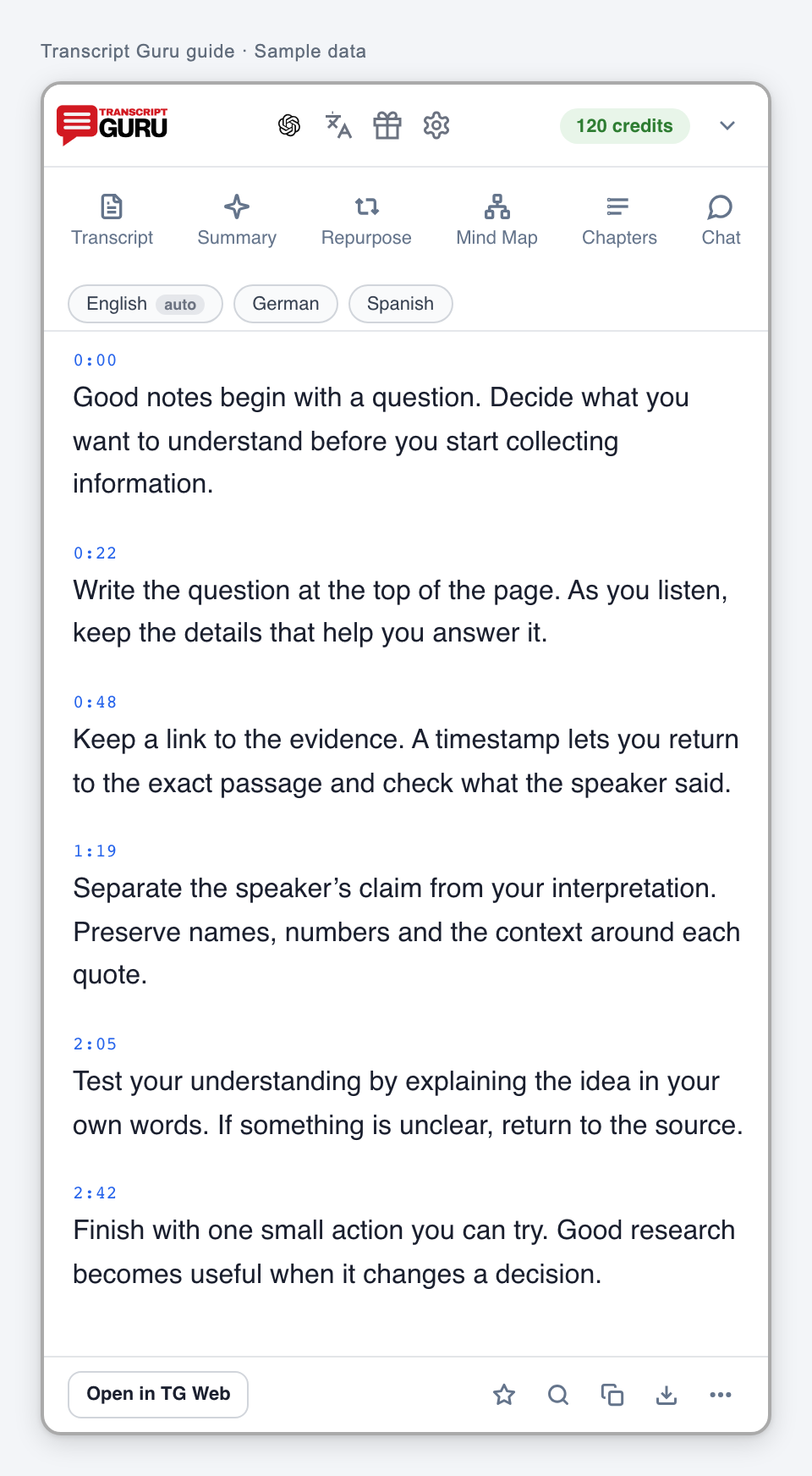
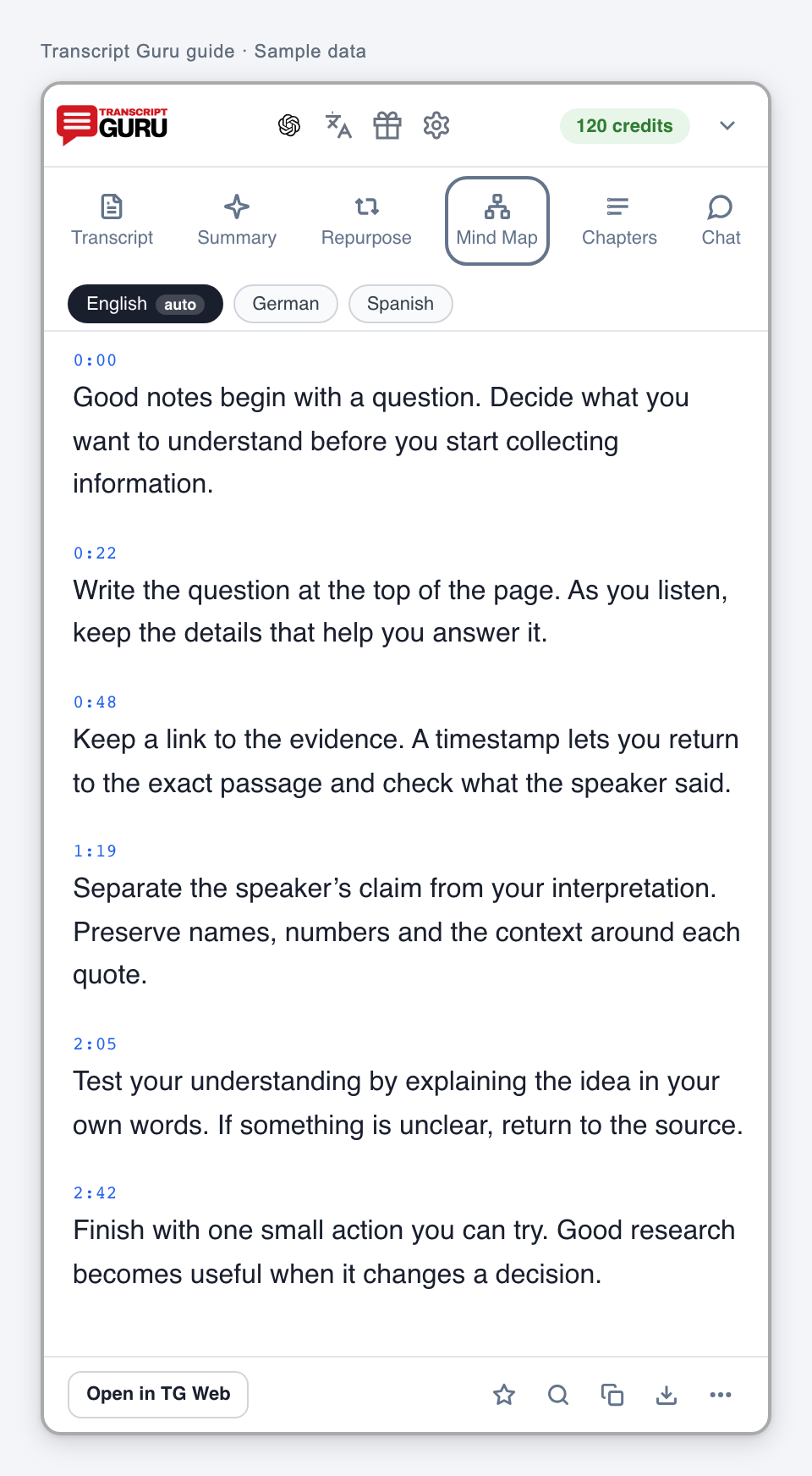
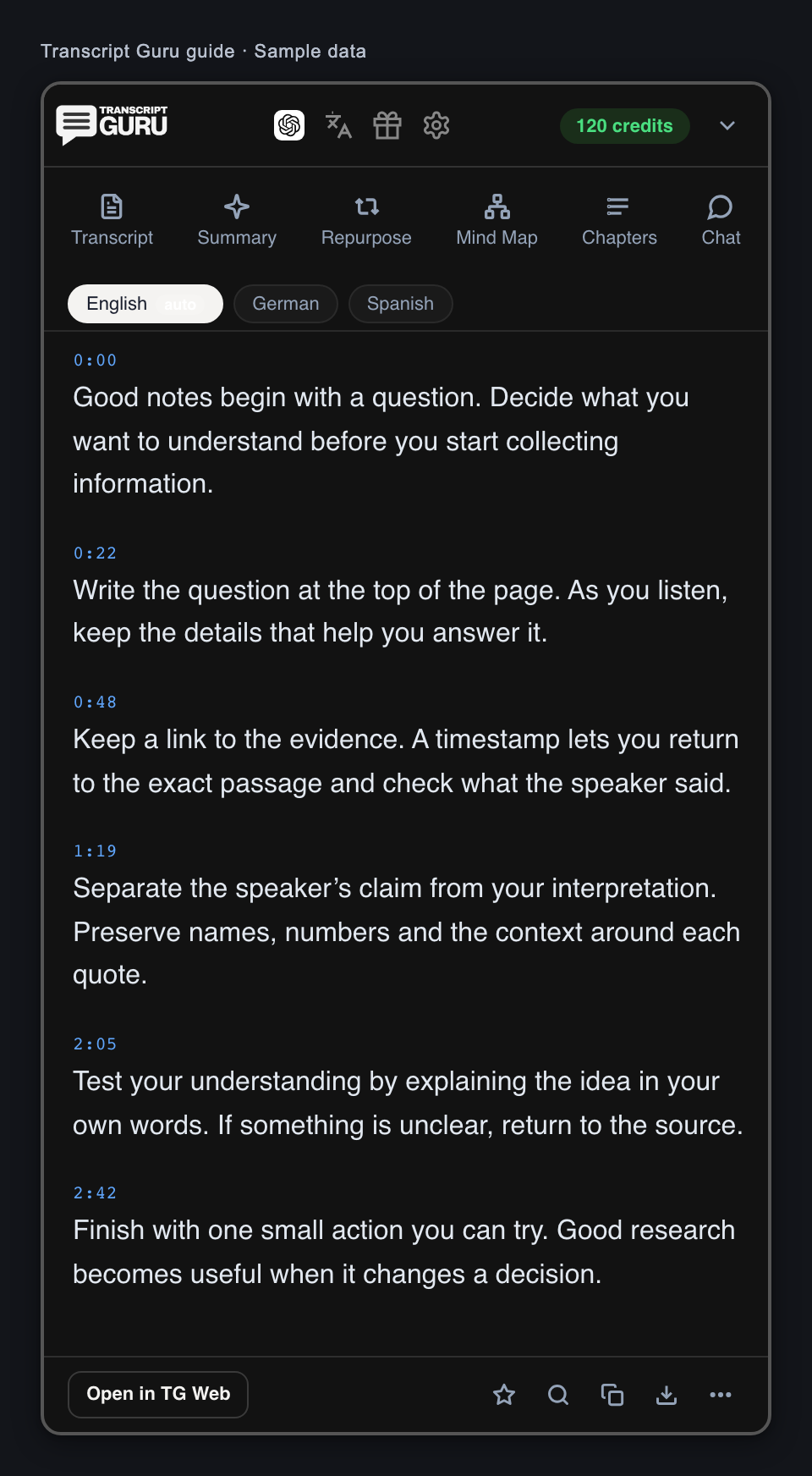
Expand the Transcript Guru panel if it is collapsed. Choose Transcript.
Read the captions. Select a timestamp to replay that moment.
If captions are unavailable, review the AI offer. A loading error is a separate condition and has its own retry action.
Individual YouTube caption extraction is free. AI transcription is separate work. Follow the price and eligibility shown for that video.
Collapse the panel while watchingExtension interface with sample dataRead a transcript and choose a caption languageExtension interface with sample data
Open YouTube or start a batch from the browser toolbarExtension interface with sample data
Read and keep
Read, replay and find a passage
Use the transcript as a companion to the video, or search it when you only need one detail.
Select a timestamp or caption paragraph to move the video to that moment.
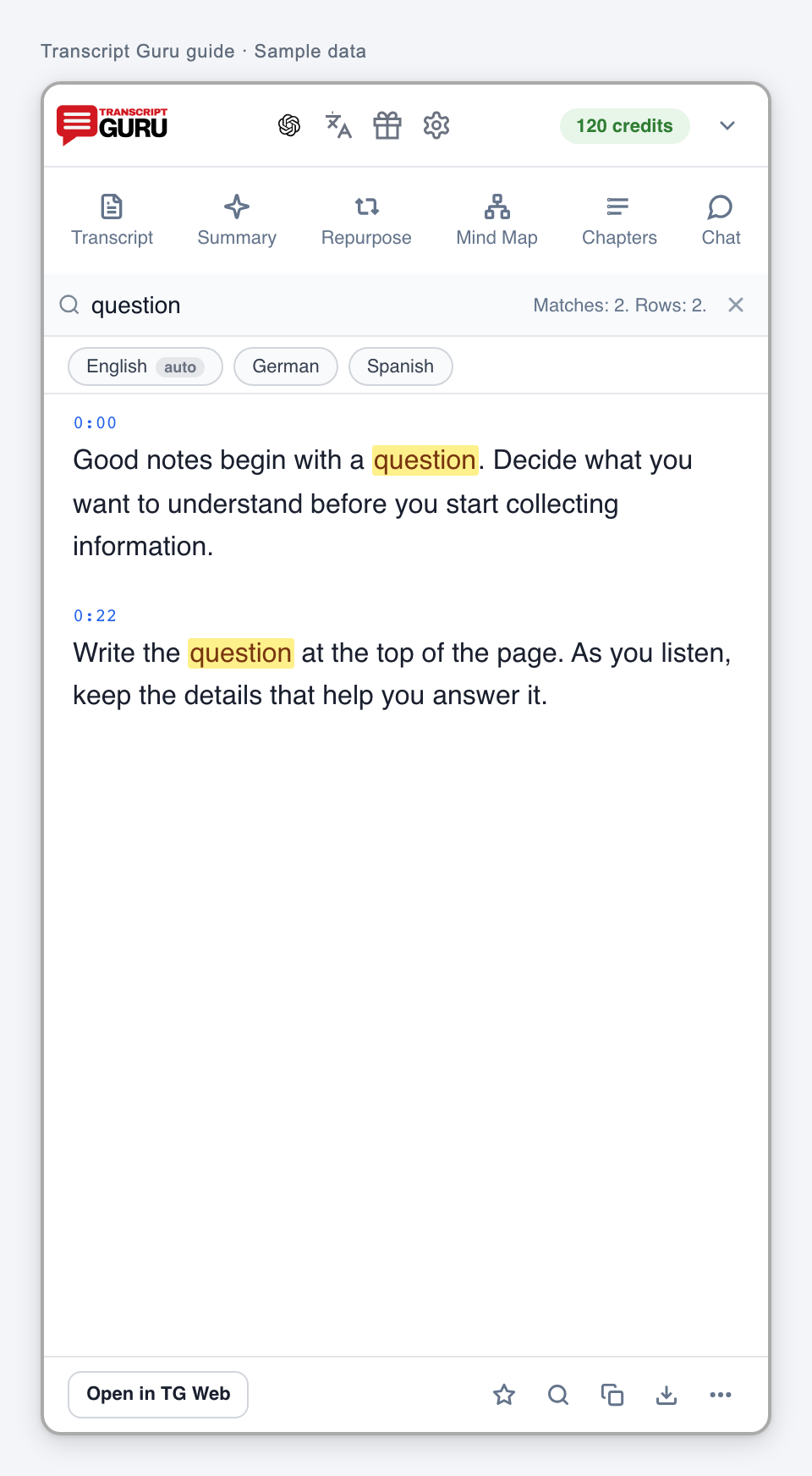
Choose the magnifying glass at the bottom of the panel and enter a word or phrase.
Read the highlighted matches. Clear the query or press Escape to leave search.
Use More to turn auto-scroll on or off. Turn it off when you want to read without following playback.
Search works on the currently selected transcript. A missing match does not mean the video has no speech.
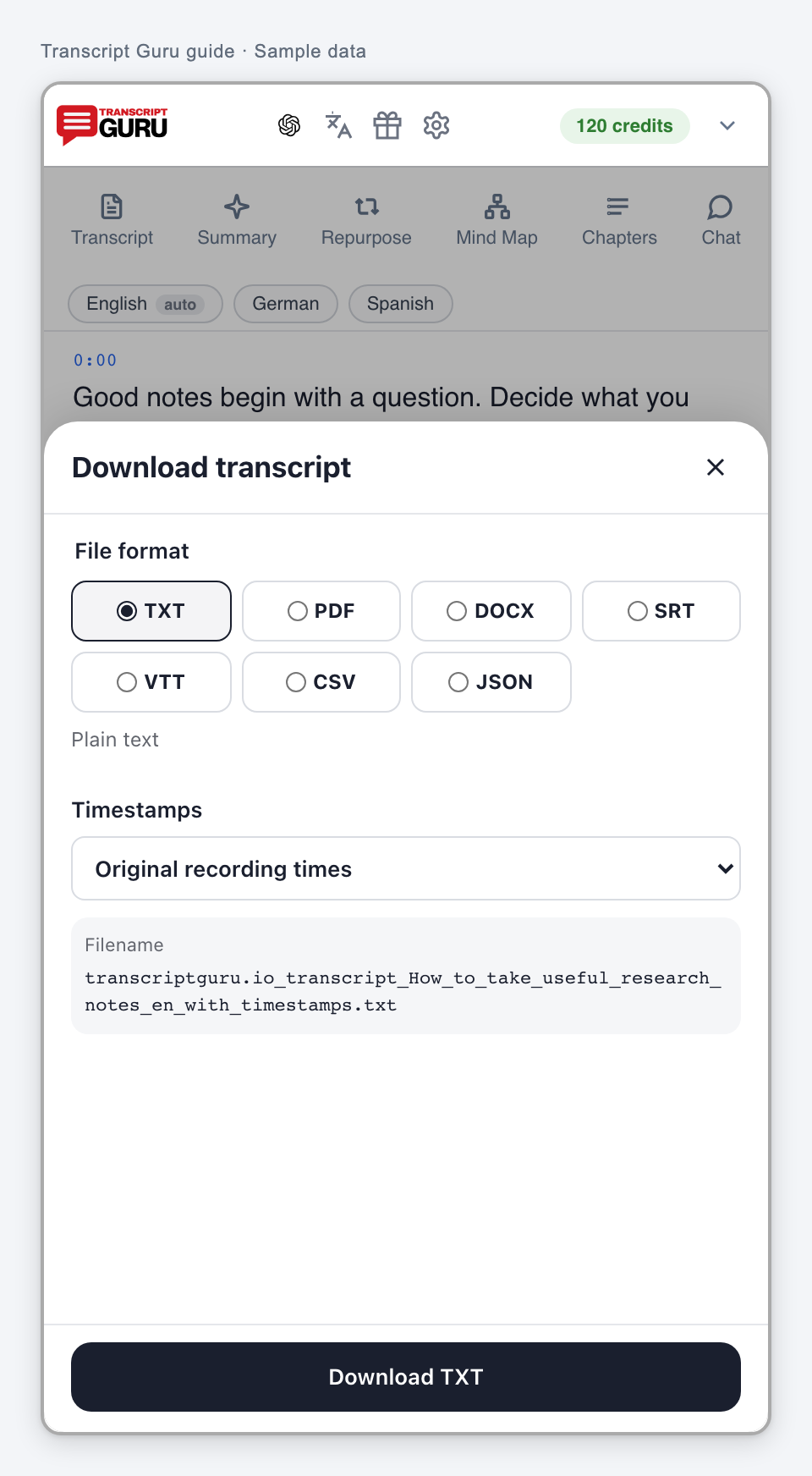
Choose a transcript download formatExtension interface with sample data
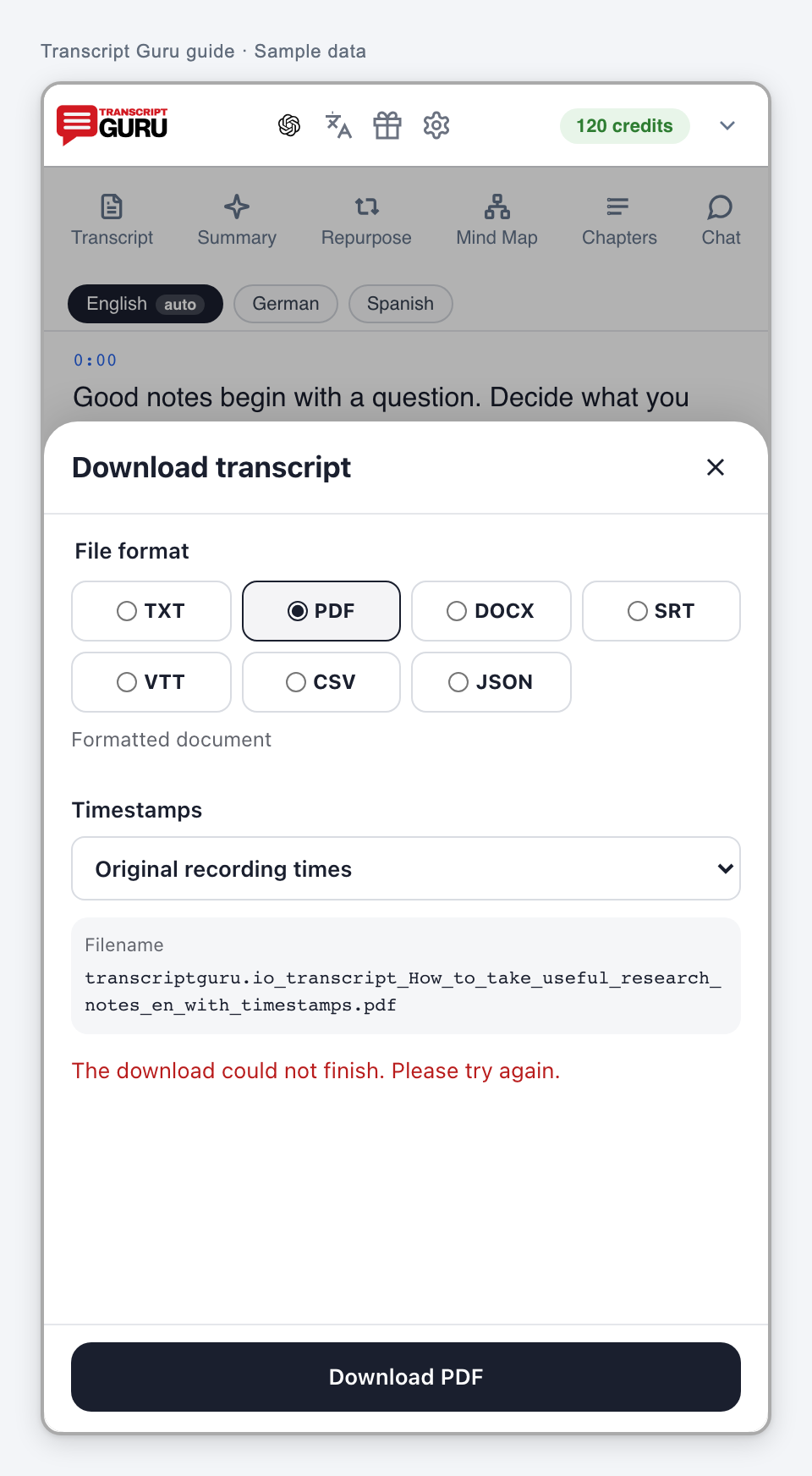
Retry a failed download without extracting againExtension interface with sample data
Save it and continue on the web
History lets you return to a transcript. The web workspace gives you more room to work.
Open More and use the save or bookmark action. Sign in if asked.
Use Open in TG Web to continue with the selected video and transcript.
Return through your History when you need it again.
The star in the bottom toolbar is the extension review action. Use More to save a transcript. Captions reported as inaccurate can have saving restrictions.
Save a transcript and control your readingExtension interface with sample data
Choose the right language control
Caption language, translation language and interface language serve different purposes.
Use a language chip above the transcript to choose an available YouTube caption track.
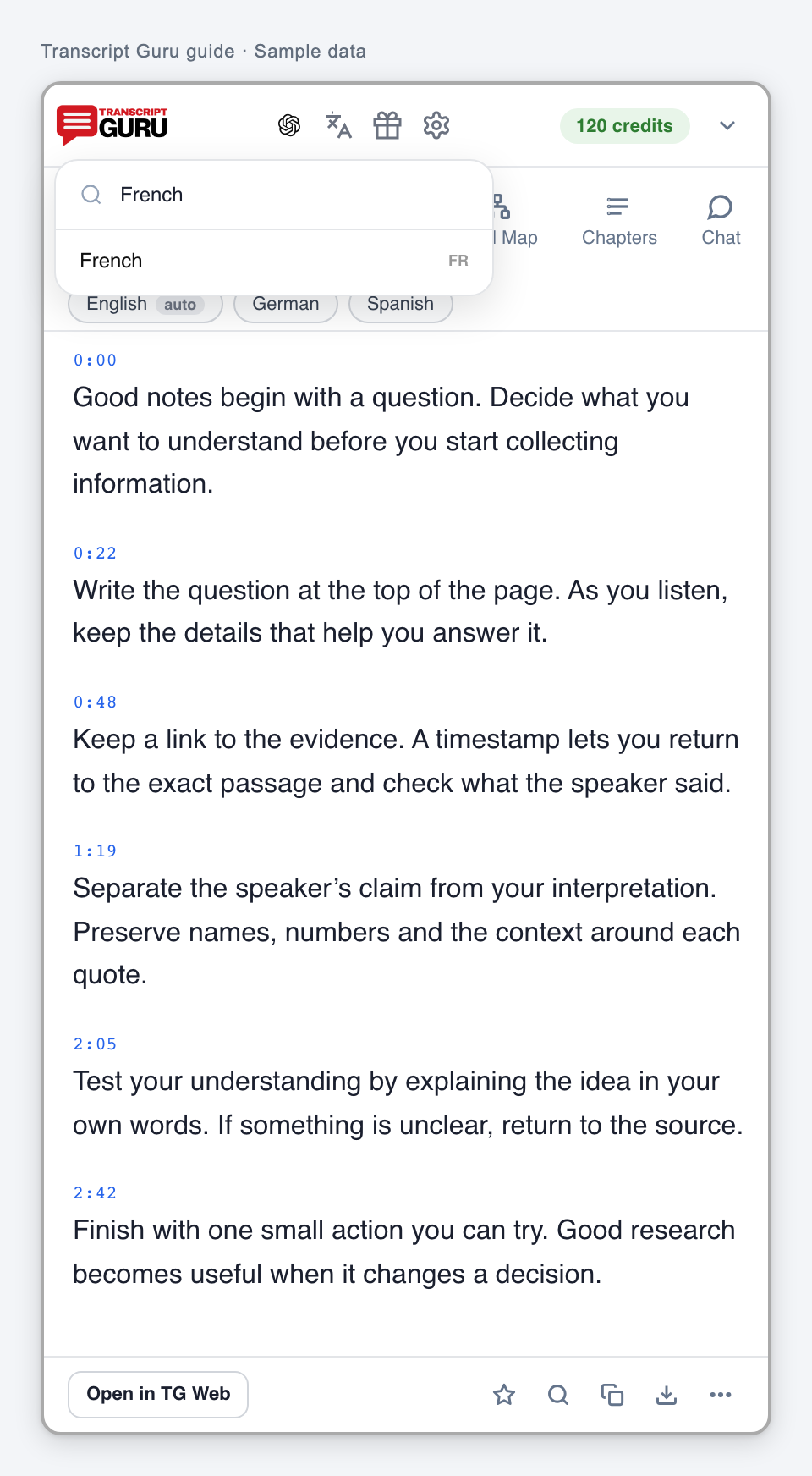
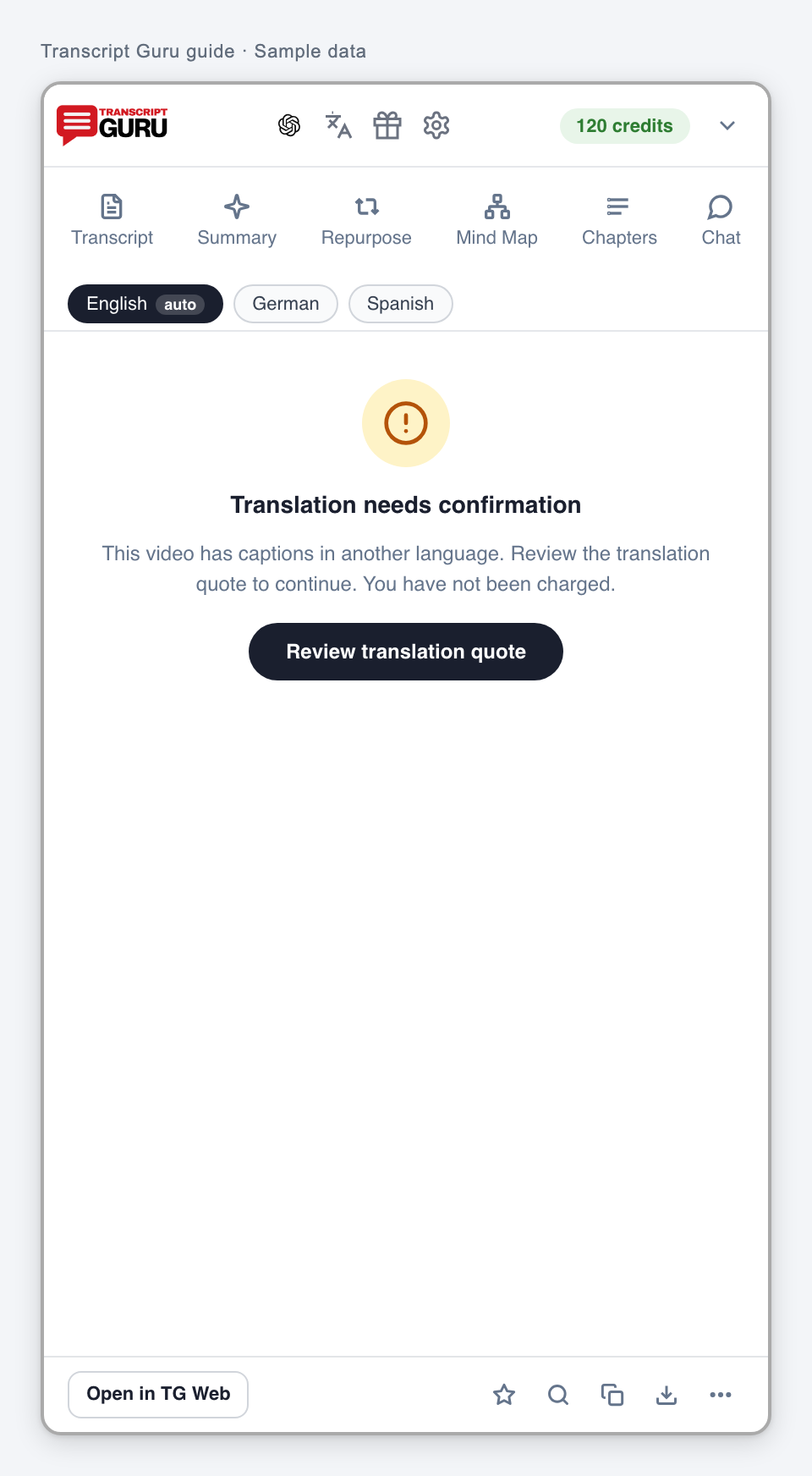
To create a translation, use the language control and choose a target language. Follow any quote or confirmation shown.
Use Original when available to return to the source text.
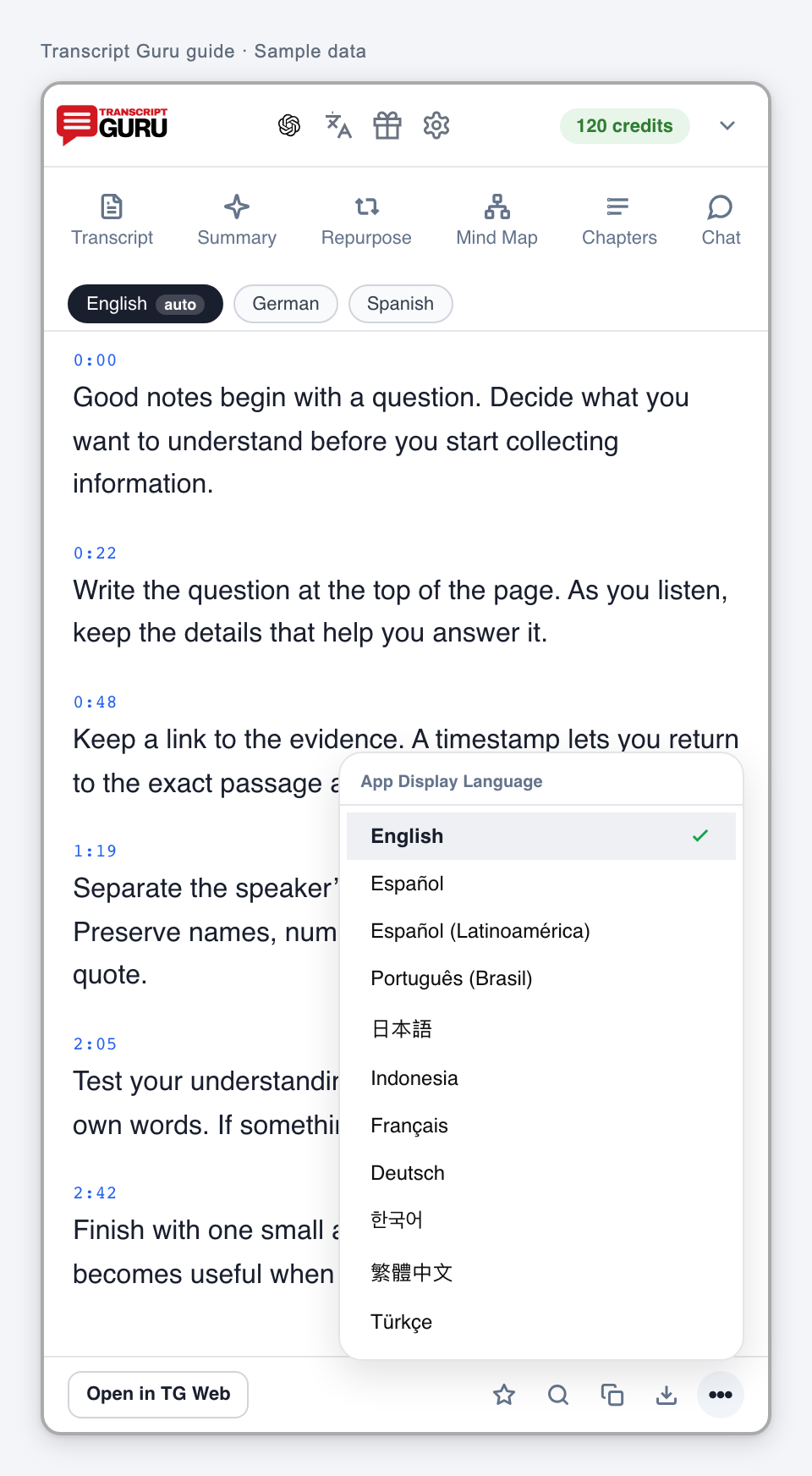
Change labels and menus separately through More or Settings, then App display language.
Selecting an existing caption track is different from generating an AI translation. A language warning does not by itself prove that the transcript is wrong.
Find a language for translationExtension interface with sample data
Change the interface languageExtension interface with sample dataReview a translation quoteExtension interface with sample data
Use AI
Transcribe the audio with AI
Use AI when captions are absent or when you want to replace captions you have reviewed and found inaccurate.
Open the video and read the caption result or availability message.
Choose Transcribe with AI or review the AI transcription offer.
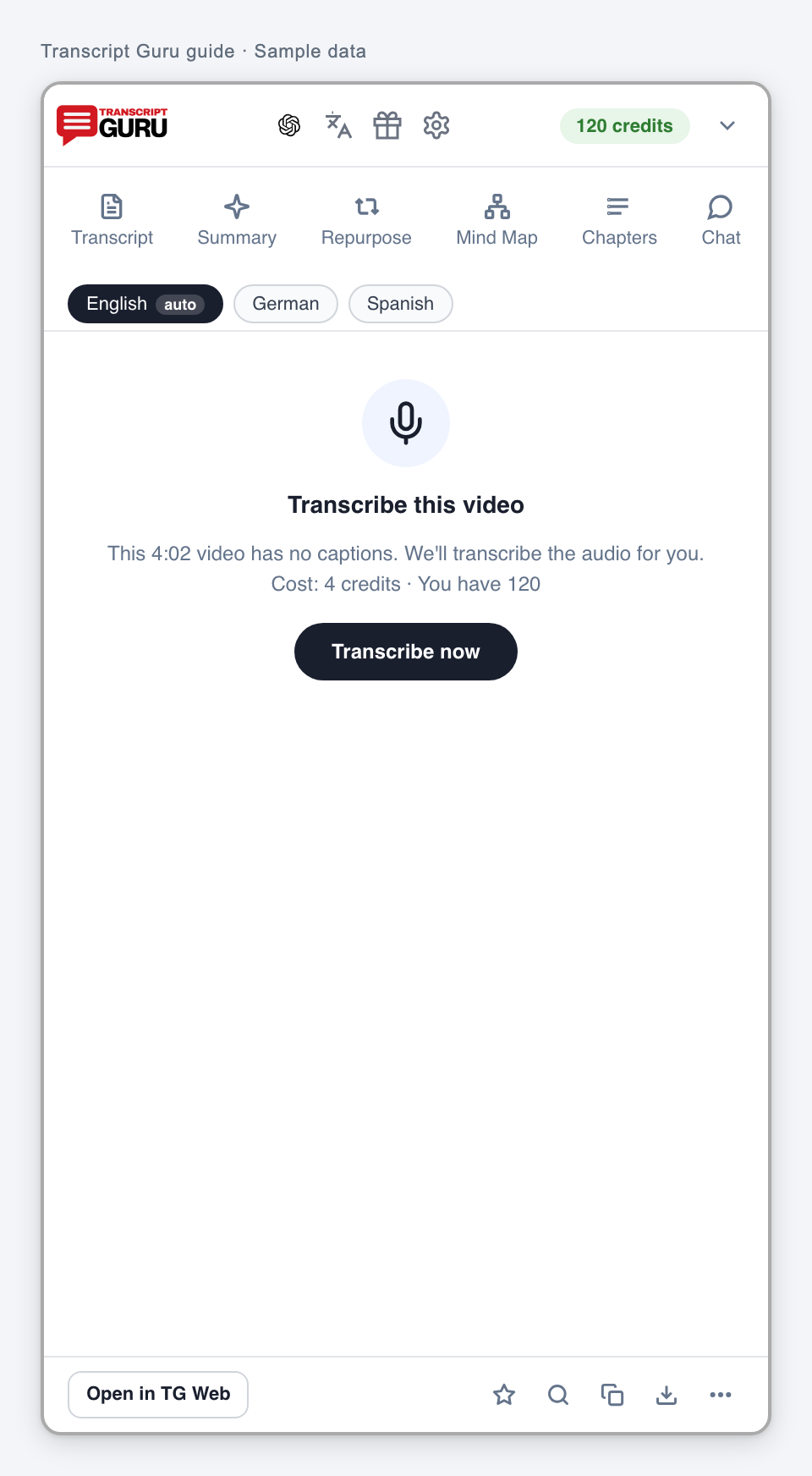
Check the recording, cost, balance and plan eligibility shown. Start the transcription when you want that work.
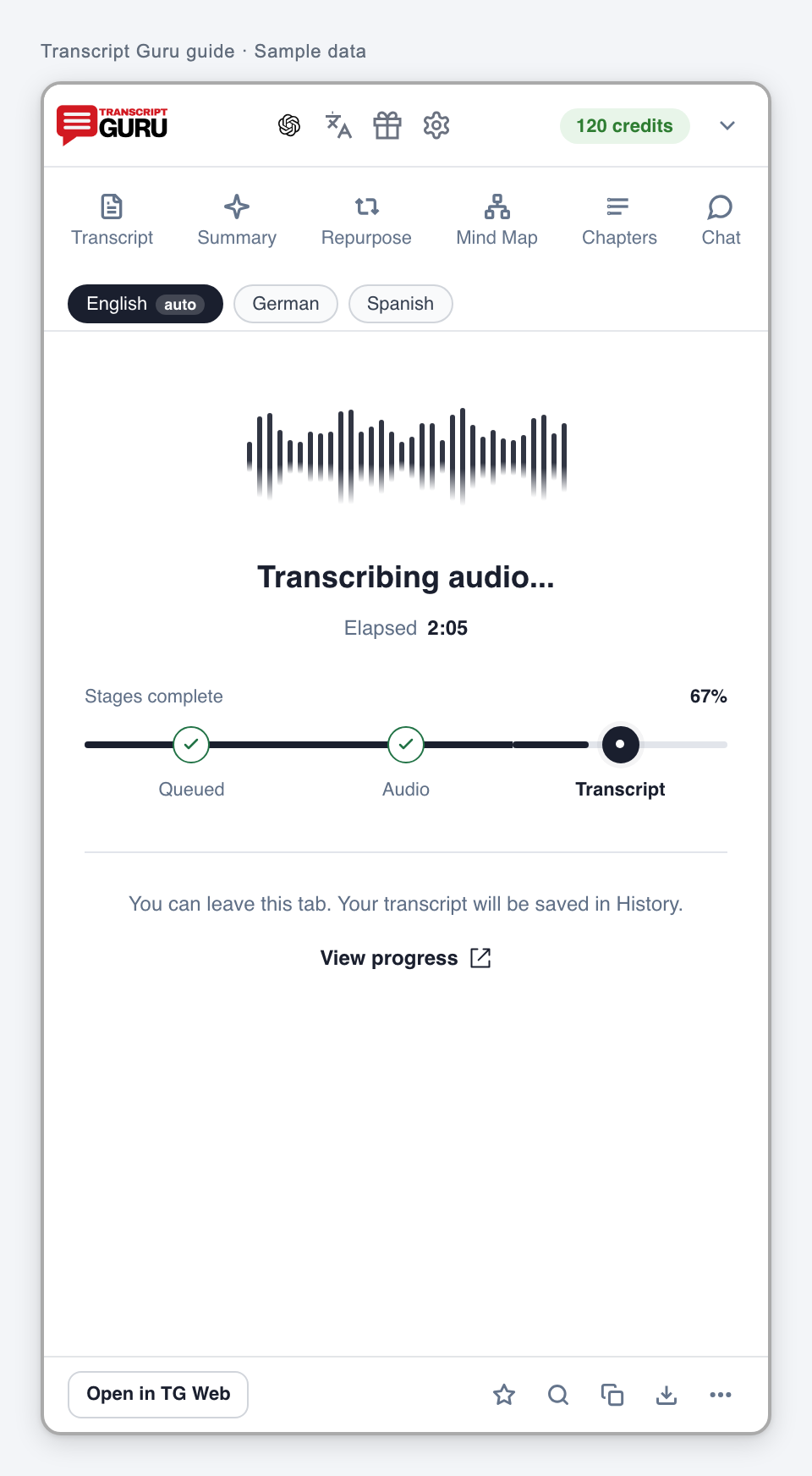
Follow Queued, Audio and Transcript. When the result is ready, use the normal reading and download controls.
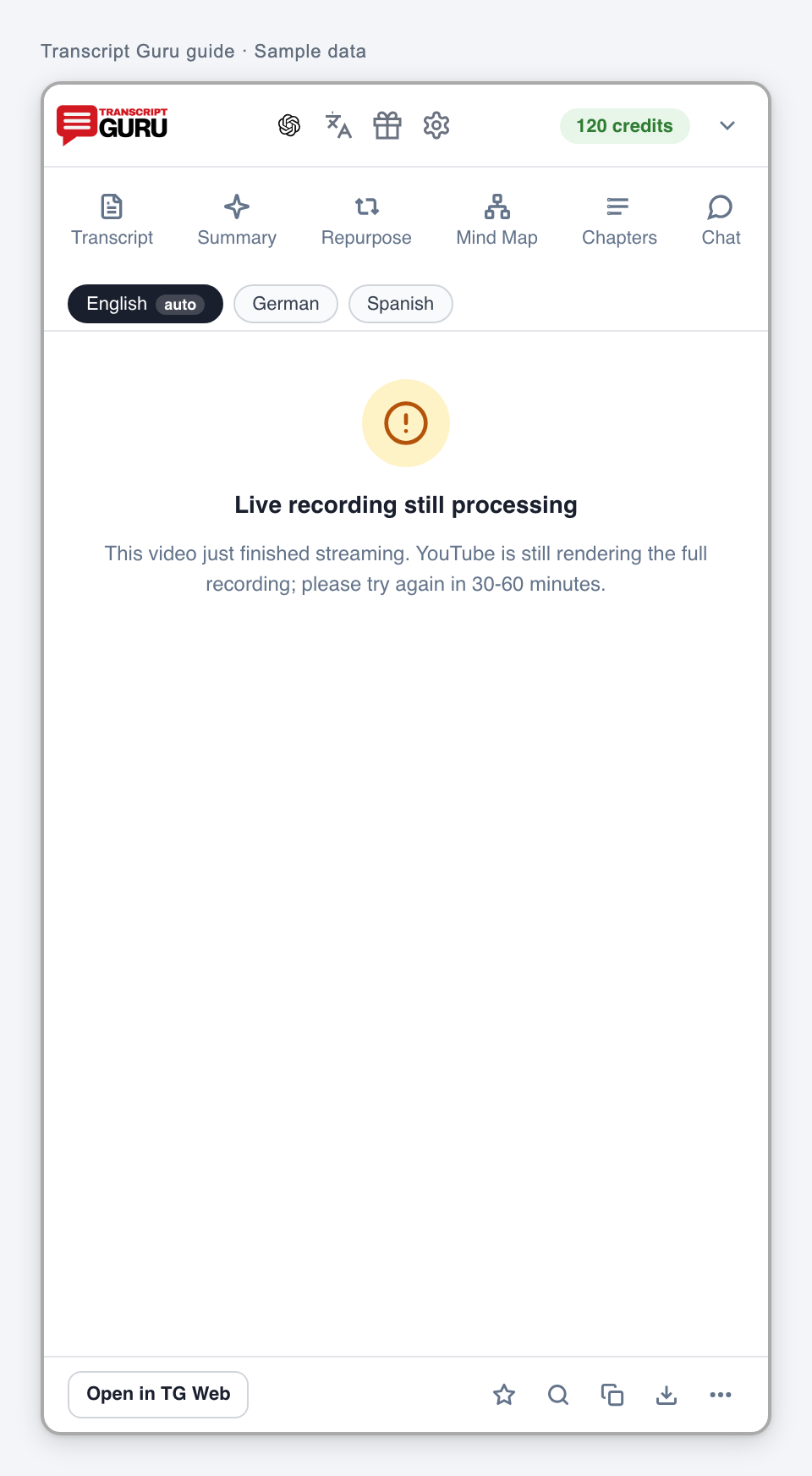
AI transcription works from the audio. The source speech is transcribed before any requested translation. A caption retrieval error is not proof that captions are absent. Prices in these screenshots are examples, not a price list.
Review an AI transcription offerExtension interface with sample data
Follow transcription progressExtension interface with sample data
Follow progress and return later
Once a recorded-video job has started, its result can be opened from History.
Read the current stage and elapsed time in the panel.
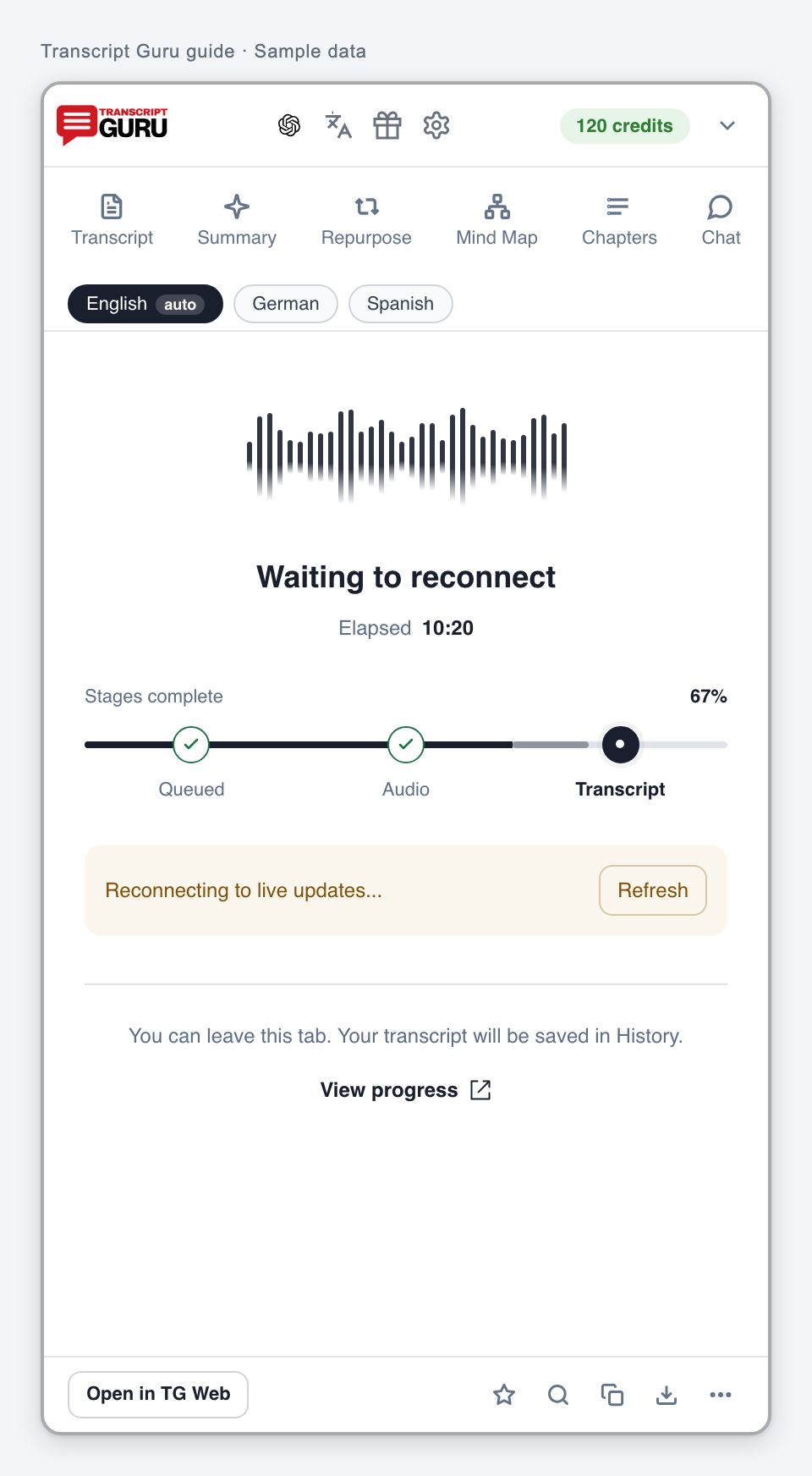
Use Refresh or View progress if the connection is interrupted.
Open History on Transcript Guru before starting another attempt for the same recording.
If the job is complete but the panel has not updated, refresh the page and reopen the saved result.
The percentage in this extension design counts completed stages. It is not a measured percentage of audio transcribed or a guaranteed finish time. Live capture has different requirements; keep that tab open.
Follow transcription progressExtension interface with sample data
Wait for a job connection to recoverExtension interface with sample data
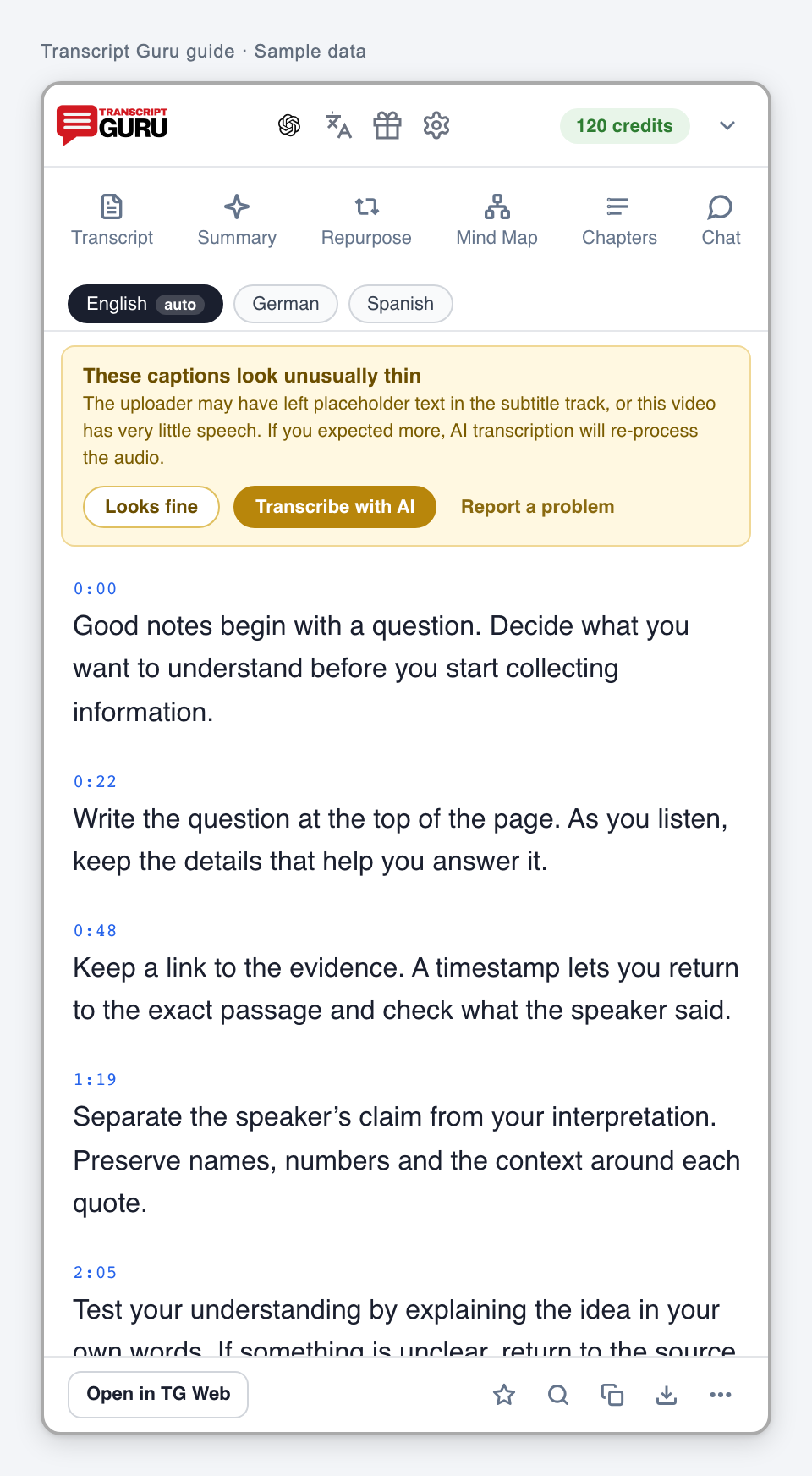
Review a quality warning
A warning is a request to check the available text, not an instruction to pay for AI automatically.
Read the warning and compare a few timestamps with the recording, including the section that seems missing or incorrect.
If the text is accurate and Looks fine is offered, confirm it. This clears the warning; it does not rewrite the text.
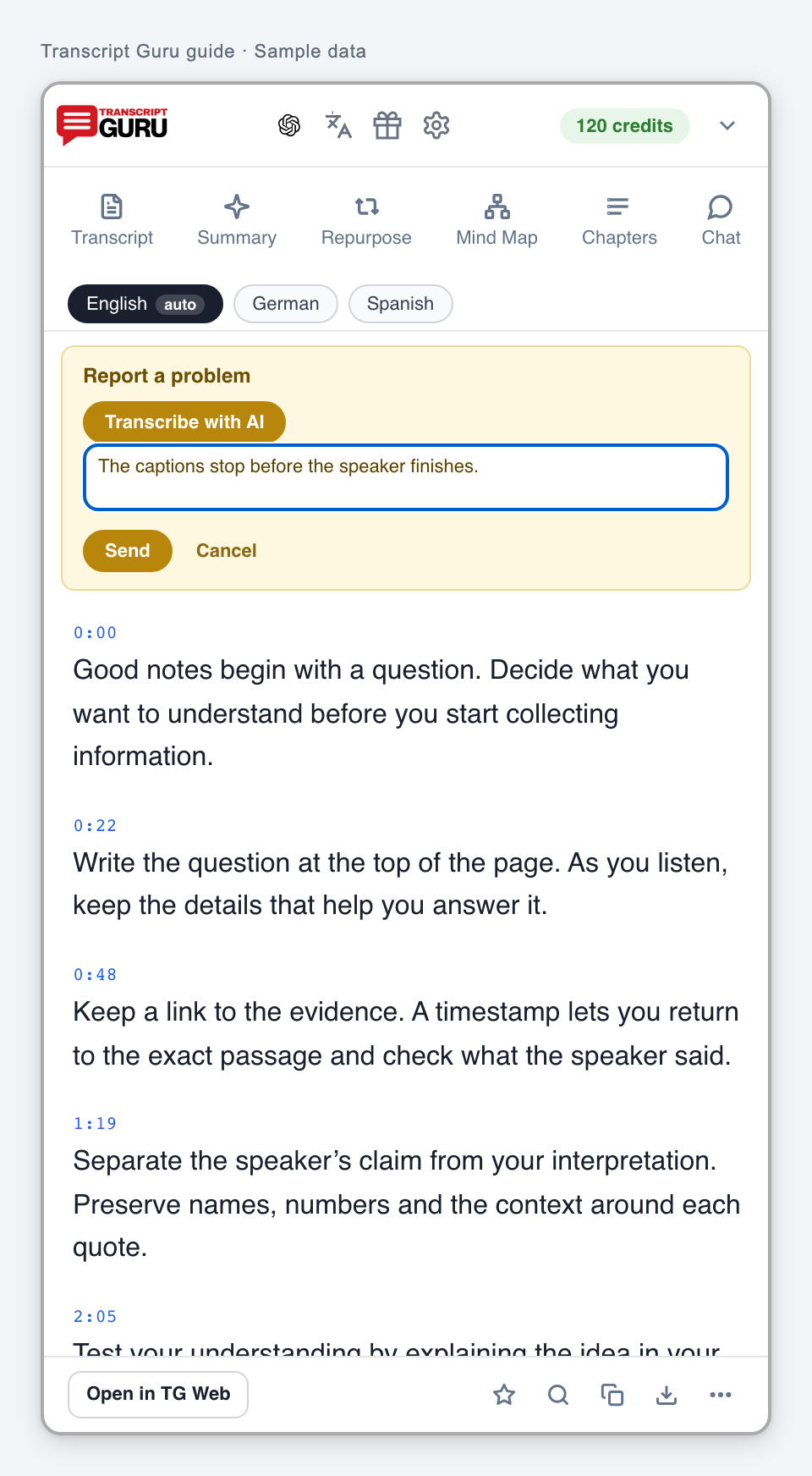
If the captions are inaccurate, use Transcribe with AI and review its cost, or report the problem.
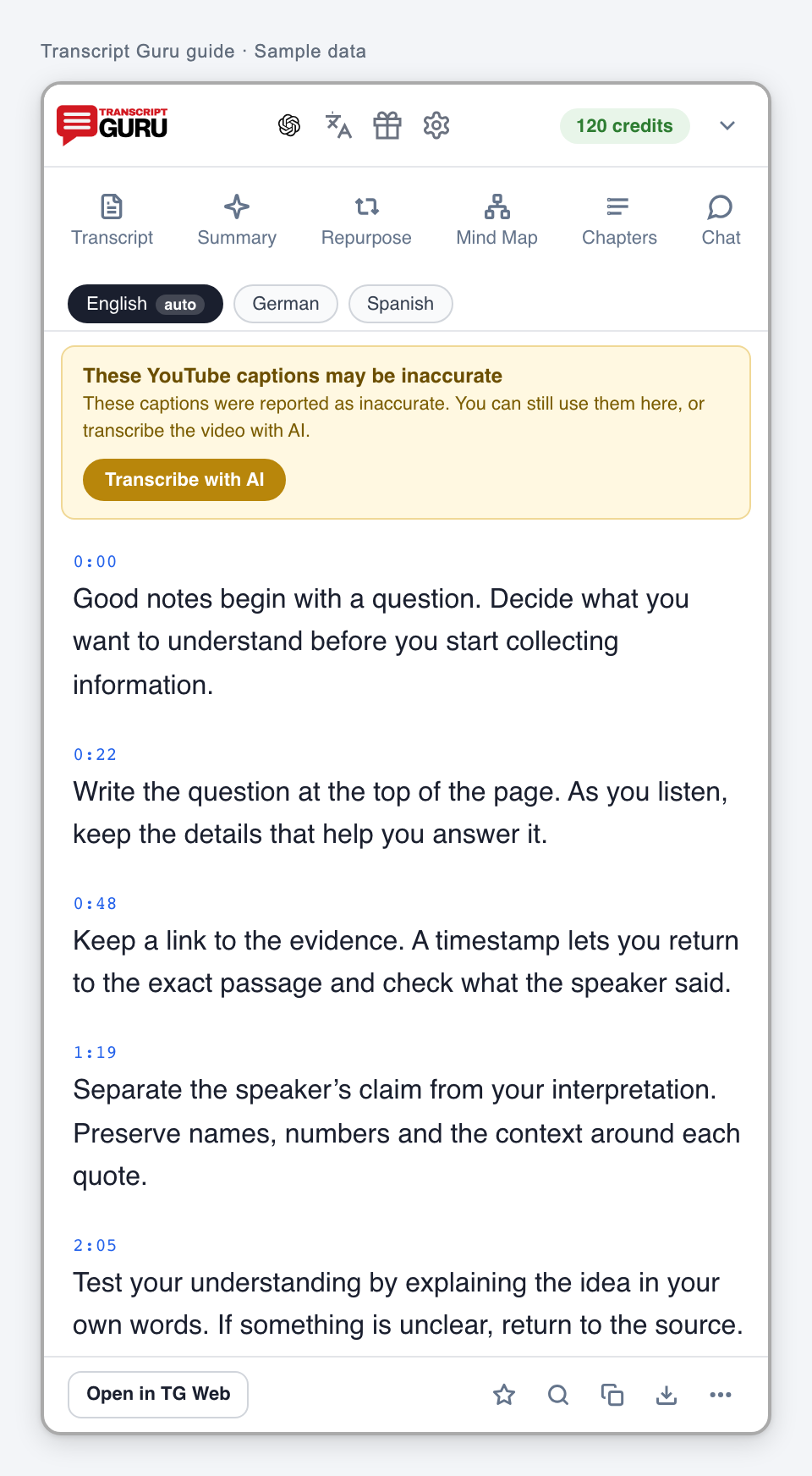
If the notice says the captions were already reported as inaccurate, use the actions actually shown. Some saved or AI features stay restricted until a suitable replacement is available.
You can still read, copy or download reported captions locally where offered. Check important quotes. Similar languages, short speech and mixed-language recordings need judgment rather than automatic rejection.
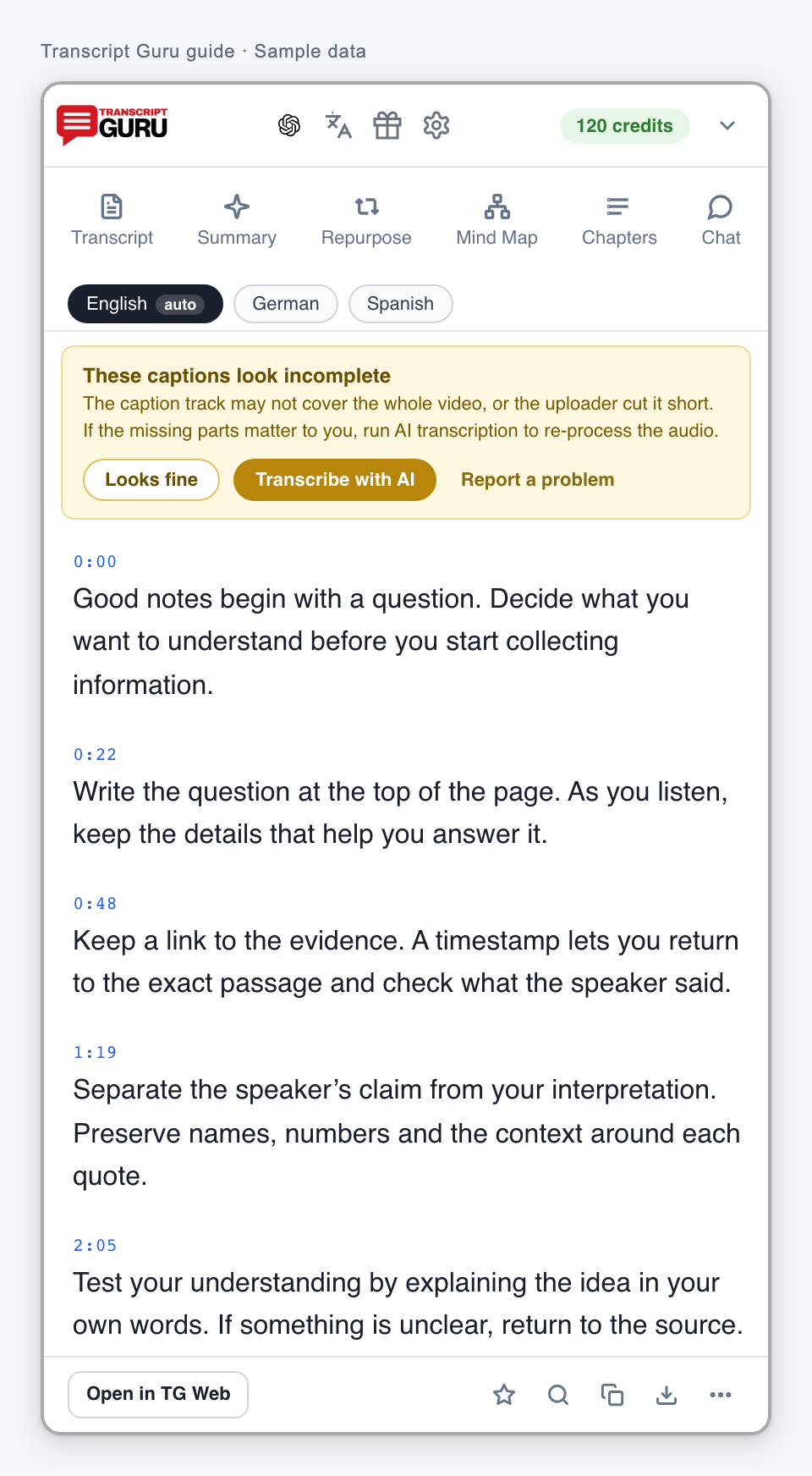
Review incomplete captionsExtension interface with sample data
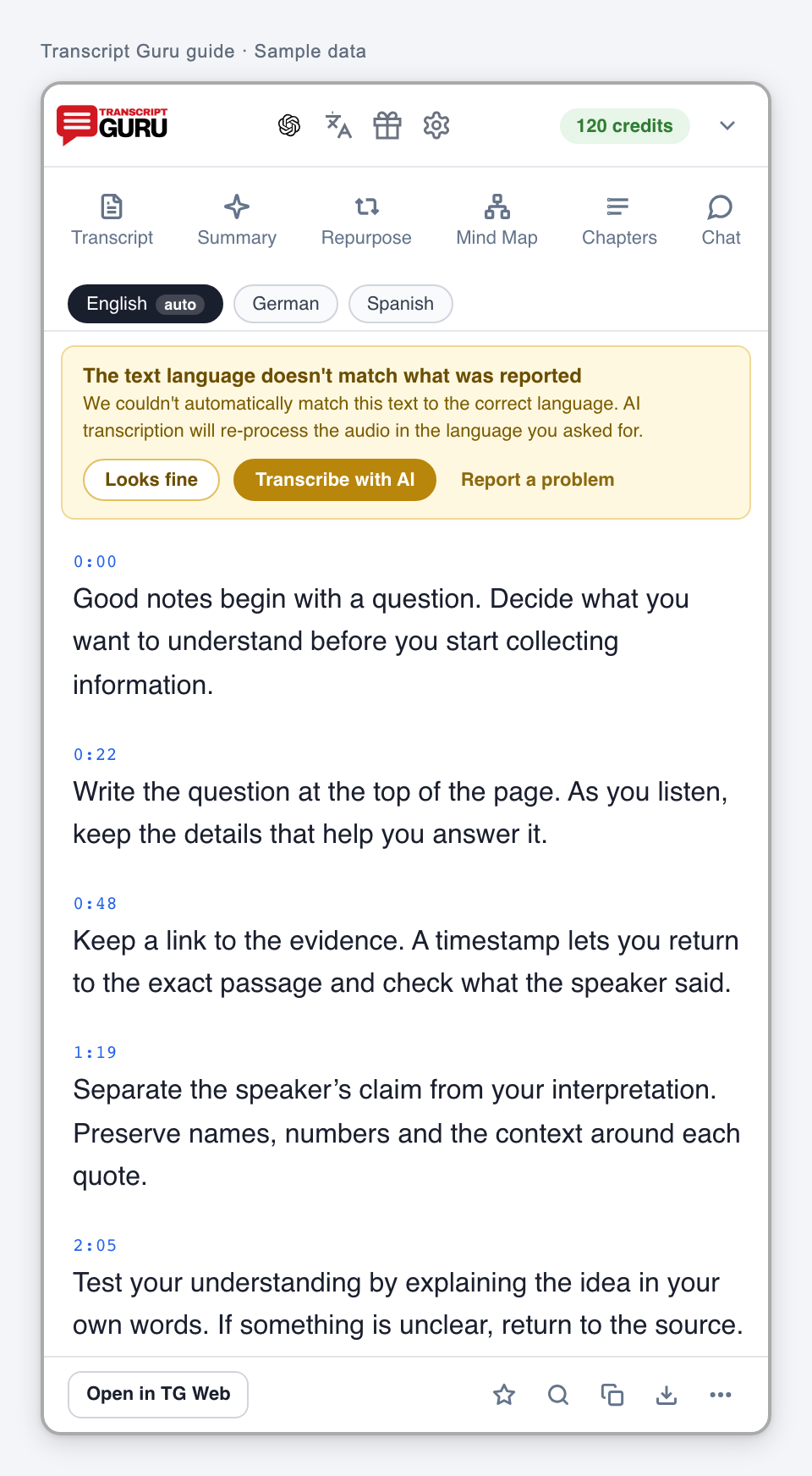
Review a language warningExtension interface with sample dataReview an unusually short transcriptExtension interface with sample dataUse captions that were reported as inaccurateExtension interface with sample data
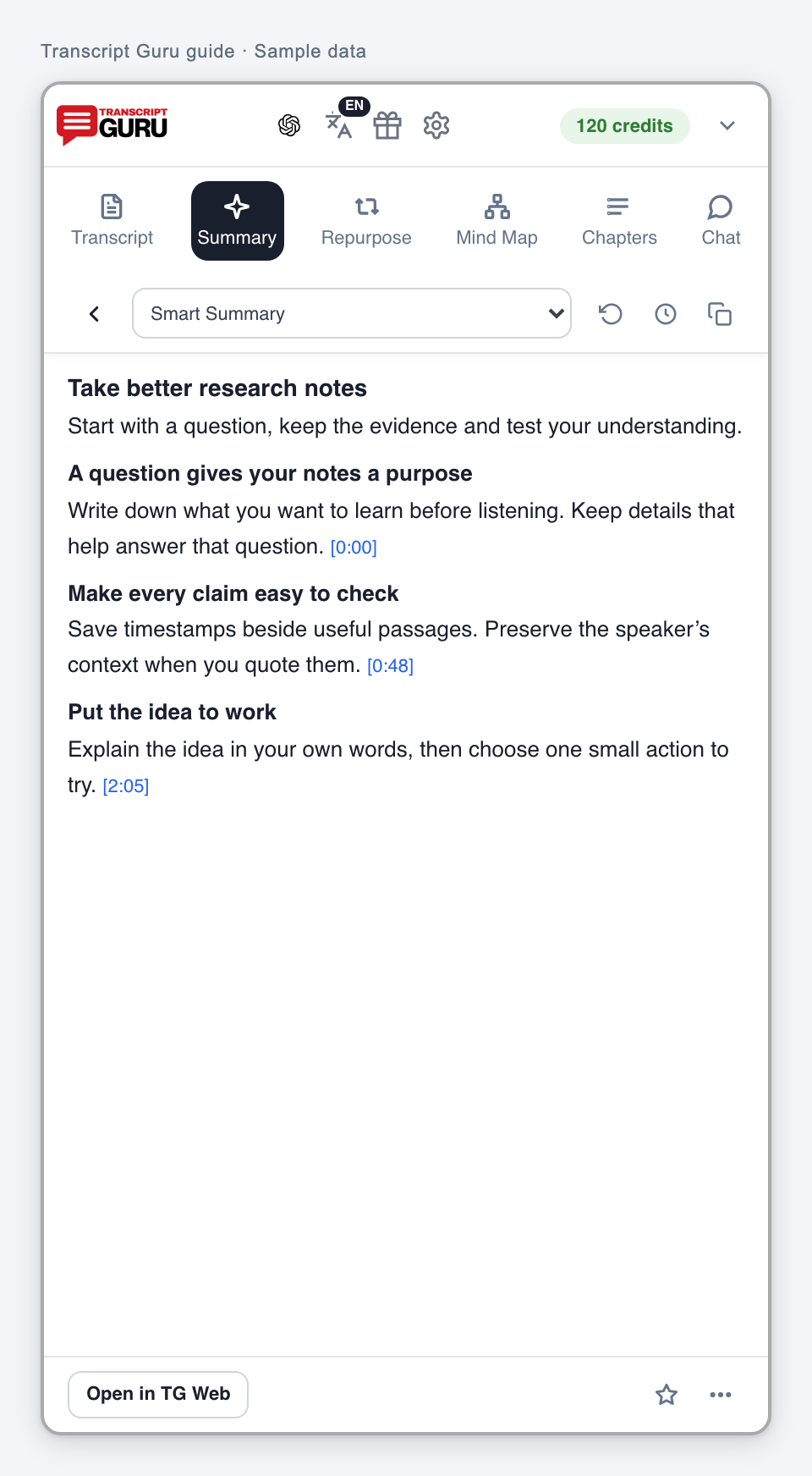
Get a summary in Transcript Guru
The Summary tab keeps an AI result with the transcript.
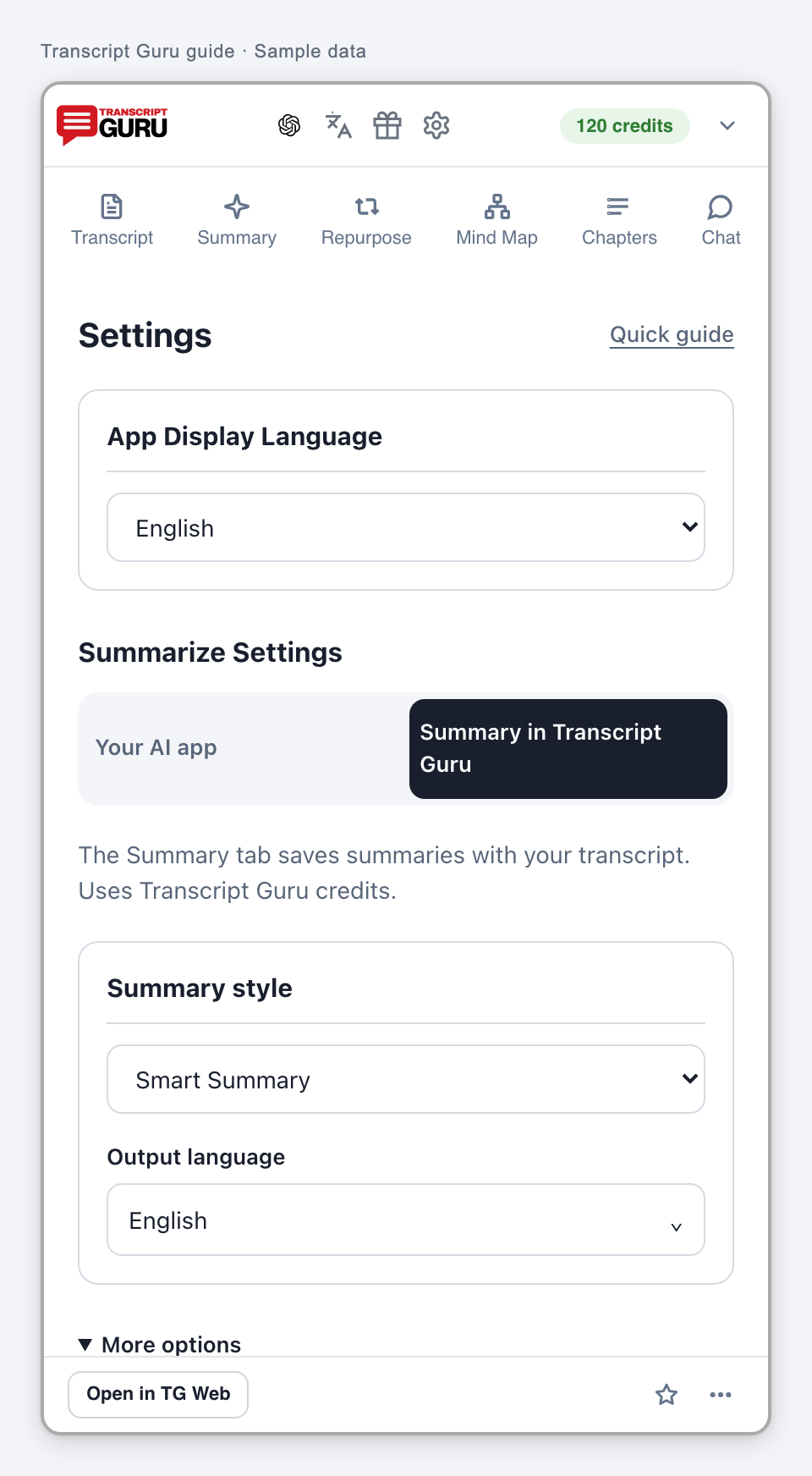
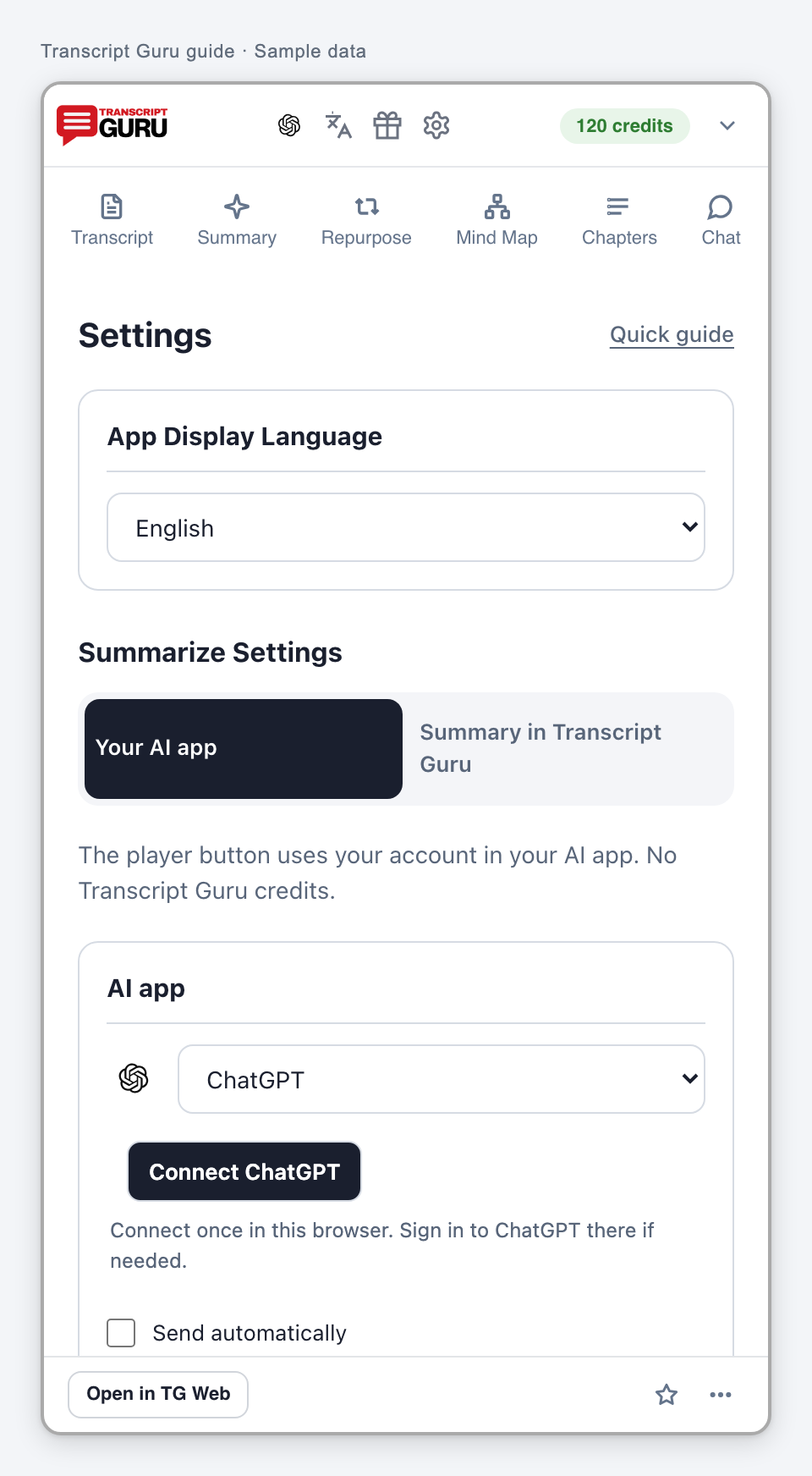
To set preferences first, open the gear, choose Summary in Transcript Guru, then set style, output language and any focus.
Choose Summary. A saved result opens if one exists; otherwise this action can start generation.
Read the result and check its claims against the transcript. Use the style selector for the result you need.
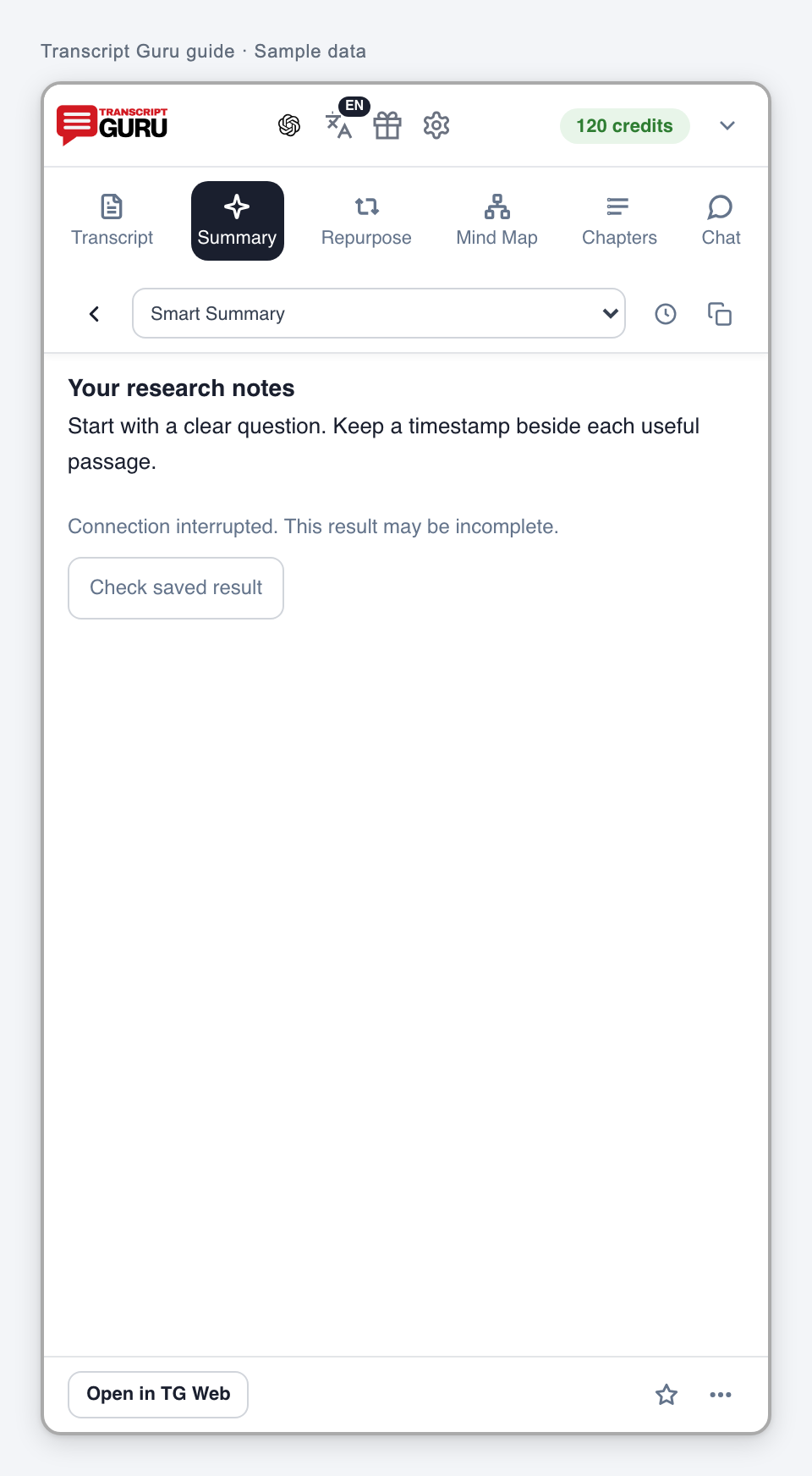
If streaming stops, choose Check saved result before starting another generation.
New built-in AI results use Transcript Guru credits. Reopening a saved summary does not generate it again. Do not assume there is a second confirmation after clicking Summary.
Open Mind Map in the web workspaceExtension interface with sample data
Use your own AI app
Send a prepared request and the transcript to the AI website you choose.
Open Summary settings and choose Your AI app. Select a provider or a supported custom website.
Decide whether Send automatically should be on. Turn it off if you want to review before sending.
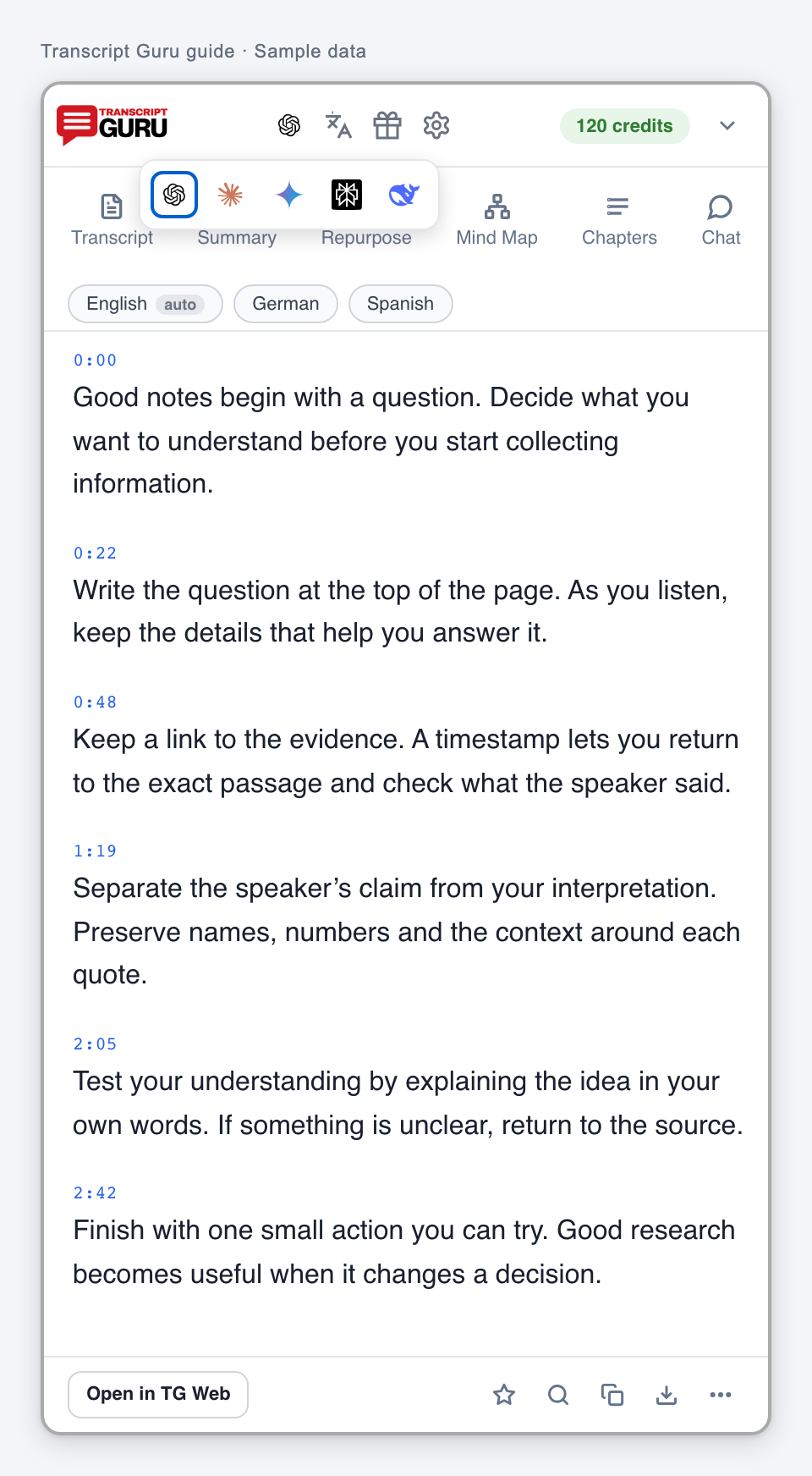
Use the provider icon to prepare the summary request. Sign in to the chosen AI app if needed.
Review the full draft. If direct insertion is unavailable, choose Copy and open, then paste it into a new conversation.
This shares the full transcript and video context with that provider. It does not use Transcript Guru credits; the provider has its own account terms and limits. Drafts expire after 30 minutes.
Choose an external AI appExtension interface with sample data
Choose how an external AI app receives a draftExtension interface with sample dataReview the full draft for your AI appExtension interface with sample data
Live and uploads
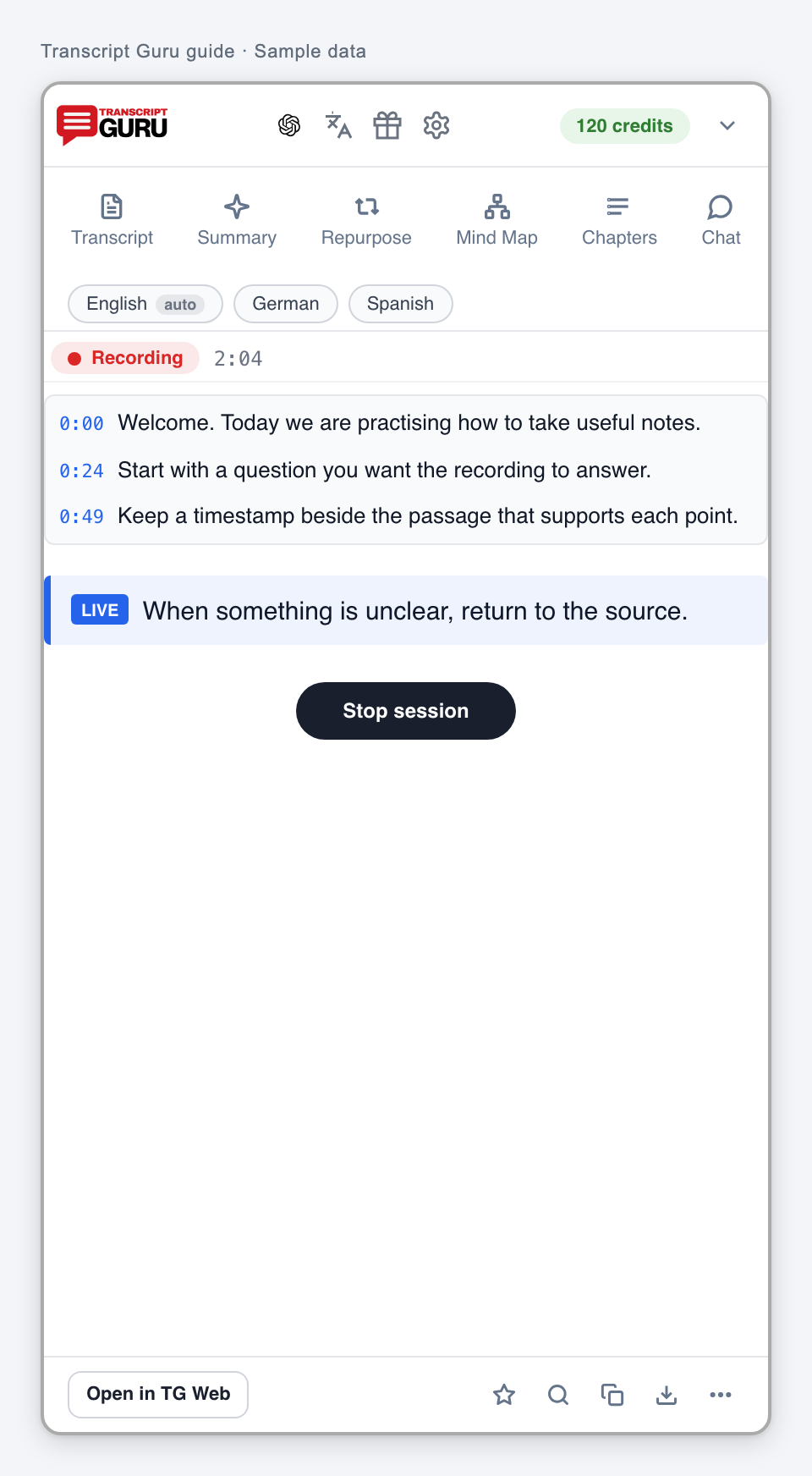
Follow a live broadcast
Live captions and live AI transcription are separate choices.
Open the active broadcast. Available YouTube live captions may appear automatically; otherwise use the offered caption start action.
Keep the YouTube tab open for capture. Keep it focused when starting audio capture if asked.
For live AI or live translation, read the displayed rate and eligibility before starting.
Use Stop session when finished and check the saved result in History.
YouTube live captions are free. Saving and further AI tools may require an account. Live AI and translation use the displayed credits. Capture pauses during ads; replay is limited by YouTube’s current live buffer.
Batch extraction collects selected videos into one resumable result.
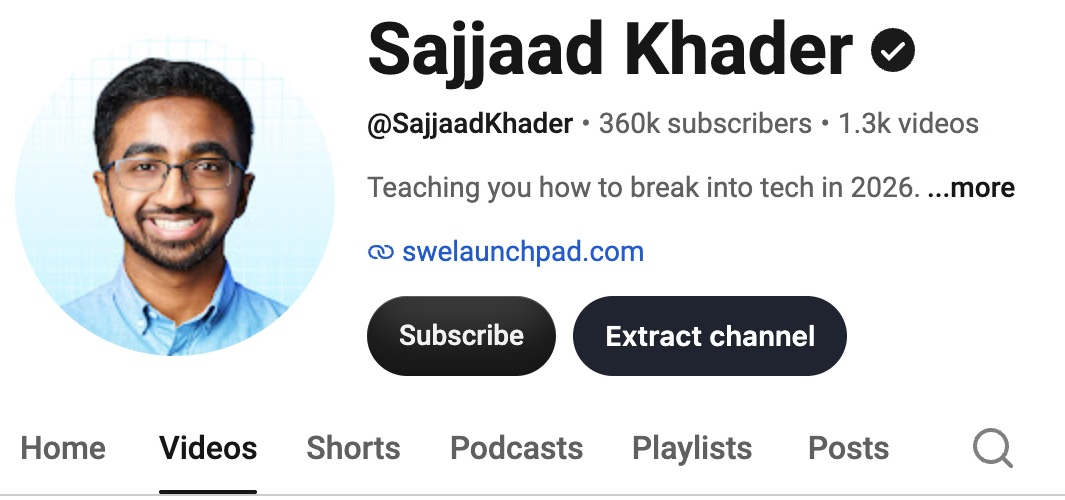
On a channel, use Extract channel beside Subscribe. On a playlist or a watch page with a playlist, use Extract playlist.
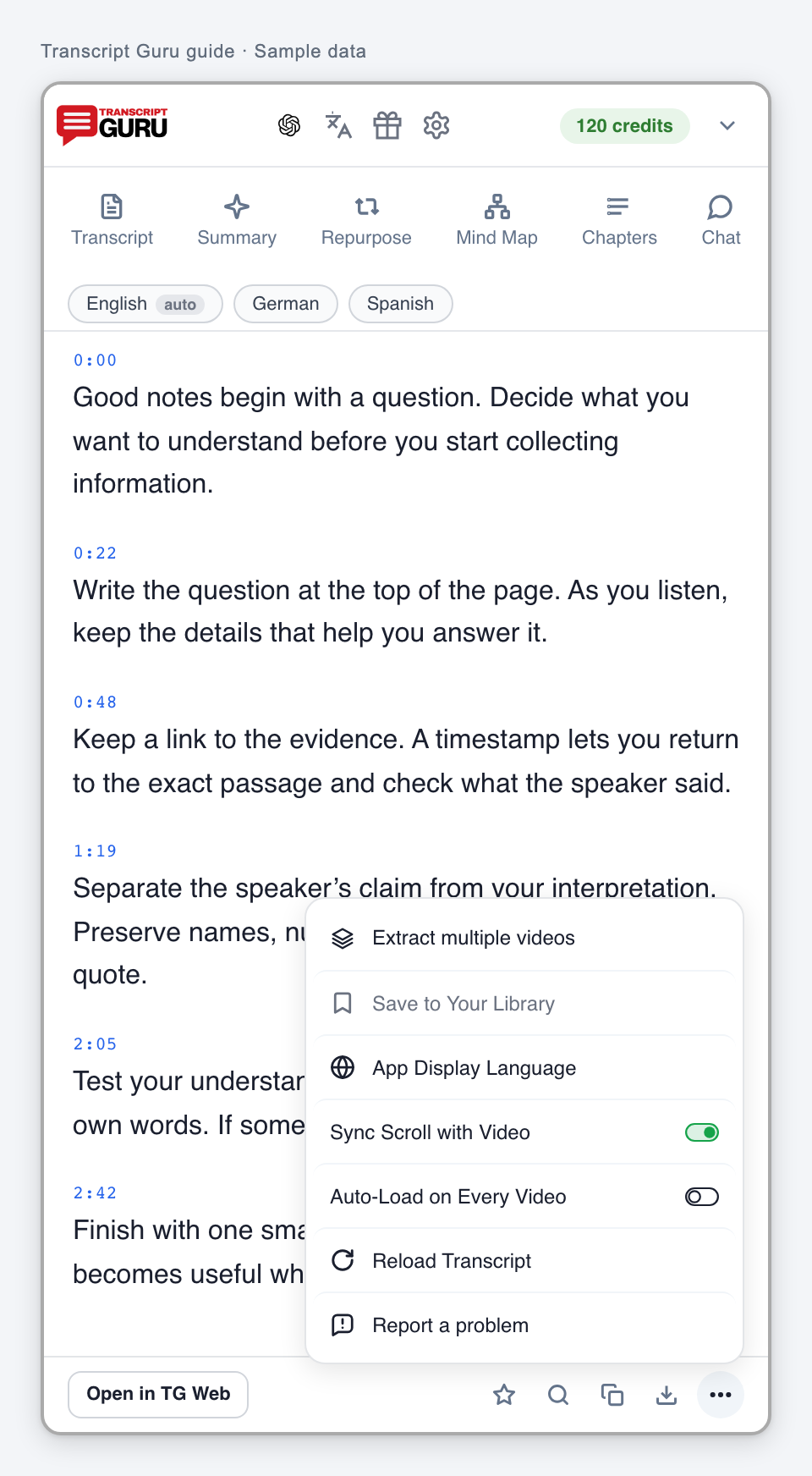
Alternatively choose More, then Extract multiple videos, or use the right-click menu on a supported link.
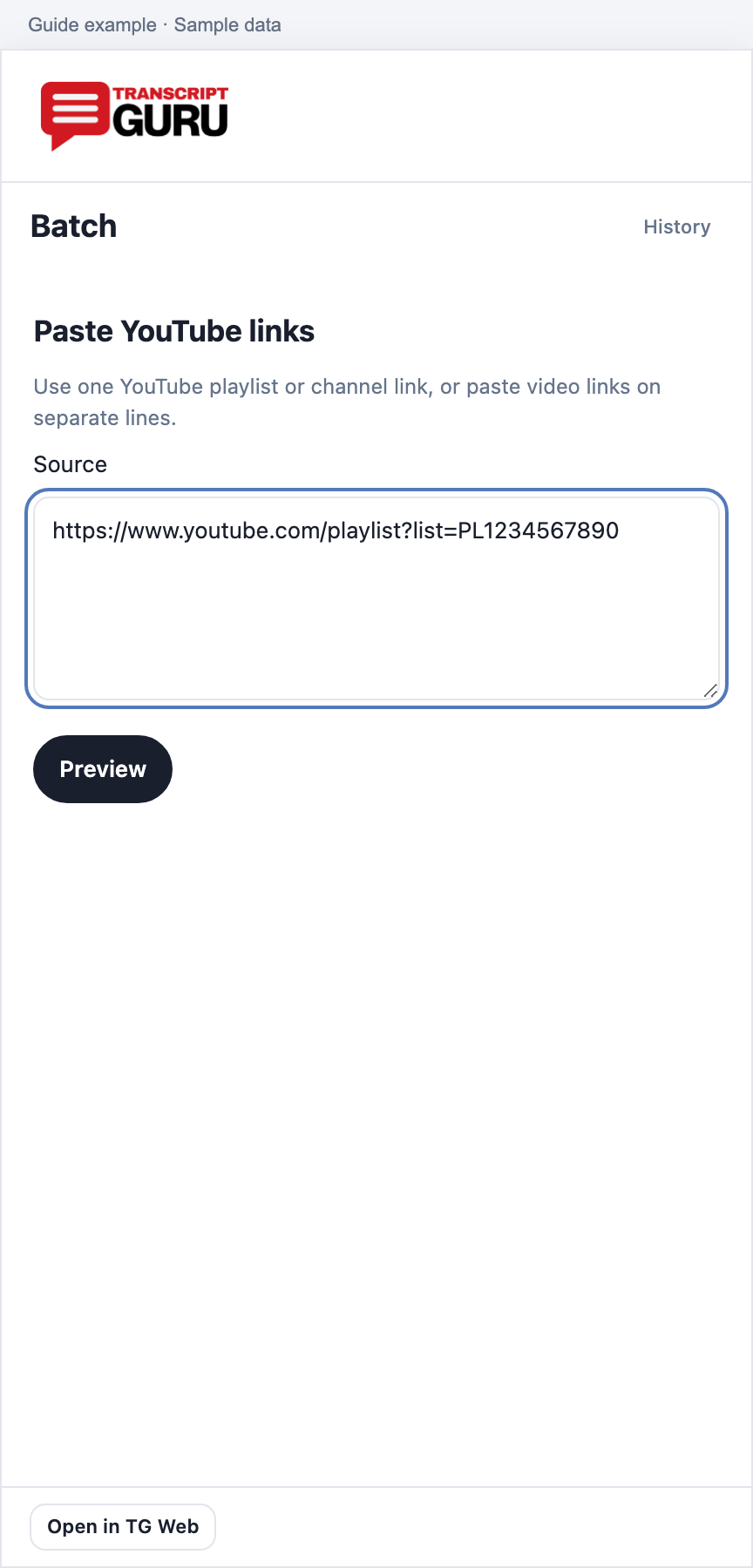
Paste one channel or playlist link, or one individual video link or ID per line.
Preview the collection before selecting the videos to extract.
A channel’s Playlists tab still offers Extract channel for the channel. Open a specific playlist to extract that playlist. A normal watch page without a playlist does not show Extract playlist.
Extract channel beside SubscribeInstalled extension on YouTubeExtract playlist on a watch page with a playlistInstalled extension on YouTube
Paste a playlist, channel or individual video linksExtension interface with sample dataLoading a collection previewExtension interface with sample data
Select from a large channel
Browse in pages rather than treating the whole channel as one selection.
Use the preview’s current page. The reviewed extension displays up to 100 rows per page.
Select page checks the videos on that page. Your selection is retained as you browse other loaded pages.
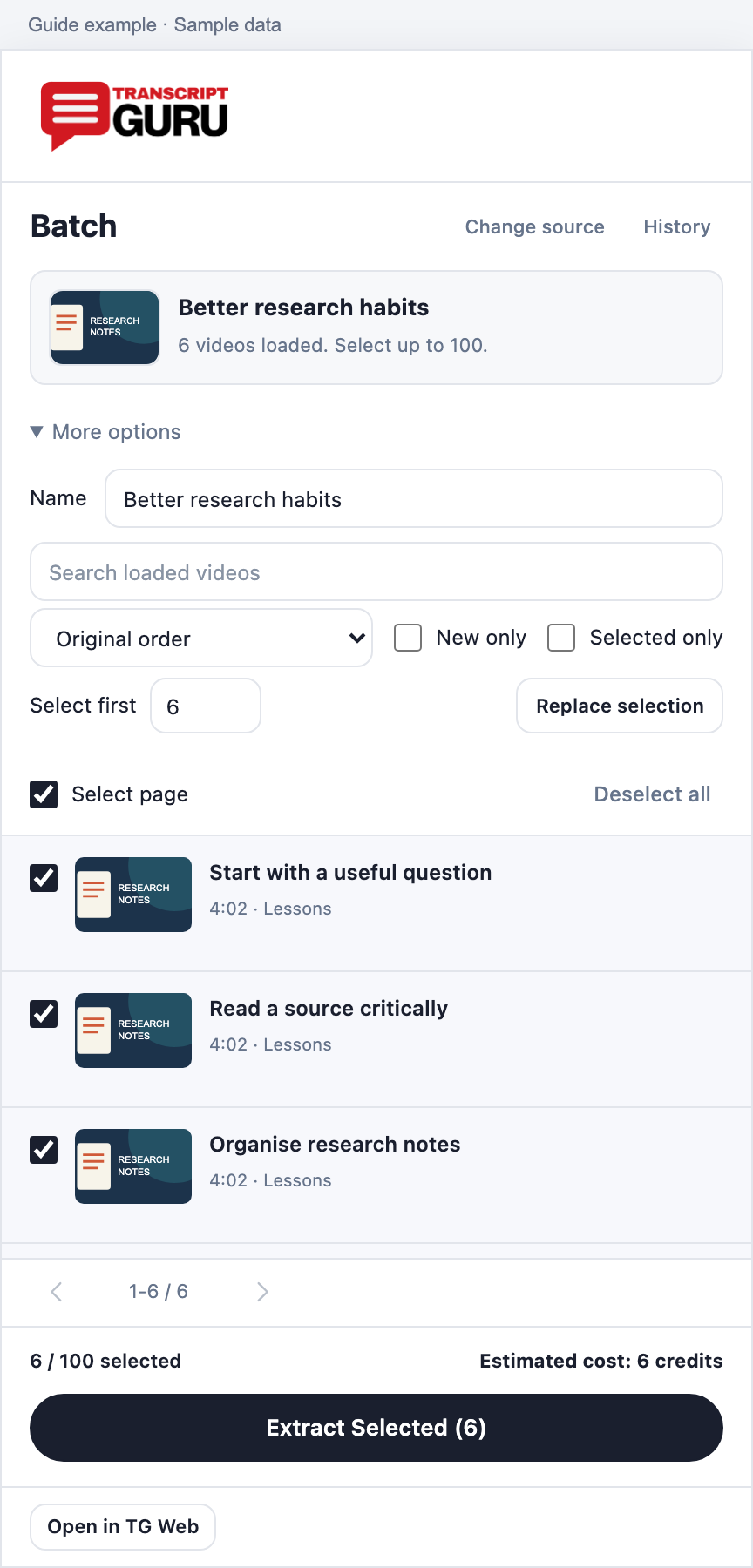
Open More options to search loaded videos, change their order, show New only or Selected only, or replace the selection with the first number you choose.
Use Next page or Load more when offered to reach more videos. Stay within the selection limit shown for your plan.
Search and sorting apply to loaded videos, not every video on YouTube. A channel’s total count, the loaded count and your plan’s selection limit are different numbers. Already Fetched indicates an existing result.
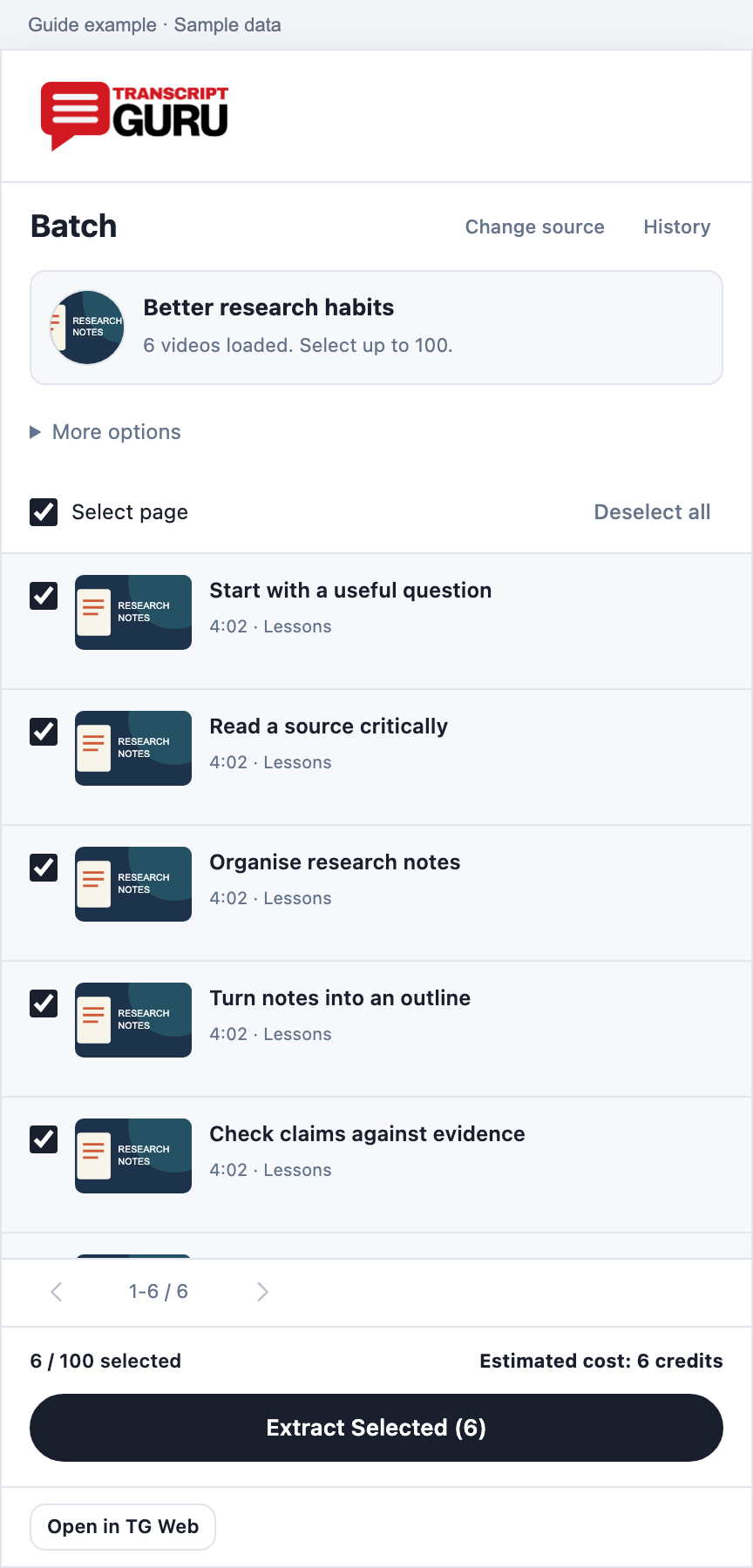
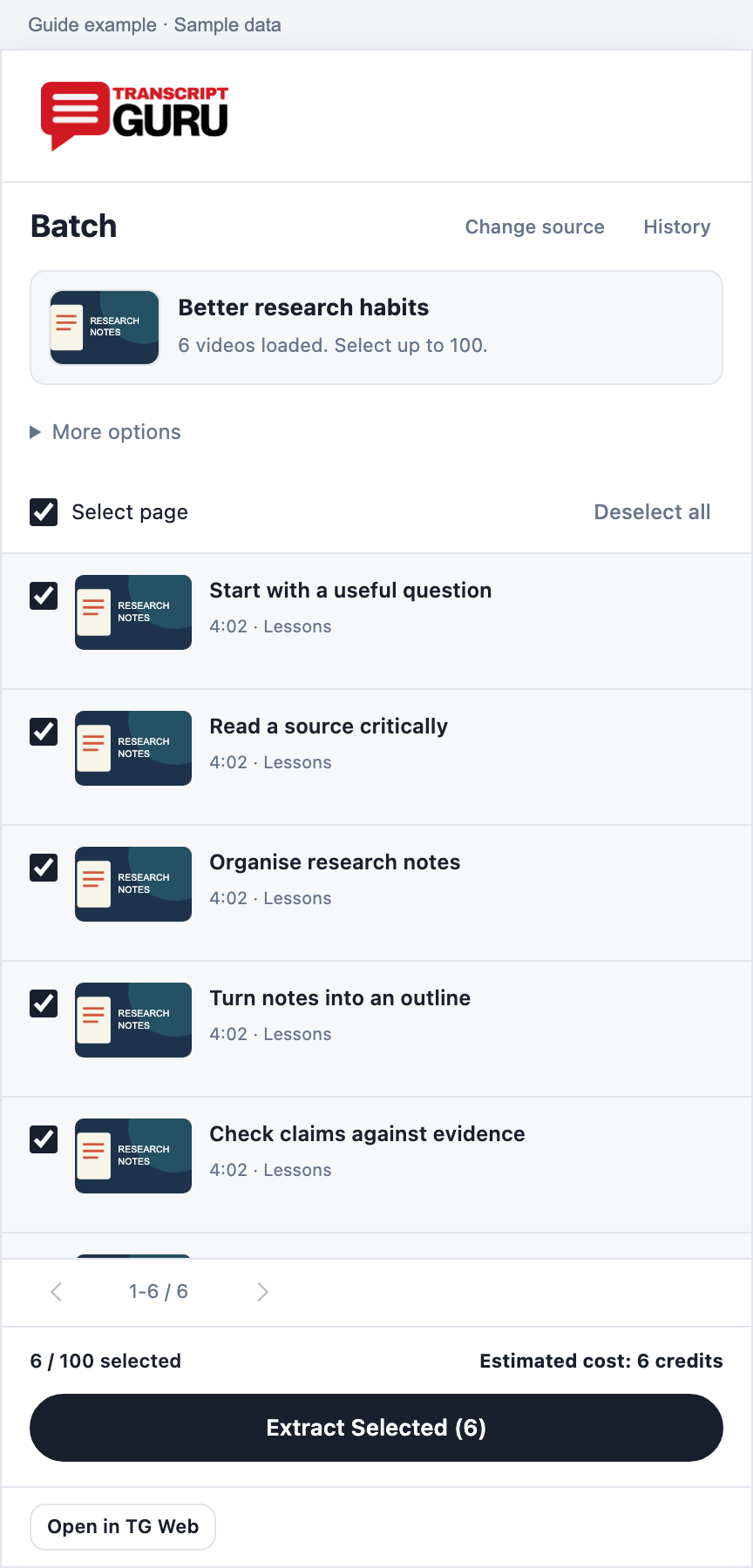
Review a channel previewExtension interface with sample data
Select the videos you wantExtension interface with sample dataSearch, sort and replace a selectionExtension interface with sample data
Check the batch cost and start
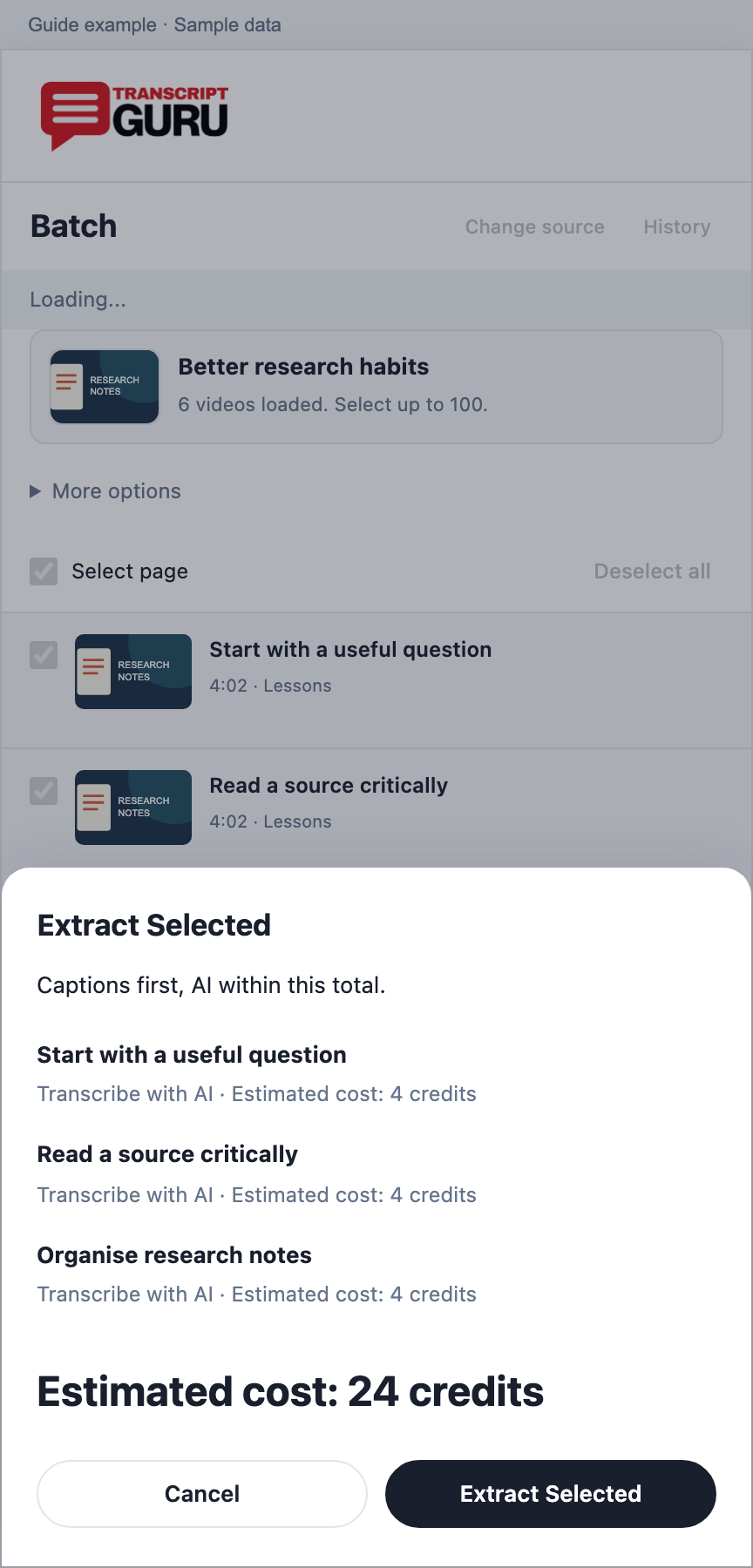
The cost is checked when you choose Extract Selected.
Select the videos you want, then choose Extract Selected.
The service checks existing results, available captions and any eligible AI work.
For a total of 10 credits or more, review the confirmation, including any videos listed for AI transcription.
Confirm if you want to proceed. Smaller eligible totals can start directly from Extract Selected.
Existing reusable results cost 0. Each new batch caption transcript costs 1 credit. AI transcription has a separate quoted cost based on the recording and eligibility. Do not treat a caption lookup error or a quality warning as confirmed absence of captions.
Confirm a batch quote that includes AI transcriptionExtension interface with sample data
Read results and resolve remaining videos
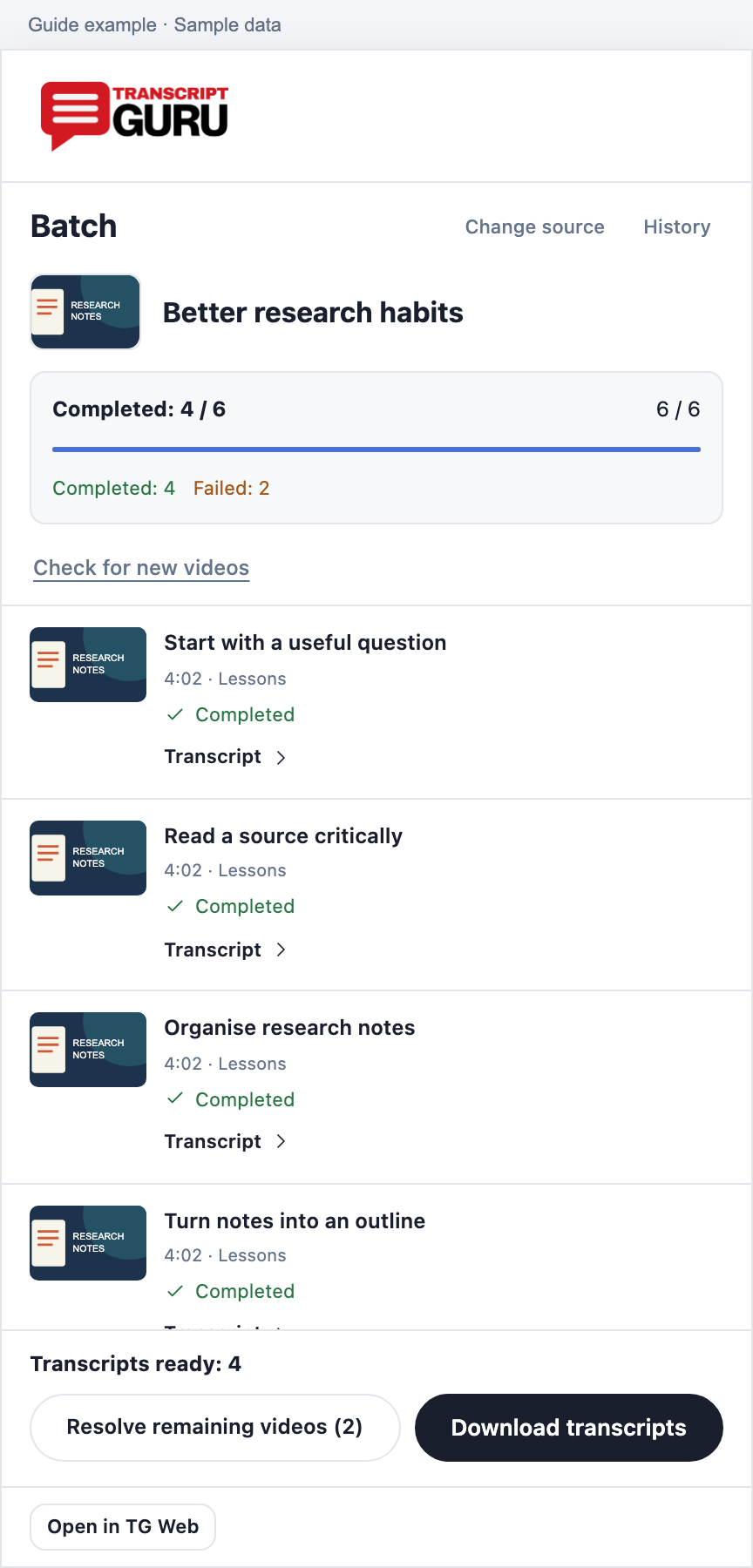
A batch can contain completed results and items that still need attention.
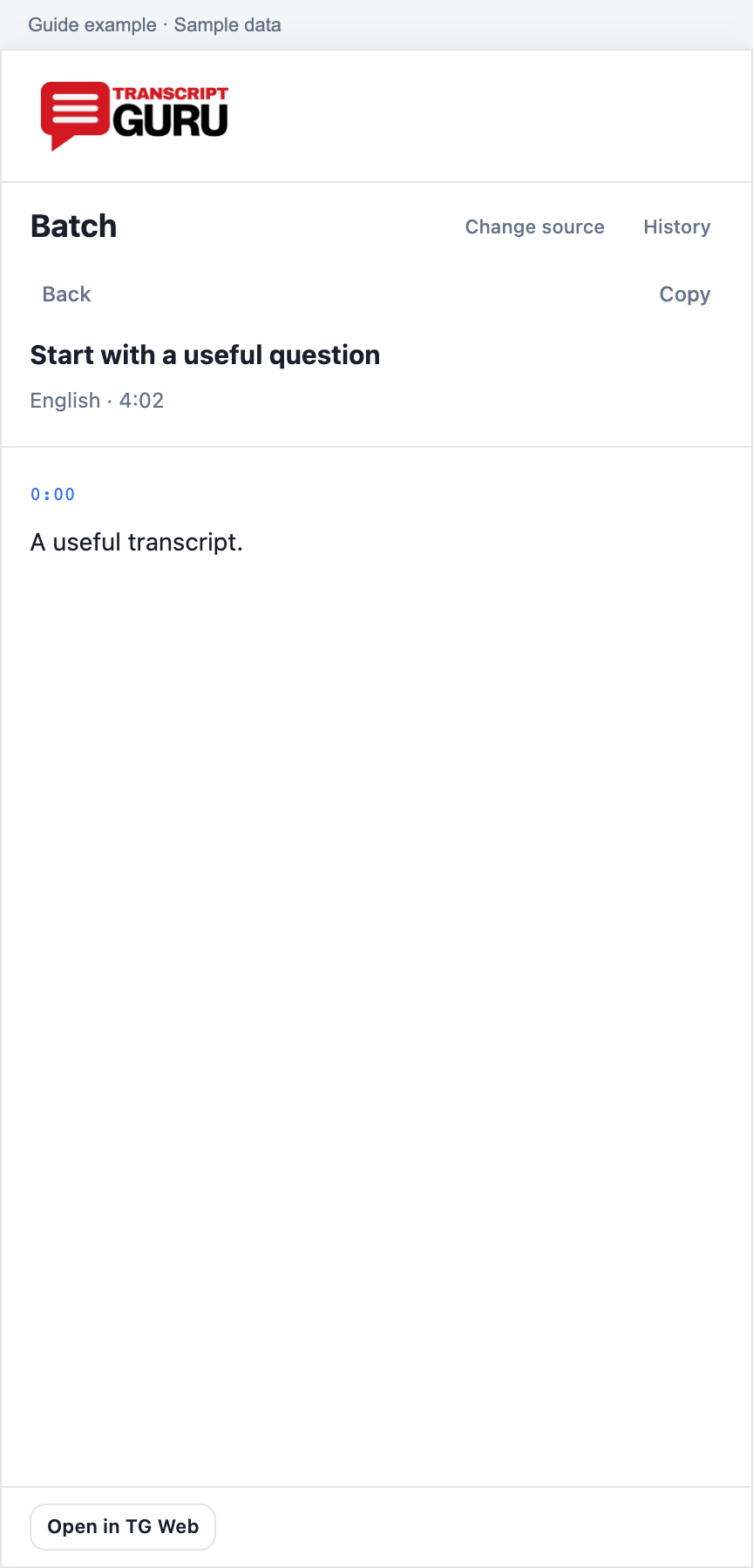
Open a completed row’s Transcript to read that result.
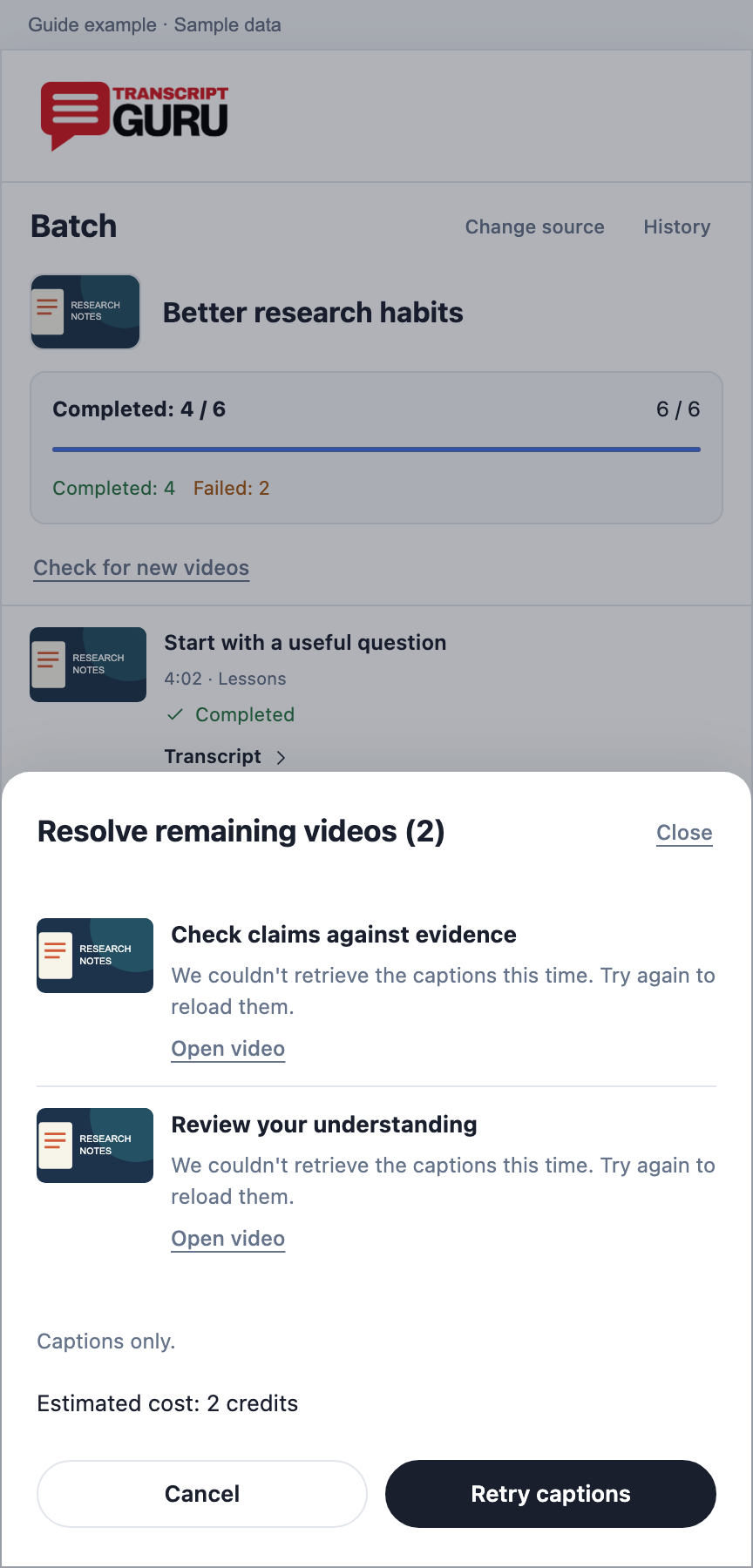
For a failed or Needs review row, choose Review or Resolve remaining videos.
Read the reason for that specific video. Retry captions for a temporary caption problem; use AI only when that recovery is clearly offered with its cost.
Check History before creating another batch. Cancel pending videos only if you want to stop work that has not started.
A failed item does not invalidate the completed transcripts. Cancel pending does not undo completed work and may not stop work already running. Deleted saved results must be restored through extraction.
See completed videos and items that need attentionExtension interface with sample data
Read a completed transcript within the batchExtension interface with sample dataRetry the remaining caption itemsExtension interface with sample data
Download the completed batch
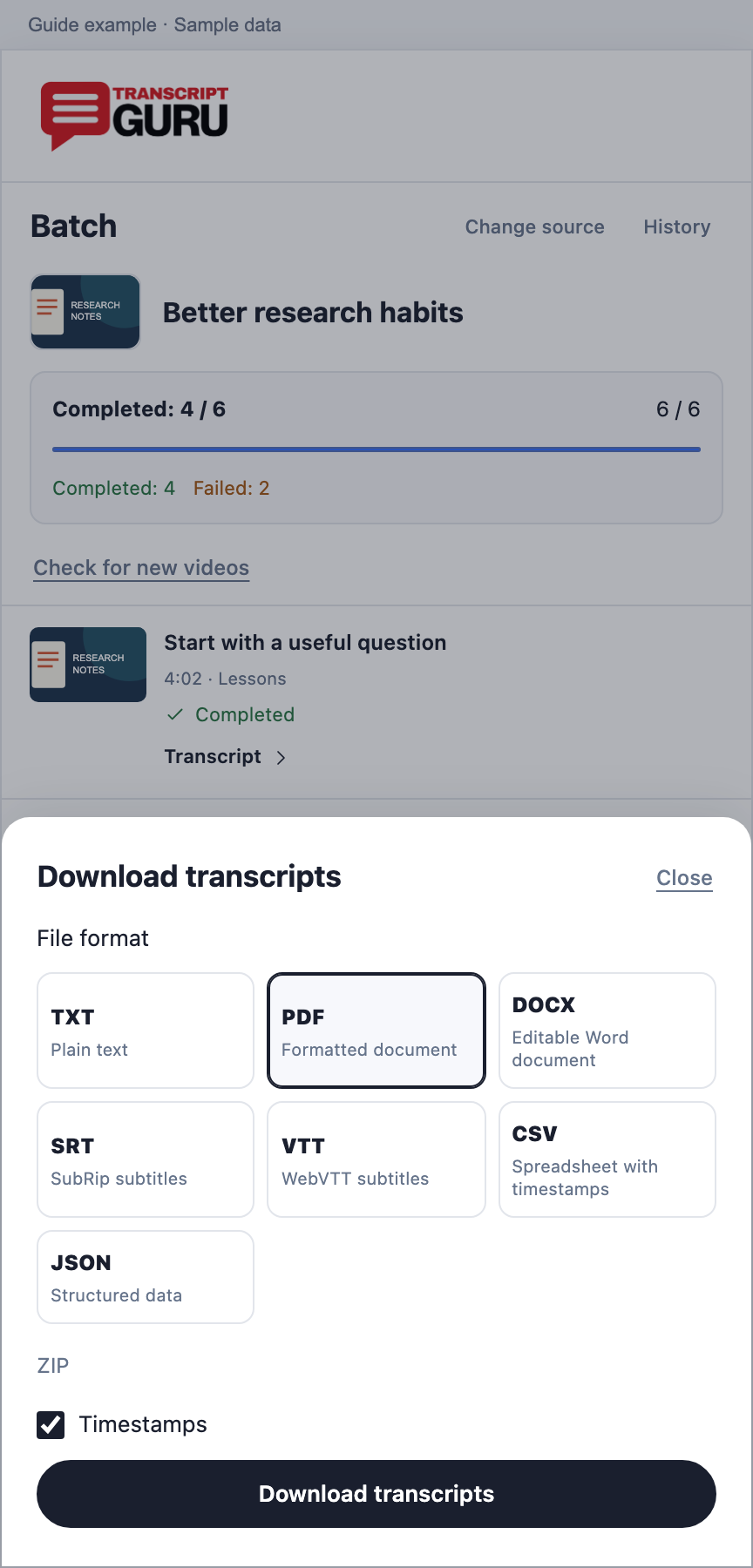
Download the available transcripts together as a ZIP.
Choose Download transcripts from the batch result.
Choose the file format and timestamp option.
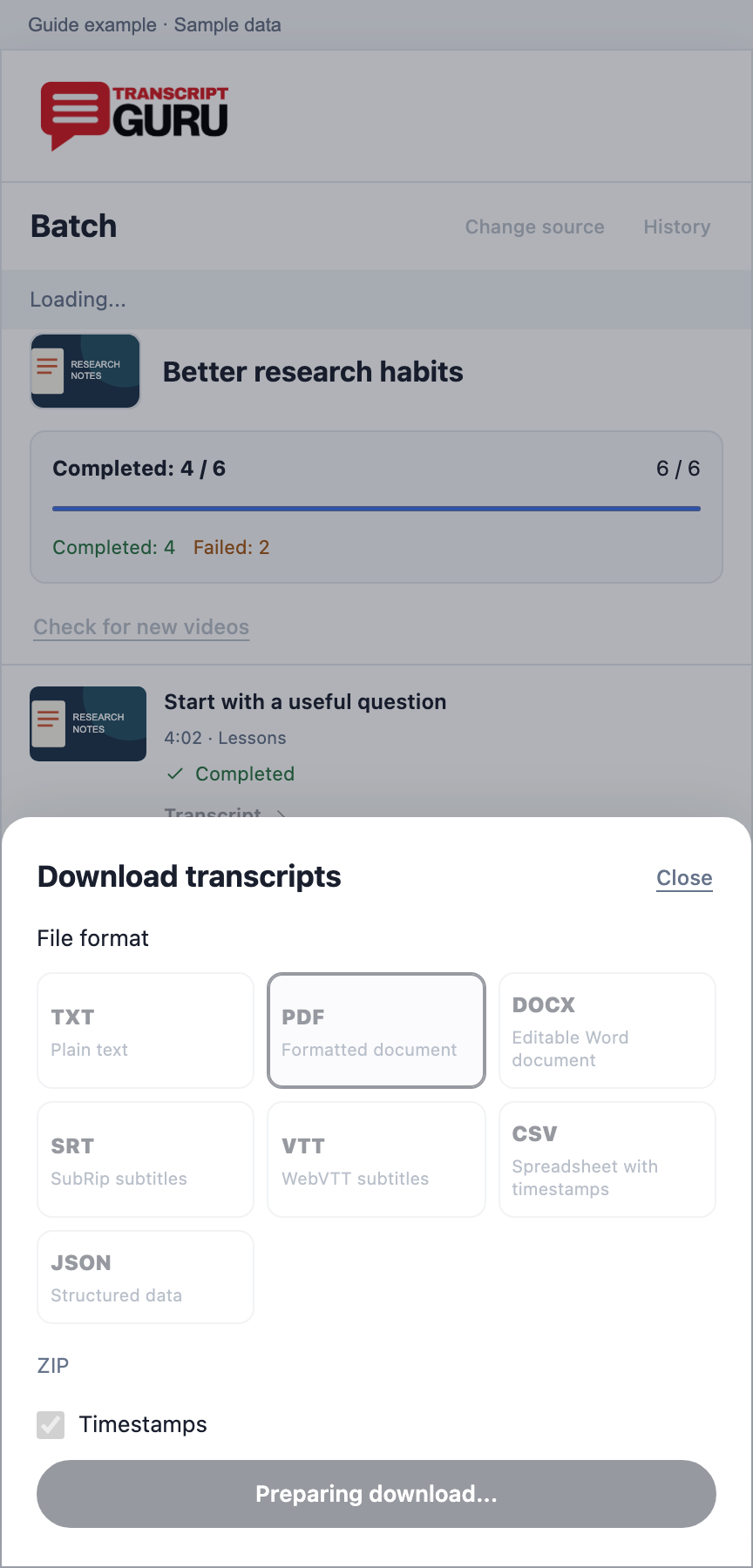
Choose Download transcripts once and leave the dialog open while it prepares.
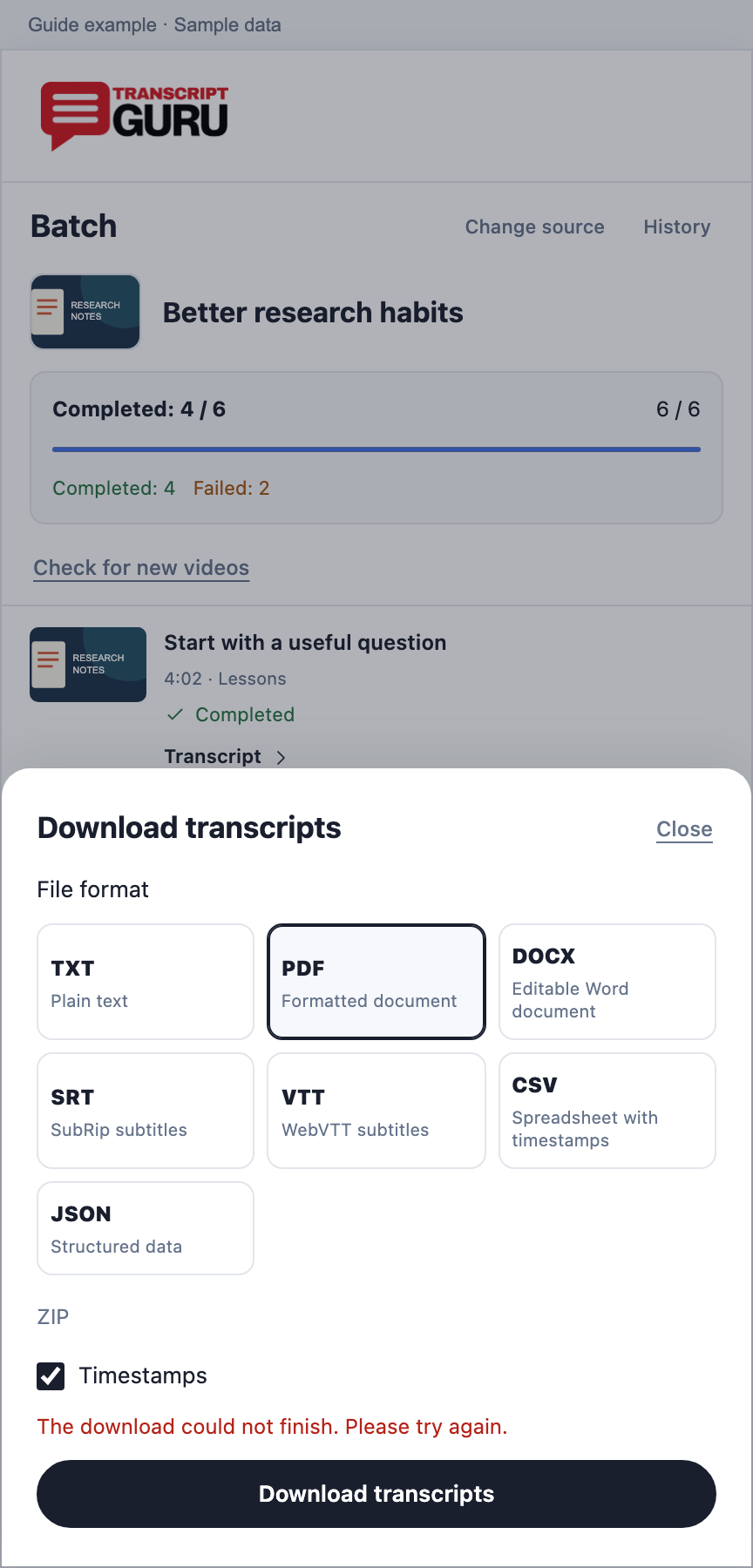
Open the ZIP from your browser downloads. If the dialog shows an error, retry the download from this same batch.
Retrying an export does not require re-extracting the videos. A partially completed batch exports the transcripts that are ready. Check the ready count rather than assuming every selected video has a result.
Choose the format for a batch archiveExtension interface with sample data
Wait while your batch download is preparedExtension interface with sample dataA batch download error stays visible in the download dialogExtension interface with sample data
Return to a batch or check for new videos
Use the saved batch instead of repeating its setup.
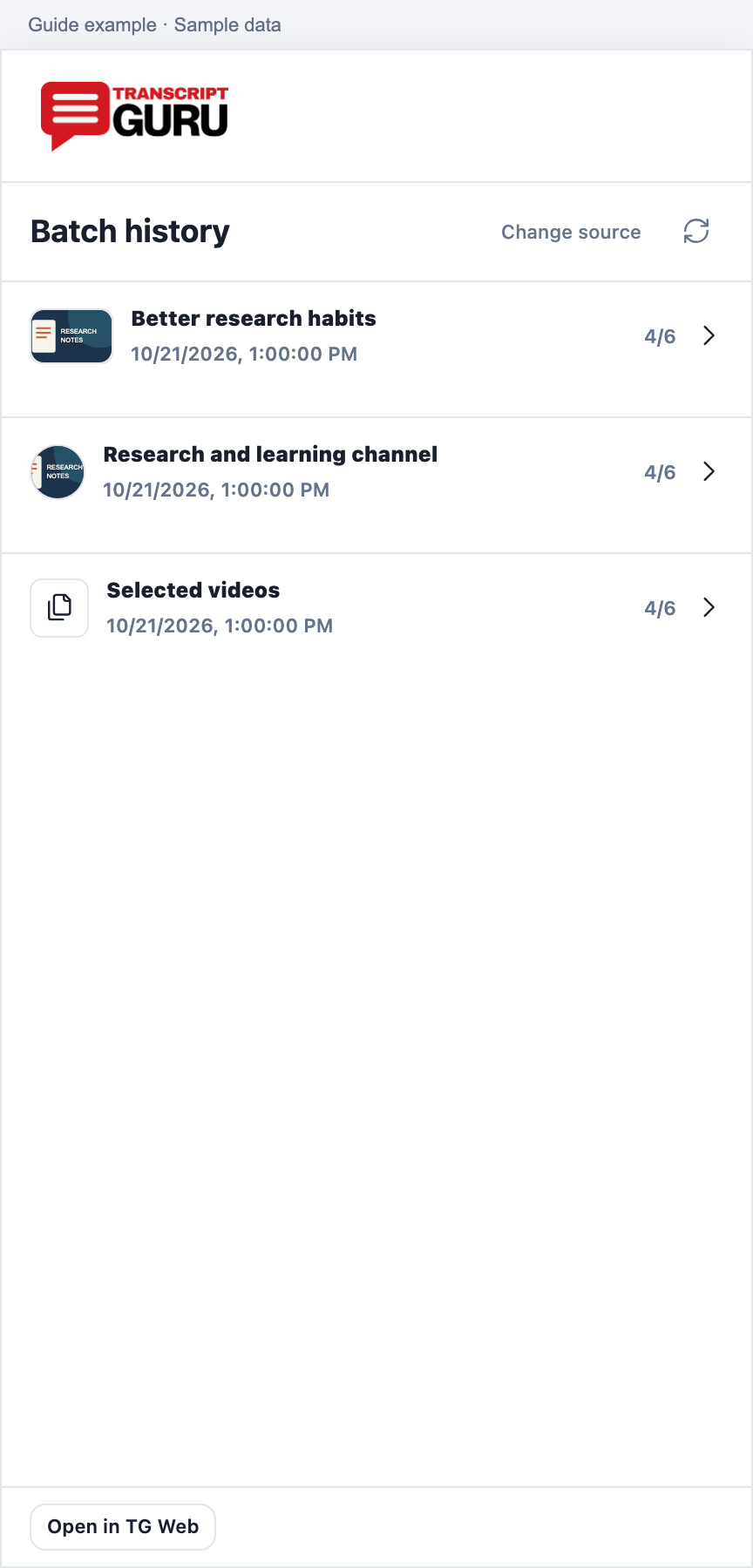
Choose History inside Batch, or open History then Batches in the web workspace.
Open the collection you need to inspect or download. On the web, select individual completed results if you only need some of the transcripts.
Use Check for new videos when available to preview additions to that source. Review the new selection and cost before starting more work.
To organise saved batches on the web, search or select completed batches and choose Archive. Choose Archived to find and restore them.
Archiving a batch keeps its transcripts in History and preserves the recorded credit charges. Active batches must finish or be cancelled before they can be archived. Refreshing the result or reopening History does not authorize a new extraction.
Set summary preferencesExtension interface with sample data
Change the interface languageExtension interface with sample dataThe transcript in dark modeExtension interface with sample data
Report a problem with useful detail
Send enough context to identify the failed action without sharing credentials.
Open More, then Report a problem. A quality warning also has a report action.
Describe the action, expected result and exact message. Include the video link, time and time zone, browser and extension version.
Include a job or batch ID if one is visible. Sign in if asked to send the report.
If the panel cannot open, use Support in the Transcript Guru web workspace instead.
Do not send passwords, access keys or private transcript content that is not needed to investigate. For a payment concern, include the job reference and the displayed credit state.
Report a problem from the panelExtension interface with sample data
Replay the tour or open the full guide
You can revisit help after you have started using the transcript.
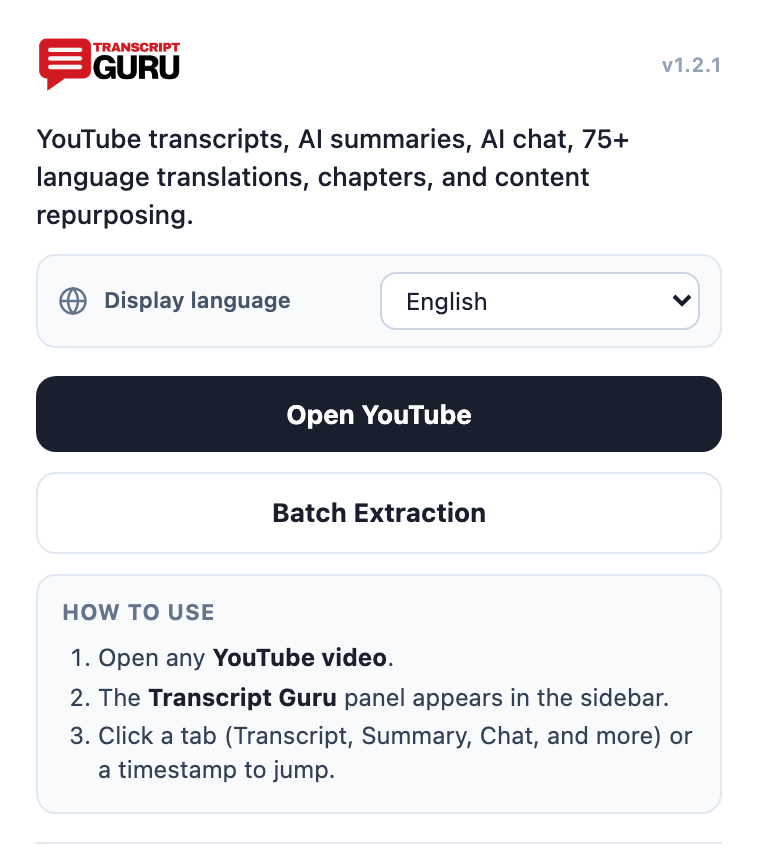
Open Settings and choose Quick guide. The browser-toolbar popup also has a Quick guide link.
On the welcome page, choose Try the tour on a video.
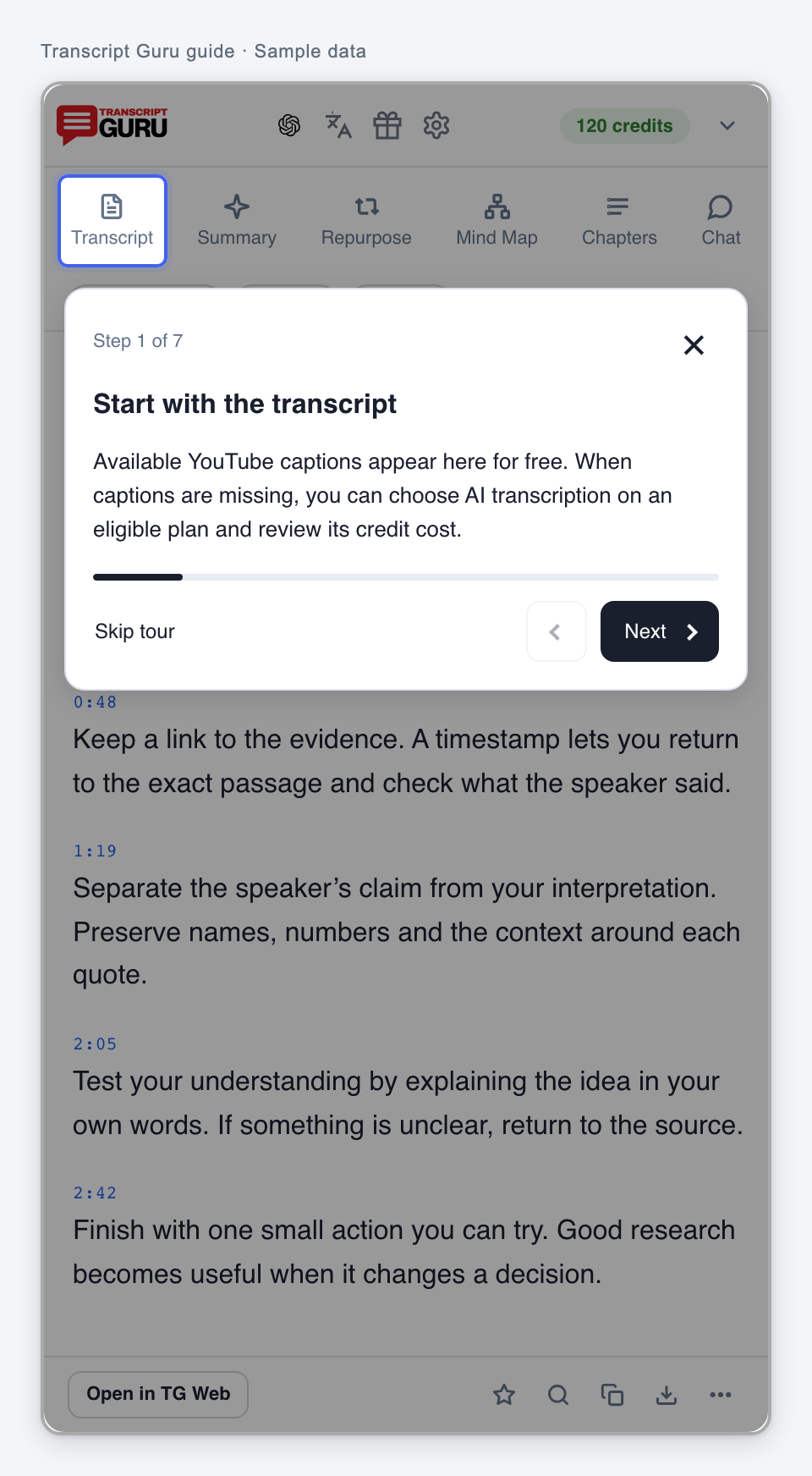
Use Next and Back to move through the seven steps. The progress bar shows your place. Choose Done on the last step, or Skip or Close at any time.
Use this guide for a specific task or search an error message.
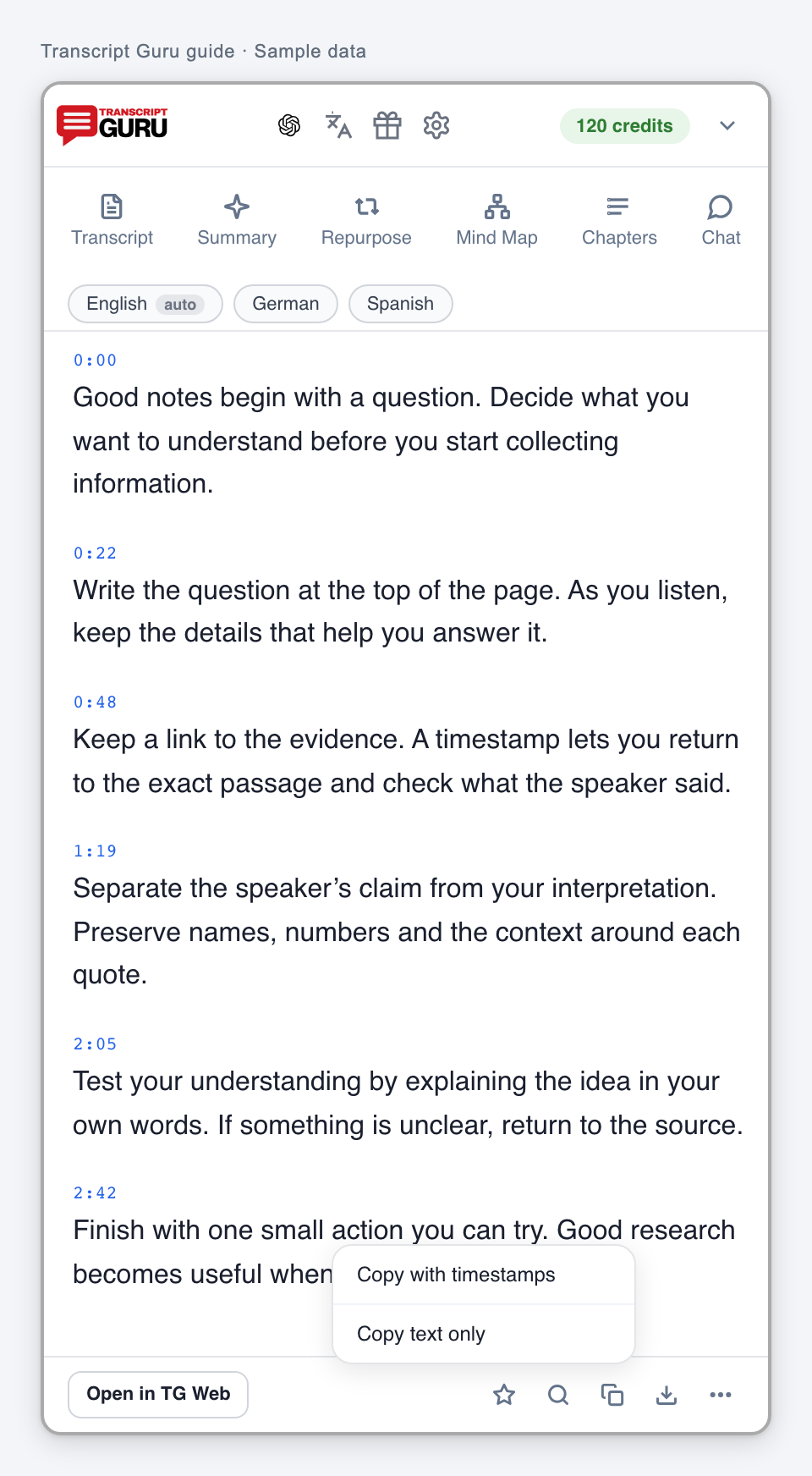
The first six steps cover captions, search, built-in AI tools, translation, external AI apps, and copying or downloading. Step 7 explains the three-dot menu: auto-scroll, auto-load, Reload Transcript, Report a problem and Extract multiple videos. Try a tool, then return to Transcript to continue. The final step also links to Guide and Troubleshooting.
The seven-step extension tourExtension interface with sample data
The current welcome pageExtension interface with sample data
Credits and costs
Action
What to expect
Open individual YouTube captions
Free caption extraction.
Reuse an existing batch result
0 credits for a reusable result.
Create a new batch caption transcript
1 credit per newly completed caption transcript.
AI transcription or a new AI result
Separate cost and eligibility. Read the offer or settings for the requested action.
Open a saved result, copy or export
Does not start a new transcription. Some formats or actions require sign-in.
Summarize in your own AI app
No Transcript Guru credits. The selected provider has its own rules and limits.
Start a batch
Quote is checked on Extract. Totals of 10 credits or more ask for confirmation. Smaller eligible totals can start directly.
In an eligible batch, AI can be included for videos verified to need it, within the quoted total. A temporary caption failure or Needs review label is not sufficient evidence that AI is needed.
Where buttons appear
Page or action
Control
What it does
Channel Home, Videos, Shorts and other channel tabs
Extract channel
Previews that channel; non-video tabs use its video collection.
Channel Playlists tab
Extract channel
Open a specific playlist to extract that playlist instead.
Playlist page
Extract playlist
Previews the selected playlist.
Watch page with a playlist in its URL
Extract playlist
Appears near the channel subscription controls.
Watch page without a playlist
No inline collection button
Use More, Extract multiple videos, or a supported right-click action.
Shorts viewer
Transcript tools
Read the current Short; use a channel page for channel extraction.
Right-click a video link
Get Full Transcript / Add video to batch
The first opens the video and requests its transcript panel; the second adds it to a batch.
Right-click a channel or playlist link
Extract channel / Extract playlist
Opens the preview for that collection.
Extract channel beside SubscribeInstalled extension on YouTubeExtract playlist on a watch page with a playlistInstalled extension on YouTube
'%20d='M35.1527%2028.5549L35.1527%2069L17.6979%2069L17.6979%2028.5549L-0.162012%2028.5549L-0.162012%2014.6489L52.9354%2014.6489L52.9354%2028.5549L35.1527%2028.5549ZM108.55%2031.313Q108.55%2036.2891%20105.85%2040.3201Q103.169%2044.3511%2098.0385%2046.2412L110.132%2069L90.5358%2069L80.8923%2049.1729L74.4118%2049.1729L74.4118%2069L56.957%2069L56.957%2014.6489L90.2272%2014.6489Q96.0712%2014.6489%20100.218%2016.9055Q104.365%2019.1428%20106.448%2022.981Q108.55%2026.8191%20108.55%2031.313ZM90.7673%2032.0266Q90.7673%2029.8857%2089.34%2028.4778Q87.9321%2027.0505%2085.8684%2027.0505L74.4118%2027.0505L74.4118%2037.0798L85.8684%2037.0798Q87.9321%2037.0798%2089.34%2035.6333Q90.7673%2034.1675%2090.7673%2032.0266ZM150.883%2069L148.607%2061.343L129.551%2061.343L127.276%2069L109.416%2069L129.243%2014.6489L149.552%2014.6489L169.379%2069L150.883%2069ZM133.197%2049.1729L144.962%2049.1729L139.272%2029.8086L138.964%2029.8086L133.197%2049.1729ZM210.844%2069L188.028%2042.6152L188.028%2069L171.981%2069L171.981%2014.6489L187.237%2014.6489L210.054%2041.4194L210.054%2014.6489L226.101%2014.6489L226.101%2069L210.844%2069ZM256.674%2013.7039Q267.108%2013.7039%20273.82%2017.9277Q280.532%2022.1516%20280.686%2030.4451L280.686%2031.3901L264.331%2031.3901L264.331%2031.0815Q264.331%2028.7092%20262.595%2027.1277Q260.859%2025.5461%20257.31%2025.5461Q253.819%2025.5461%20251.968%2026.5876Q250.116%2027.6099%20250.116%2029.1143Q250.116%2031.2358%20252.643%2032.2773Q255.169%2033.2996%20260.782%2034.3989Q267.34%2035.749%20271.564%2037.2148Q275.787%2038.6614%20278.951%2041.9788Q282.114%2045.2961%20282.191%2050.9858Q282.191%2060.6294%20275.672%2065.2969Q269.153%2069.9451%20258.255%2069.9451Q245.526%2069.9451%20238.448%2065.6826Q231.388%2061.4202%20231.388%2050.6001L247.898%2050.6001Q247.898%2054.7083%20250.02%2056.0969Q252.161%2057.4663%20256.674%2057.4663Q259.991%2057.4663%20262.151%2056.7527Q264.331%2056.0391%20264.331%2053.8403Q264.331%2051.8538%20261.92%2050.8701Q259.509%2049.8865%20254.07%2048.7678Q247.435%2047.3599%20243.076%2045.8169Q238.737%2044.2739%20235.497%2040.7251Q232.256%2037.157%20232.256%2031.0815Q232.256%2022.1516%20239.161%2017.9277Q246.085%2013.7039%20256.674%2013.7039ZM312.848%2013.7039Q324.922%2013.7039%20331.942%2019.7407Q338.982%2025.7776%20338.982%2037.0027L322.318%2037.0027Q322.318%2032.2581%20319.83%2029.5Q317.342%2026.7419%20312.751%2026.7419Q307.467%2026.7419%20304.979%2030.0593Q302.491%2033.3767%20302.491%2039.2979L302.491%2044.3511Q302.491%2050.1951%20304.979%2053.551Q307.467%2056.907%20312.597%2056.907Q317.65%2056.907%20320.254%2054.3032Q322.877%2051.6995%20322.877%2046.9548L338.982%2046.9548Q338.982%2058.1028%20332.154%2064.0239Q325.327%2069.9451%20312.848%2069.9451Q298.942%2069.9451%20291.786%2062.8474Q284.631%2055.7305%20284.631%2041.8245Q284.631%2027.9185%20291.786%2020.8208Q298.942%2013.7039%20312.848%2013.7039ZM396.031%2031.313Q396.031%2036.2891%20393.331%2040.3201Q390.65%2044.3511%20385.519%2046.2412L397.612%2069L378.017%2069L368.373%2049.1729L361.893%2049.1729L361.893%2069L344.438%2069L344.438%2014.6489L377.708%2014.6489Q383.552%2014.6489%20387.699%2016.9055Q391.846%2019.1428%20393.929%2022.981Q396.031%2026.8191%20396.031%2031.313ZM378.248%2032.0266Q378.248%2029.8857%20376.821%2028.4778Q375.413%2027.0505%20373.349%2027.0505L361.893%2027.0505L361.893%2037.0798L373.349%2037.0798Q375.413%2037.0798%20376.821%2035.6333Q378.248%2034.1675%20378.248%2032.0266ZM402.741%2069L402.741%2014.6489L420.195%2014.6489L420.195%2069L402.741%2069ZM459.224%2014.6489Q464.277%2014.6489%20468.231%2016.9827Q472.185%2019.3164%20474.383%2023.386Q476.602%2027.4556%20476.602%2032.5088L476.602%2033.531Q476.602%2038.5842%20474.383%2042.6924Q472.185%2046.8005%20468.231%2049.1343Q464.277%2051.468%20459.224%2051.468L446.186%2051.468L446.186%2069L428.731%2069L428.731%2014.6489L459.224%2014.6489ZM446.186%2038.7385L453.38%2038.7385Q456.138%2038.7385%20457.527%2037.3306Q458.915%2035.9033%20458.915%2033.4539L458.915%2032.8174Q458.915%2030.2908%20457.527%2028.9214Q456.138%2027.5327%20453.38%2027.5327L446.186%2027.5327L446.186%2038.7385ZM513.103%2028.5549L513.103%2069L495.648%2069L495.648%2028.5549L477.788%2028.5549L477.788%2014.6489L530.885%2014.6489L530.885%2028.5549L513.103%2028.5549Z'/%3e%3c/svg%3e)